Done in about 3 min(How long it takes to do this in Orchesi)
Set up your board and committees
Give your board and committees a place of their own, apart from your bands and choirs, and let a coordinator plan the meetings.
Where do you use Orchesi?
Your board, the activities committee, the audit committee: they meet and have members, but they aren’t a band or a choir. In Orchesi they get a place of their own, Board & committees. Show the board under Club contacts, and members see who’s on it and who to contact. Committees don’t appear under Groups & Sections, so they don’t get mixed up with your sections and sheet music.
Only admins create, edit and delete committees.
Create a committee
- Open the Club tab and, under Management, choose Board & committees.
- Tap +.
- Choose a template and tap Next.
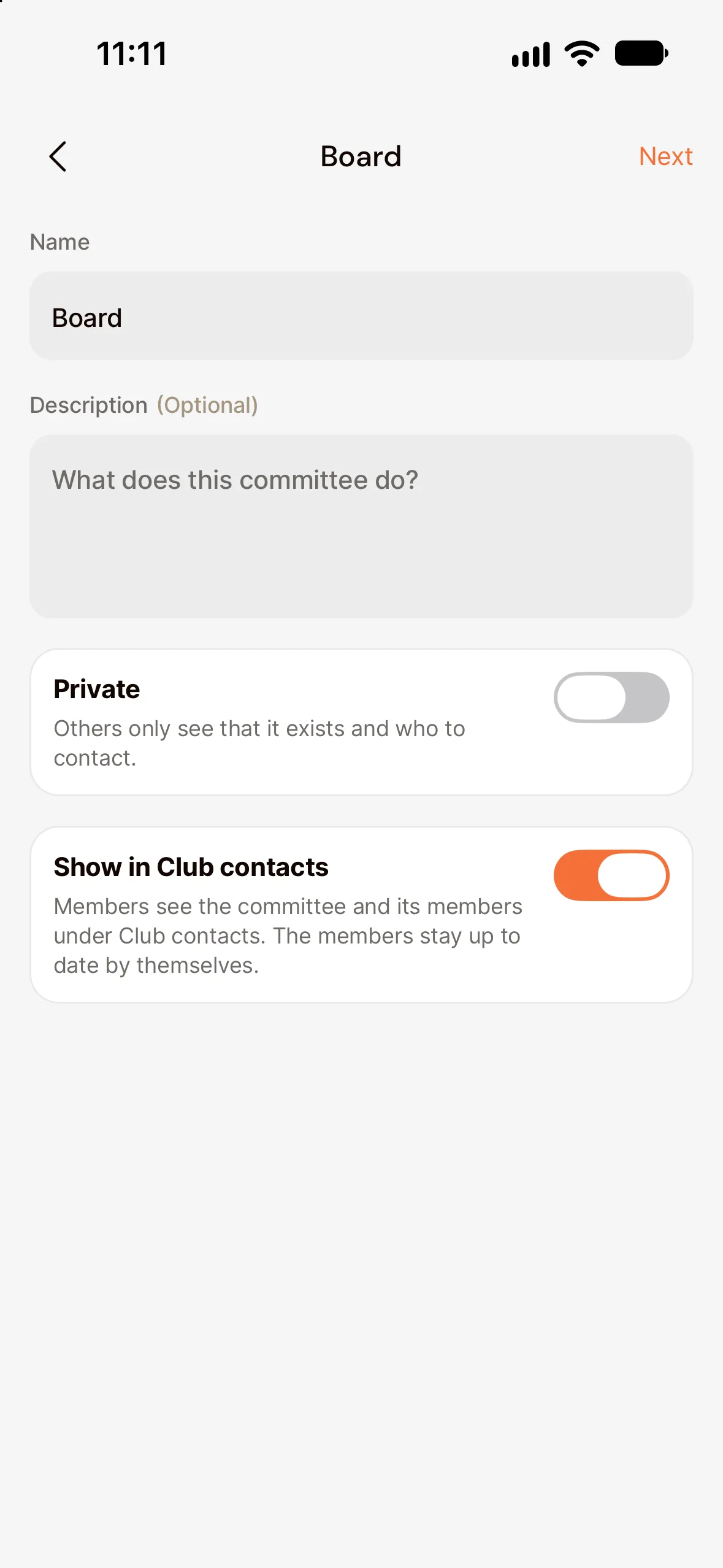
- Check the Name and, if you like, add a Description. A Working group also has Runs until, for a committee with an end date. Turn on Private if only its own members may see who’s on it. Turn on Show in Club contacts if all members may see the committee and its members under Club contacts. Tap Next: the committee is created.
- Under Add members, tick who’s on it. Next to each name you tick, tap the function, for example to change Member into Chair or Coordinator. Then tap Add, with the number of members, or Skip to do it later.
Creating a board? Then the app asks Also give the Board member role? Tap Give the role to give these members the role that comes with the board, or Not now.
Create a committee
- Go to Board & committees in the menu, under Management, and click New committee.
- Pick a template. Check the Name and, if you like, fill in the Explanation. A Working group also has Runs until. Turn on Private if only its own members may see who’s on it. Turn on Show in Club contacts if all members may see the committee and its members under Club contacts.
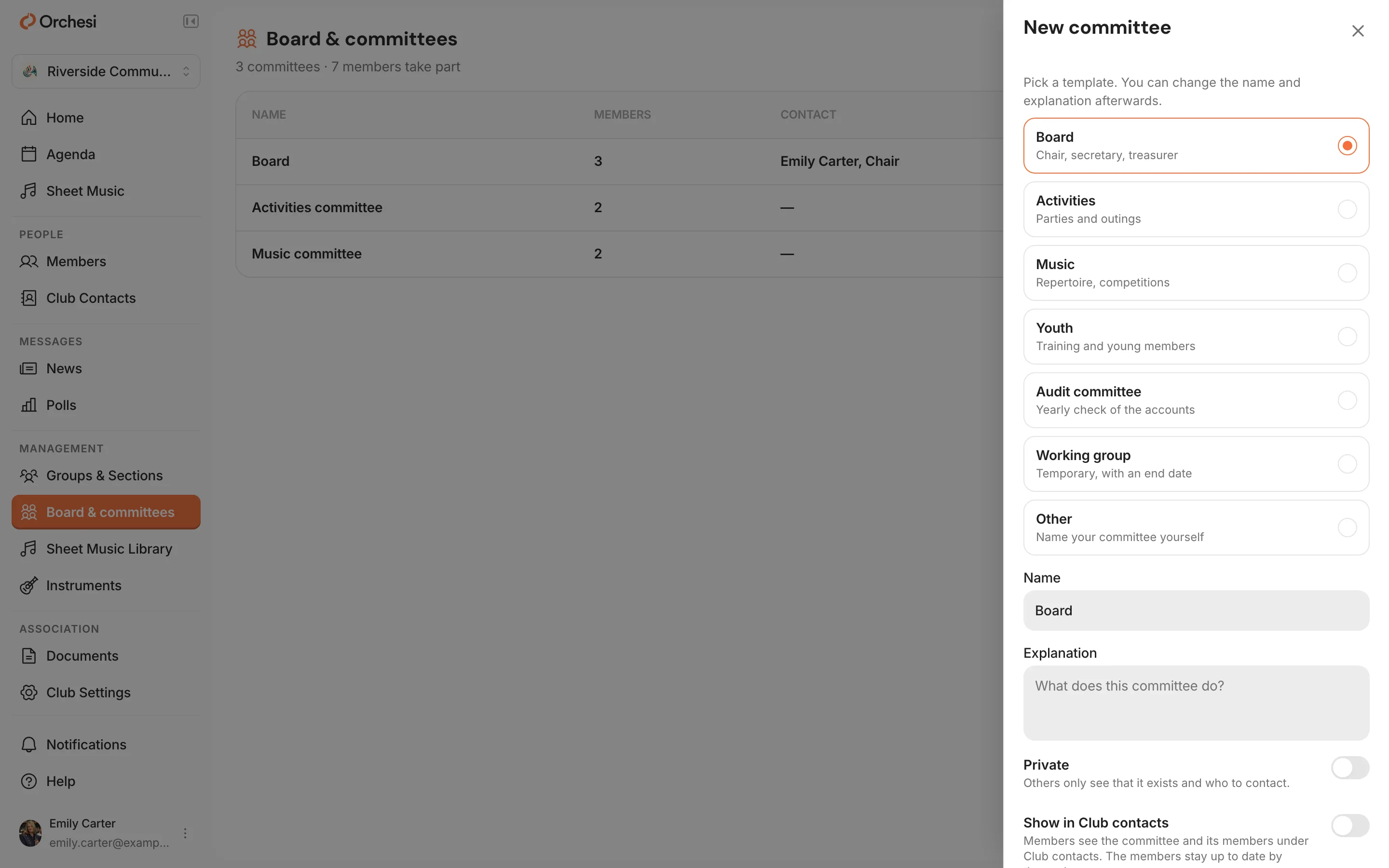
- Click Continue: the committee is created.
- In Add members to …, choose a Function and the members who get it, and click the button at the bottom, for example Add 3 members. The function applies to everyone you pick at once, so add the chair first and then the rest. Or click Skip to do it later.
Creating a board? Then you’re asked Also give the Board member role? for the members you add.
Which template?
| Template | For |
|---|---|
| Board | Chair, secretary, treasurer |
| Activities | Parties and outings |
| Music | Repertoire and contests |
| Youth | Training and young members |
| Audit committee | The yearly check of the accounts |
| Working group | A temporary committee, with an end date |
| Other | Any other committee: you name it yourself |
A board has the functions Chair, Secretary, Treasurer and Member (in the app: General member). Every other committee has Coordinator and Member. An association can have more than one board.
Already set up the board as a group?
Then Groups & Sections asks, for example, Is Board a committee? Choose Convert to committee and it moves to Board & committees, with its members, its meetings in the agenda and its news. Not a committee? Choose It’s a group (web: It is a group).
Converting isn’t possible while the group has sections, or while a conductor’s role is limited to that group: change that first. Changed your mind? On the committee’s page, choose Convert to group: in the app in the ••• menu, in the web app under More actions.
The coordinator plans the meetings
Whoever is Chair or Coordinator of a committee can add and remove its members and plan its meetings, without being an admin:
- In the app, open the committee and tap Plan a meeting.
- In the web app, open the committee and click Plan meeting.
The new event is already set up as a meeting for the committee; fill in the date and time and save it. A coordinator can only invite their own committee, and can’t edit or delete the committee itself.
What members see
Board & committees in the menu is for admins and coordinators. Members find the board, or another committee, under Club contacts, once Show in Club contacts is on for that committee:
- The committee is a category of its own in Club contacts, with its members and their function. The members stay up to date by themselves: whoever joins or leaves the committee appears or disappears there too.
- A member’s email address and phone number only show if that member shares them with fellow members.
- You change who’s on it at the committee itself, not in Club contacts.
- A Private committee is never shown in Club contacts. Making a committee private turns Show in Club contacts off.
- Guests don’t see committees.
You can also turn Show in Club contacts on later, when you edit the committee.
Invite a committee
When you create an event, a news post or a poll, you’ll find your committees under Committees, below the groups and sections. Only the members of that committee get it.
Last updated:
Did this article help?
Great, thanks for letting us know!
Thanks! We’ll use this to improve the article.
Still stuck?