Done in about 3 min(How long it takes to do this in Orchesi)
Manage your association's instruments
Keep track of the instruments your association owns, who's borrowing which one, when it needs maintenance and what damage there is.
Where do you use Orchesi?
No more spreadsheet: in Orchesi you see per instrument who has it, since when, when it’s due for a service and everything that’s happened to it. This is done by admins and the instrument manager.
Add an instrument
- Go to Instruments in the menu and click New Instrument.
- Choose the Status, Category and Type, for example Brass and Trumpet.
- Fill in the details you have: Brand, Model, Serial #, an Identifier such as TR-001, the Purchase Date, the Service Interval and the Insurance Value.
- Click Create Instrument.
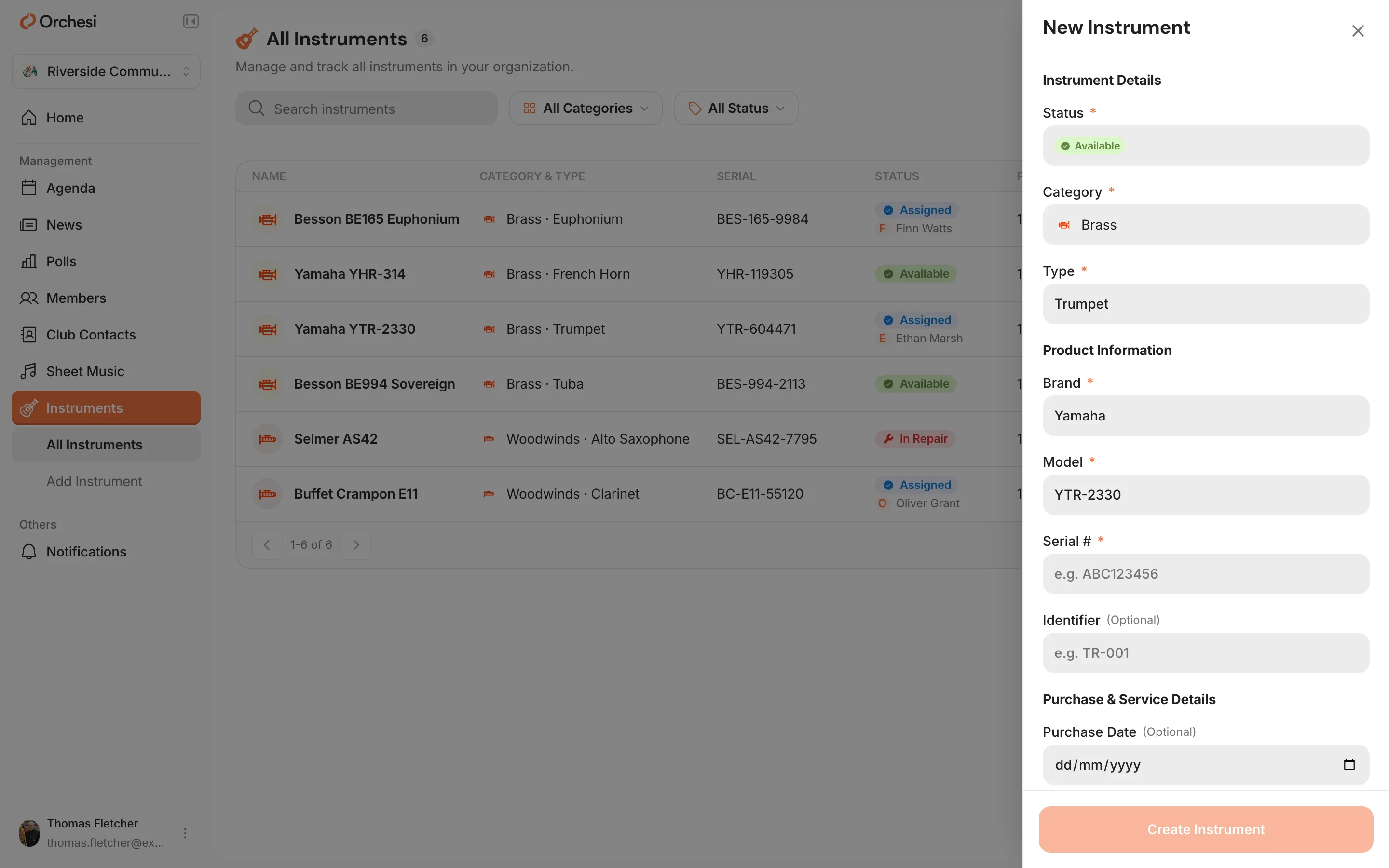
- You add photos on the instrument’s page: open it in the list and, under Photos, click Upload photo. Set as primary photo picks the photo shown at the top.
Lend and take back
- Open the instrument and click Assign to a member.
- Choose the member and optionally add handover notes, like case and two mouthpieces included.
- Instrument back? Click Return.
Under the assignment history you see who had the instrument before.
Maintenance and damage
- Log Maintenance: record what was done, when, by whom and what it cost. Fill in when the next service is due, too.
- Report Incident: record damage or missing parts, with the severity (Minor, Moderate or Major). Once it’s fixed, mark it as Resolved.
Add an instrument
- Open the Club tab and choose Instruments. Tap Add instrument.
- Choose the status, category and type, and fill in the details you have, like the Brand, serial number and Insurance Value.
- Add photos and the purchase invoice and tap Save Instrument.
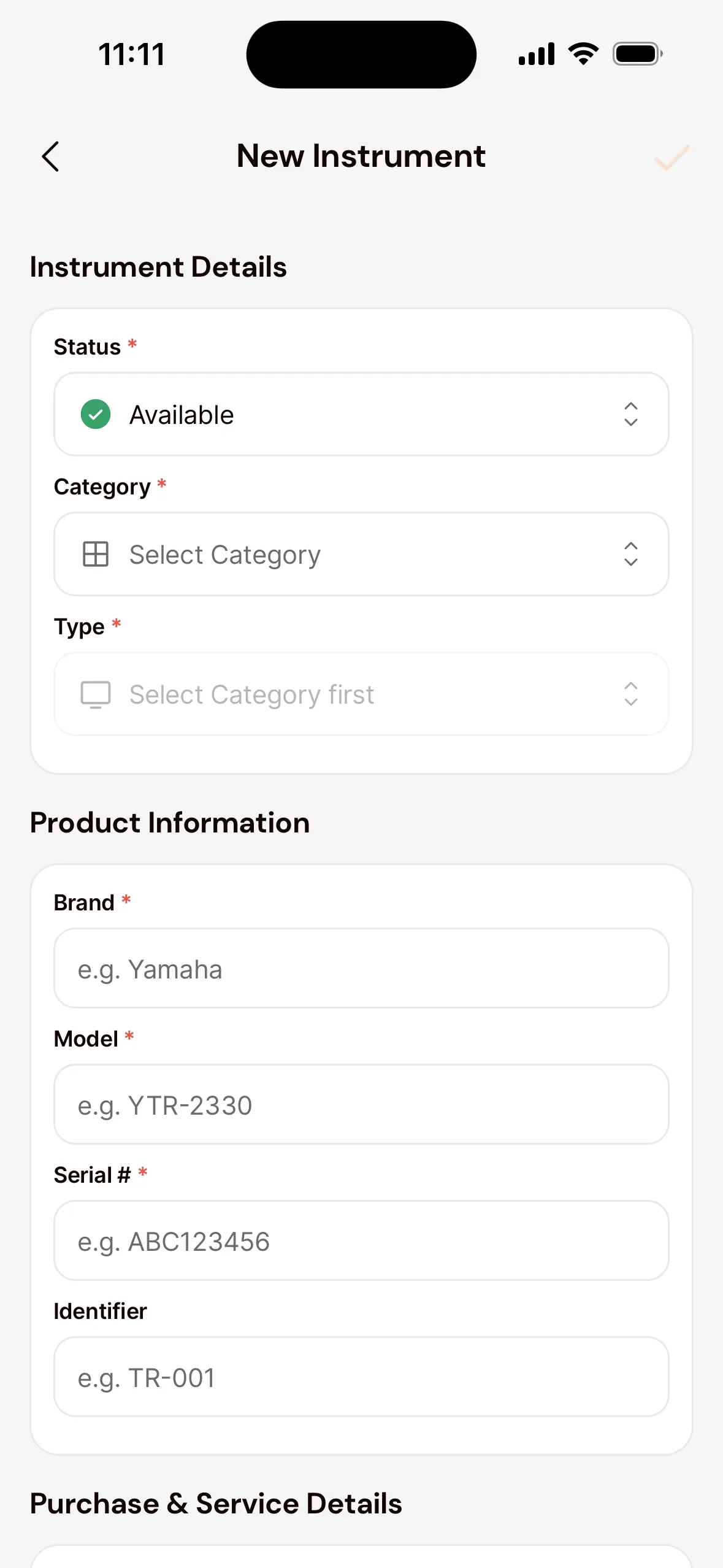
- The app asks Assign now?. Tap Assign to hand it to a member right away, or Later.
Lend and take back
Open the instrument and tap Assign. Choose the member and optionally add handover notes. When the instrument comes back, tap Return.
Maintenance and damage
Open the instrument. Under Maintenance, log what was done, and under Incidents, report damage with Report.
The four statuses
- Available: ready to lend out.
- Assigned: in use by a member.
- In Repair: temporarily unavailable.
- Retired: no longer in use, but kept in the history.
Tip: give every instrument its own label and put it on the case as a sticker. Then one search finds the instrument in Orchesi.
Last updated:
Did this article help?
Great, thanks for letting us know!
Thanks! We’ll use this to improve the article.
Still stuck?