Done in about 2 min(How long it takes to do this in Orchesi)
Set up club contacts
Show members who to ask about dues, membership, uniforms or sponsorship, with name, role, email and phone number.
Where do you use Orchesi?
“Who do I ask about…?” With club contacts you answer that question once, for everyone. Members find the right person per topic, and the board gets fewer stray questions.
Add a category and contacts
- Open the Club tab and choose Club Contacts.
- Tap + at the top right.
- Under Category, tap Select a category and choose the topic. Not there yet? Tap New Category in the list and give it a name, for example Dues or Membership.
- Choose a member, or choose Or add someone who is not a member, for example the landlord of your rehearsal space.
- Fill in the Role / Label, for example Treasurer, check the email address and phone number, and tap Add Contact.
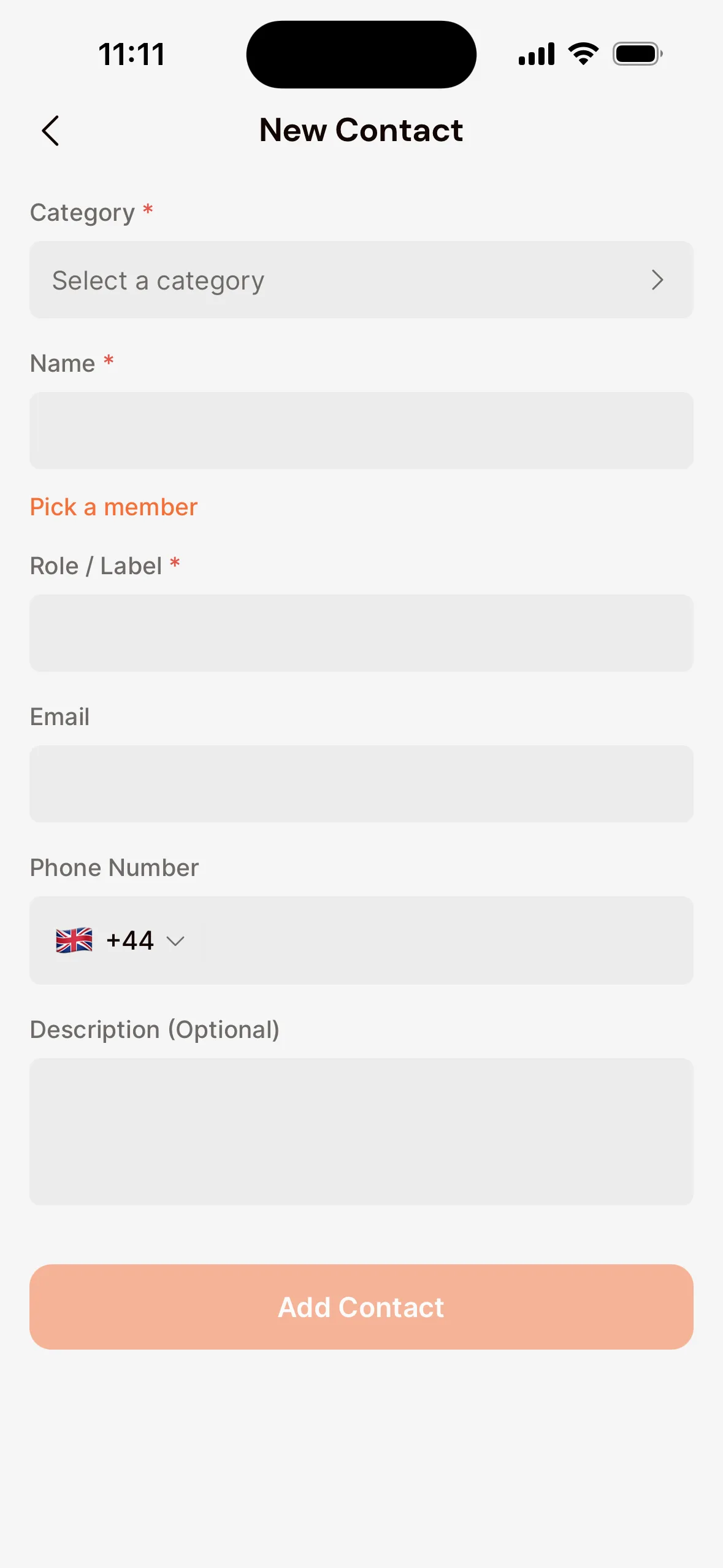
Add a category and contacts
- Go to Club Contacts in the menu.
- Click New Category, give it a name, for example Dues, and create it.
- In the category, click Add Contact.
- In the Assign Members tab, choose one or more members, or in the External tab, fill in the details of someone who isn’t a member.
- Fill in the Role / Label, for example Treasurer. If you pick several members at once, they all get this role.
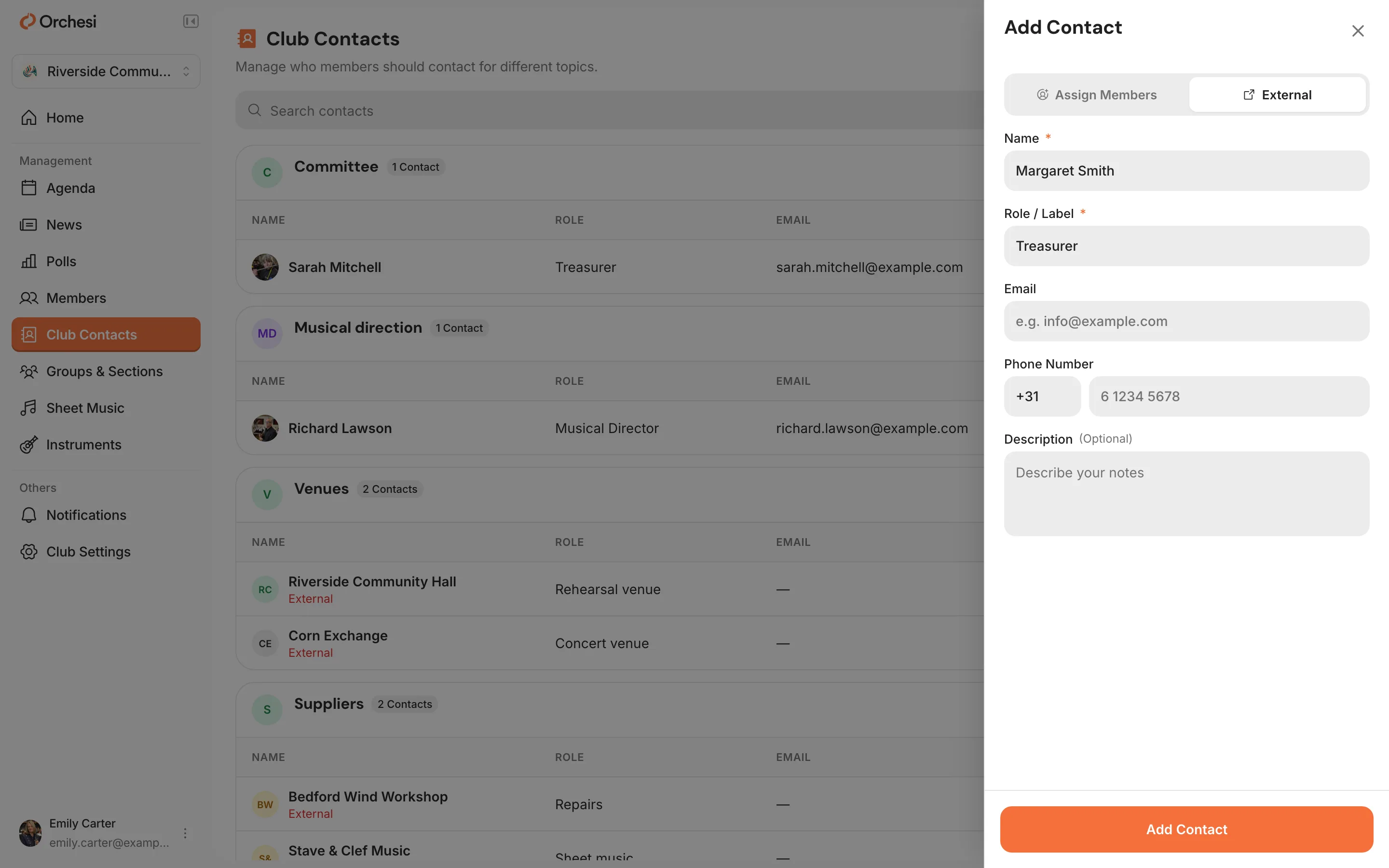
A member’s email address and phone number
For a contact who is a member, club contacts show the email address and phone number from that member’s profile. Fellow members only see them if the member shares them with members; you and the other admins always see them. Do members need to reach that role anyway? Fill in an email address or phone number for the contact itself, for example the treasurer’s address of your association. Details you fill in for a contact are visible to all members.
Handy categories to start with
- Membership: joining, leaving and address changes.
- Dues: payments and questions about dues.
- Music: the conductor and the sheet music manager.
- Instruments and uniforms: loans, repairs and uniforms.
- Sponsorship and PR: for businesses and the press.
Members see club contacts in the app on the Club tab, and in the web app under Club Contacts.
Last updated:
Did this article help?
Great, thanks for letting us know!
Thanks! We’ll use this to improve the article.
Still stuck?