Done in about 5 min(How long it takes to do this in Orchesi)
Add and share sheet music
Put a piece with all its parts in Orchesi and share it through a setlist for the concert. Every member then sees their own part.
Where do you use Orchesi?
No more handing out copies: put a piece in Orchesi once, and every member sees the part for their own instrument. This is easiest in the web app, on the computer where your PDF files are.
Add a piece
- Go to Sheet Music in the menu and click New Music.
- Enter the Title, and optionally the Composer and Arranger. Click Save Changes.
- Under Parts, drag the PDF files of all parts into the box at once. Orchesi creates a part per file and recognizes the instrument from the file name, for example Trumpet 1.pdf.
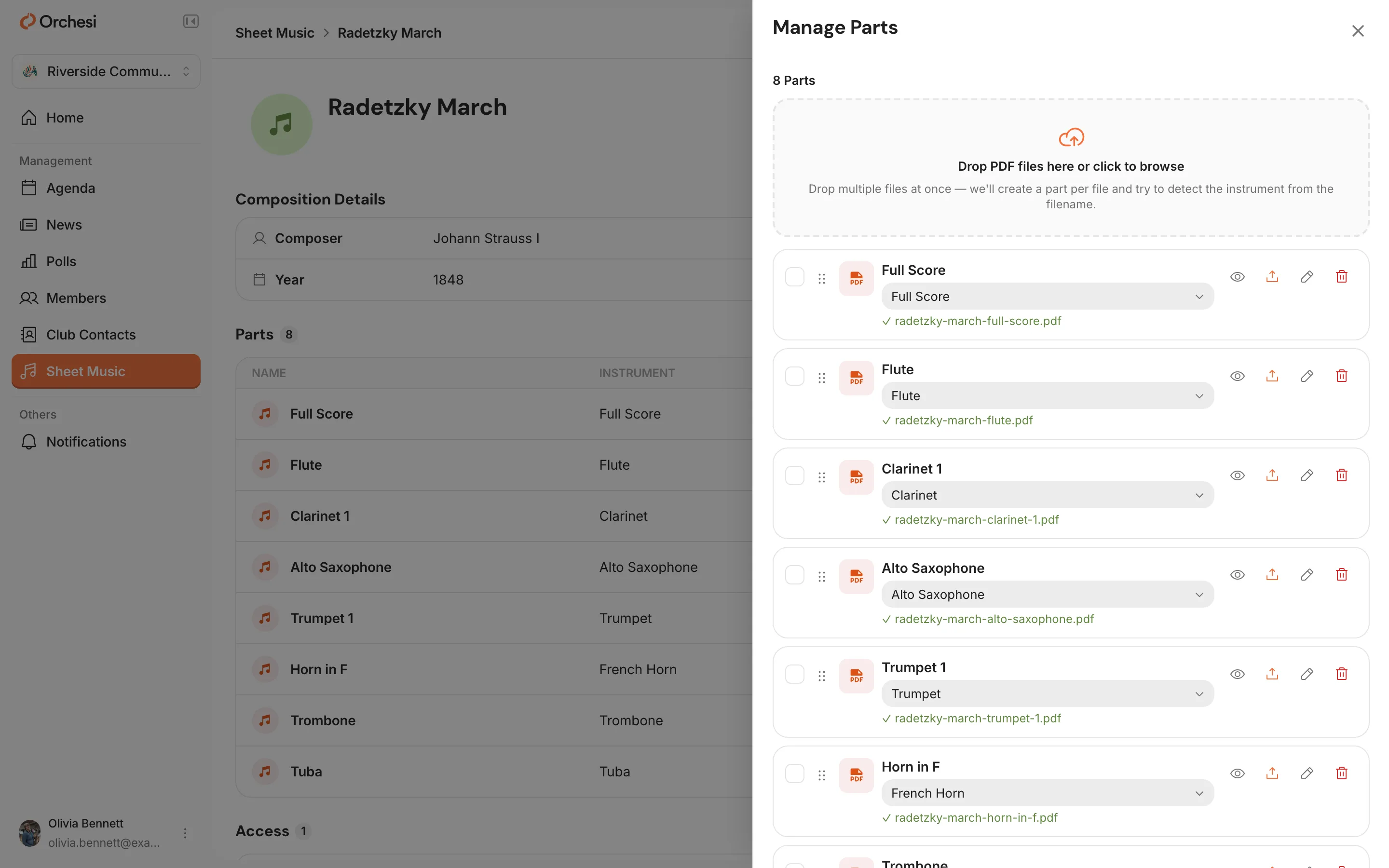
- Check in the table under Parts that every part has the right instrument. If something’s wrong, click Manage.
Share it through a setlist
A new piece isn’t visible to anyone yet. The easiest way to share it is through a setlist linked to the concert:
- Go to Sheet Music, open Setlists and click New Setlist.
- Give it a Name, for example Spring Concert 2026, and click Create Setlist. Add the pieces with Add Piece.
- Open the concert in the Agenda, click Edit and choose the setlist under Setlist.
Everyone invited to the concert can now open the pieces, each with the parts for their own section. You don’t need to give access per piece. Access ends one day after the concert.
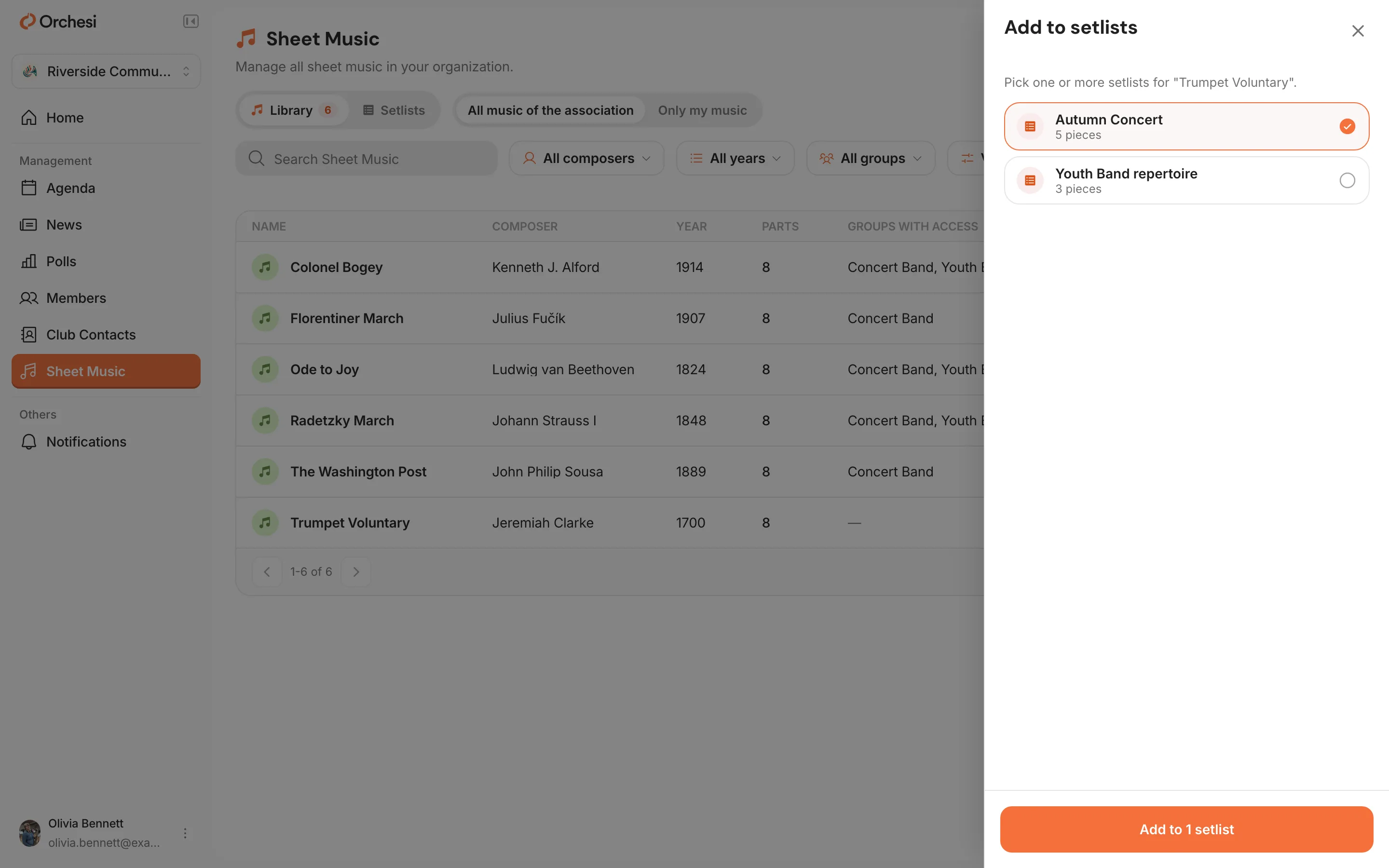
Does the setlist already exist? Then, in the Library, click Add to setlist next to the piece, pick one or more setlists and click the Add to … button at the bottom. Setlists the piece is already on are ticked already.
Members who get access to a new piece get a notification about it, and see the piece with a New label for 7 days.
Or give access per piece
Want members to keep a piece, separate from a concert? Give access to the piece itself:
- Under Access, click Manage and then Add access.
- Choose the group (or All members) and what members see:
- Based on section: every member only sees the parts of their own section (usually the handiest);
- All Parts: everyone sees all parts, for example in a small ensemble.
All options, including access per setlist, are in Manage sheet music access and setlists.
Keep an overview of your library
Under Sheet Music, the Library is in alphabetical order. The Library button shows how many pieces are in the list with your filters.
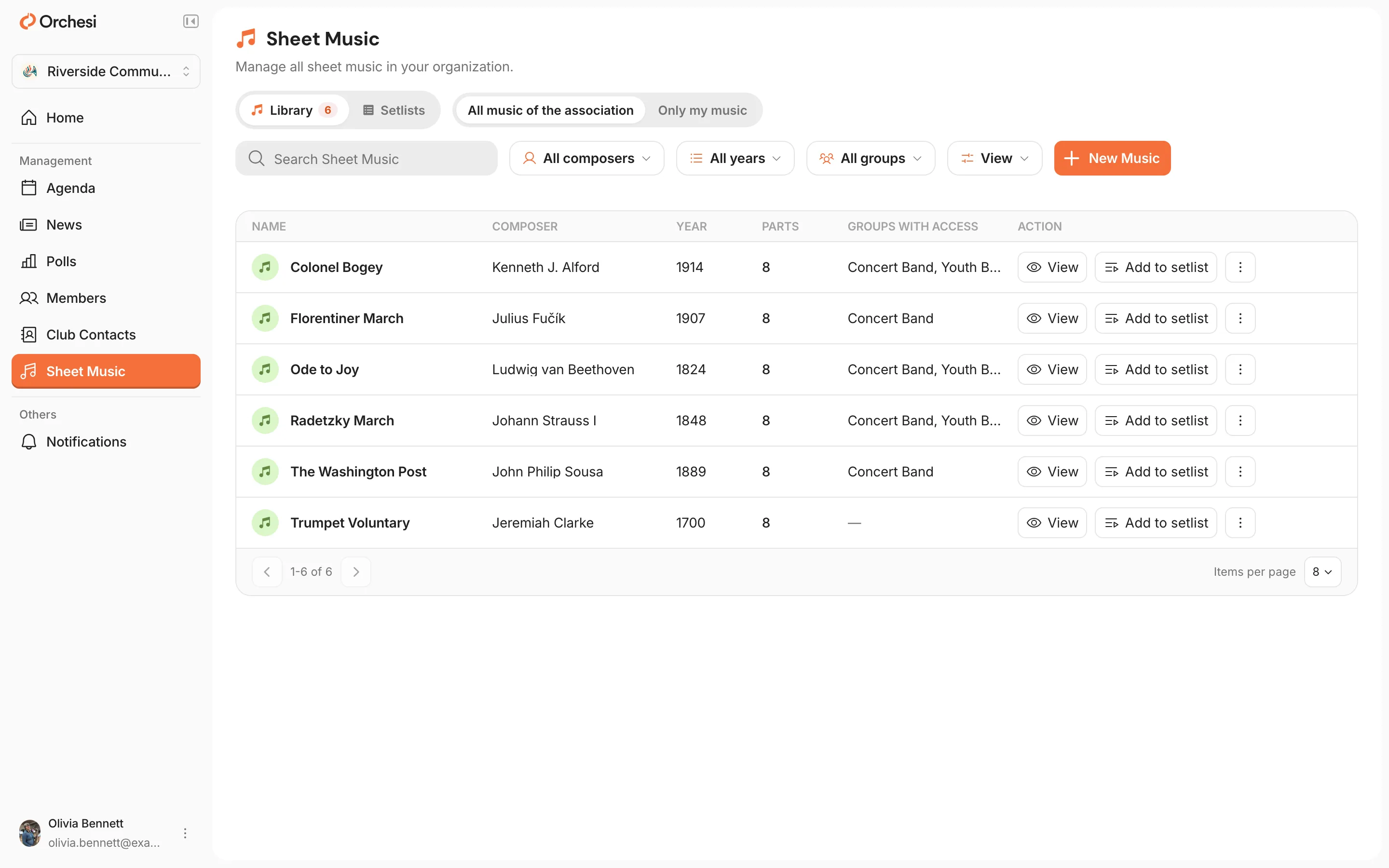
- Groups with access: per piece, the groups that can open it, directly or through a setlist. Access for a section counts for its group. Hover over the names to see the whole list. Use the All groups button to filter on one or more groups.
- All music of the association / Only my music: as a sheet music manager, switch between the whole library and the music you were given yourself as a member. Your choice is remembered on this device.
- Member of more than one association? Then their music is in one list, with an Association column and an All associations filter.
- New: a piece added in the last 7 days that you haven’t opened yet has a New label.
Only admins and sheet music managers see the Groups with access column and filter.
Members can’t see their part? Check that they’re in the right section, and that they’re invited to the event the setlist is linked to.
Not in the app. You can do this in the web app.
Last updated:
Did this article help?
Great, thanks for letting us know!
Thanks! We’ll use this to improve the article.
Still stuck?