Done in about 5 min(How long it takes to do this in Orchesi)
Manage sheet music access and setlists
Decide who sees which sheet music. We advise a setlist linked to the concert. Plus the other options, per piece or per setlist.
Where do you use Orchesi?
A new piece isn’t visible to anyone until you arrange access. You can do that through an event, per setlist or per piece. The choice is yours. We recommend the event route, because then Orchesi sorts out access for you.
What we recommend
- Add the piece to Orchesi, with all its parts. See Add and share sheet music.
- Put the piece in a setlist, for example Spring Concert 2026.
- Link the setlist to the event, for example the concert.
That’s it. Everyone invited to the event can now open the pieces in the setlist. Each member sees the parts for their own section. You don’t have to do anything about access per piece or per setlist.
Why we recommend this:
- Whoever you invite gets the music. Invite only the youth band, and only the youth band gets the pieces.
- The setlist can still grow. Add a piece later and everyone gets it automatically. Remove a piece and it disappears for the members too.
- Nothing to tidy up. Access ends by itself after the event.
Tip: link the setlist as soon as you schedule the concert. Members then have the music for the whole run-up, rehearsals included. So you don’t need to link the setlist to every rehearsal.
How long do members keep the music?
From the moment they’re invited until one day after the event ends. A member who answered Going for a concert keeps the music for another week after the concert.
If you cancel the event, or remove the setlist from it, the access that came through that event ends.
Who can do what?
- Add pieces and give access: Admin and Sheet music manager.
- Create setlists: Admin, Conductor and Sheet music manager.
- Link a setlist to an event: Admin, Conductor and Agenda manager.
Are you a sheet music manager without an agenda role? Ask the conductor or the agenda manager to link the setlist to the event. See Give roles.
How to do it in the web app
- Go to Sheet Music, open Setlists and click New Setlist.
- Give it a name, turn on Restricted visibility and click Create Setlist.
- Add pieces with Add Piece, and drag them into the right order. Or the other way round: in the Library, click Add to setlist next to a piece and pick the setlists.
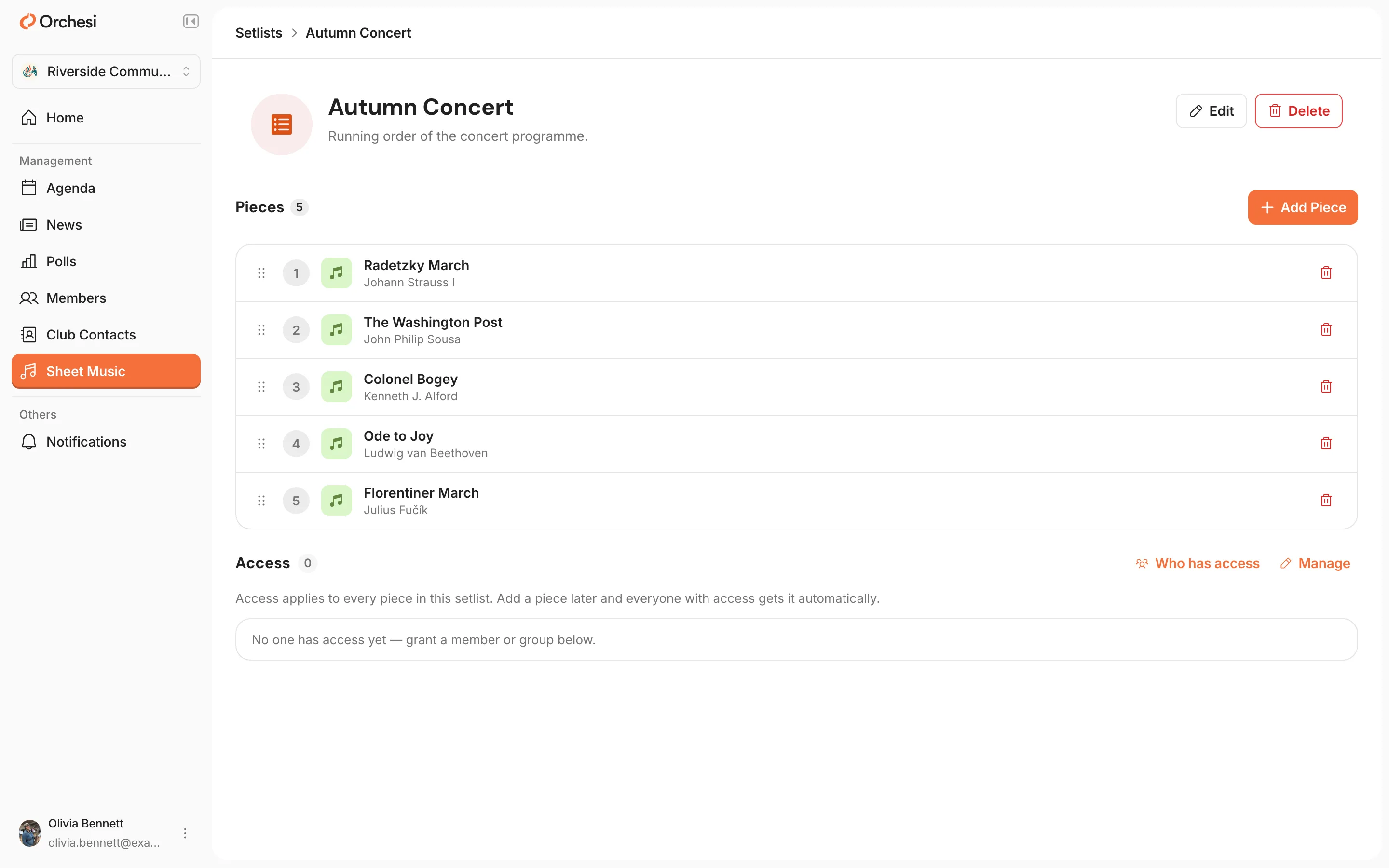
- Open the concert in the Agenda, click Edit and choose the setlist under Setlist.
How to do it in the app
- Open the Music tab, choose Setlists and tap Create Setlist.
- Give it a name, turn on Restricted visibility and save.
- Tap Add Music and choose the pieces.
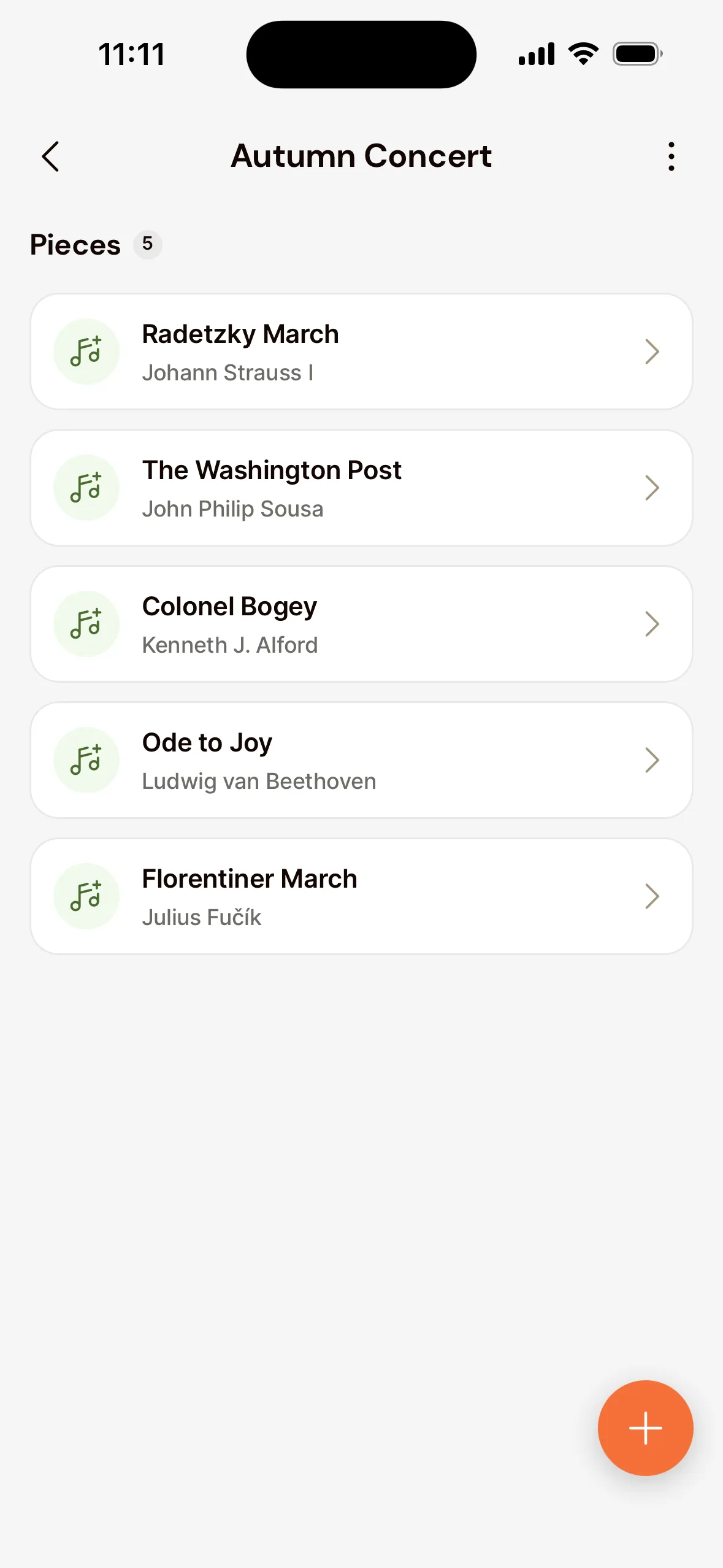
- Edit the concert and choose the setlist under Setlist.
Other ways to give access
Sometimes you want members to keep music for longer, separate from an event. Think of marches for the parade, the association’s own song or warm-up pieces. For that you give access per setlist or per piece. That access stays until you revoke it.
| Option | Good for | How long |
|---|---|---|
| Through an event | Concerts and performances | Until one day after the event |
| Per setlist | Standing repertoire, like marches or Christmas music | Until you revoke it |
| Per piece | A single piece, or music for a soloist | Until you revoke it |
You can combine them. If a member has access through two routes, the widest one applies. For access per setlist and per piece, you always choose who and which parts.
Who?
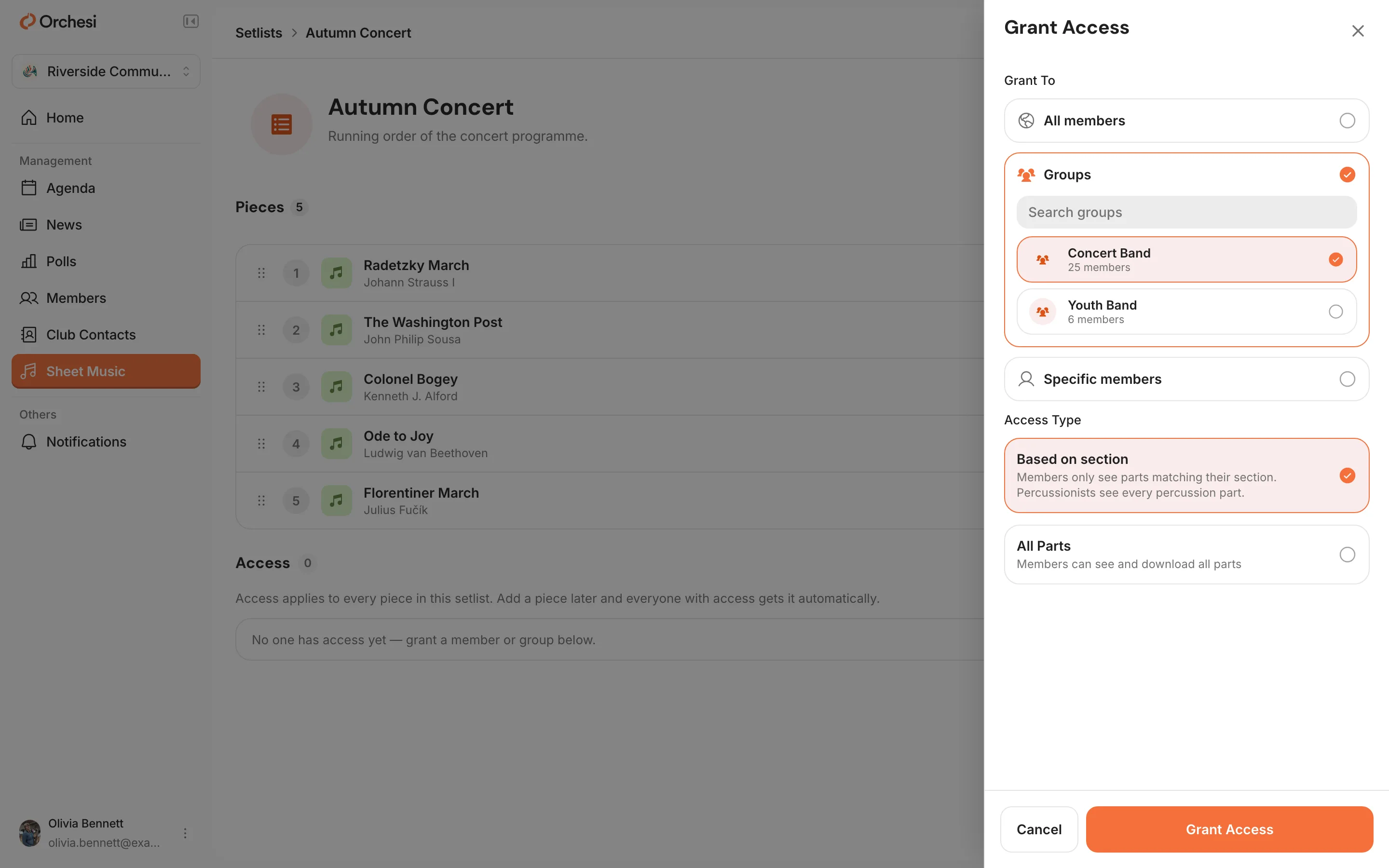
- All members: everyone in the association, including members who join later.
- Groups: the members of one or more groups, including their sections. Anyone who joins the group later gets access automatically.
- Specific members: one or more individual members, for example a soloist or a stand-in.
Which parts?
- Based on section: members only see the parts that match their section. Percussionists see all percussion parts. This is usually the handiest.
- All Parts: members see every part of the piece, whatever their instrument. Handy for a small ensemble, or for someone who plays several instruments.
Through an event, members always see the parts for their own section. If someone needs more, give that person separate access to All Parts.
Is ‘based on section’ working well? That depends on two things. Every part has the right instrument type, and every member is in the right section. A part without an instrument, like a full score, is set to None (generic part).
Access per setlist
This gives access to every piece in a setlist at once. Add a piece later, and everyone with access gets it automatically.
- Go to Sheet Music, open Setlists and open the setlist.
- Under Access, click Manage and then Add access.
- Under Grant To, choose who gets access, choose the Access Type and click Grant Access.
Access per piece
- Go to Sheet Music and open the piece.
- Under Access, click Manage and then Add access.
- Choose who gets access and which parts, and click Grant Access.
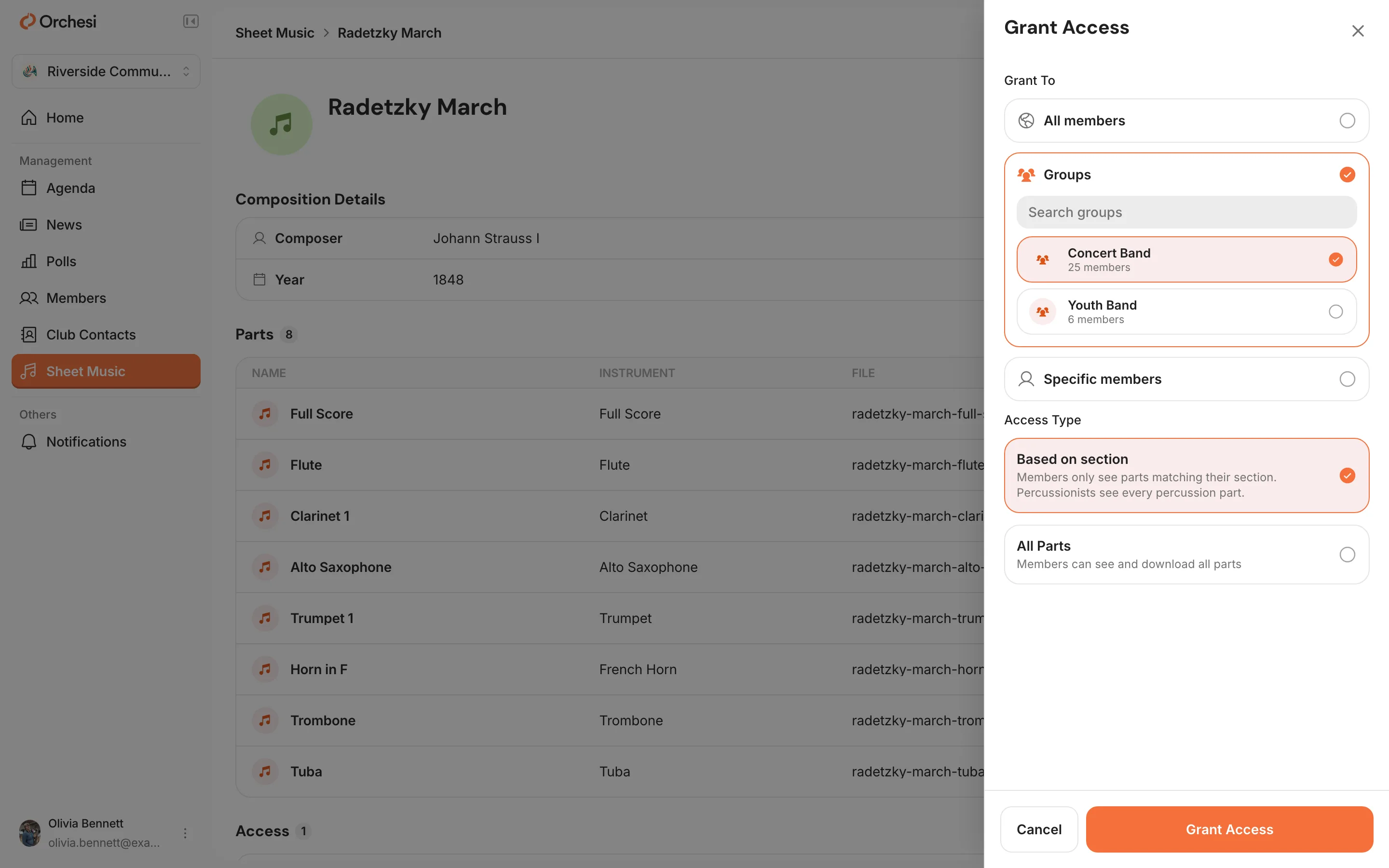
To take access away again, click Manage under Access and then Revoke on that row.
See who has access
Open the piece or the setlist and click Who has access under Access. You see every member who can open the music right now, and how: Directly, through a group, a section, All members, a setlist, or temporarily through an event. Next to it you see until when, or Unlimited.
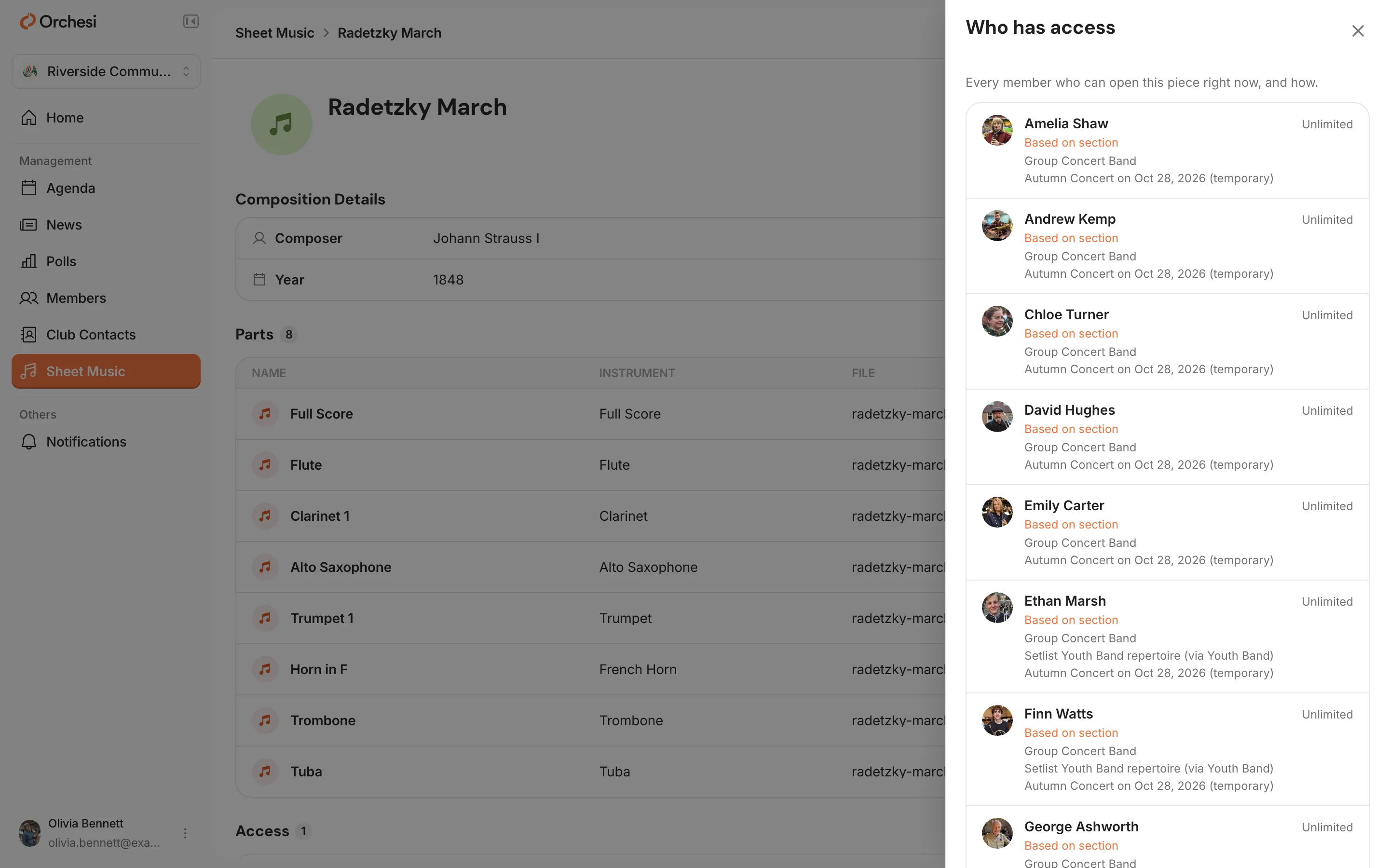
Admins, sheet music managers and conductors always see all music. They’re only in this list when a grant reaches them. Only admins and sheet music managers see the Who has access button.
Access per piece
- Open the Club tab and choose Sheet Music. Open the piece.
- Under Access, tap Manage and then Grant Access. Choose who and which parts, and confirm.
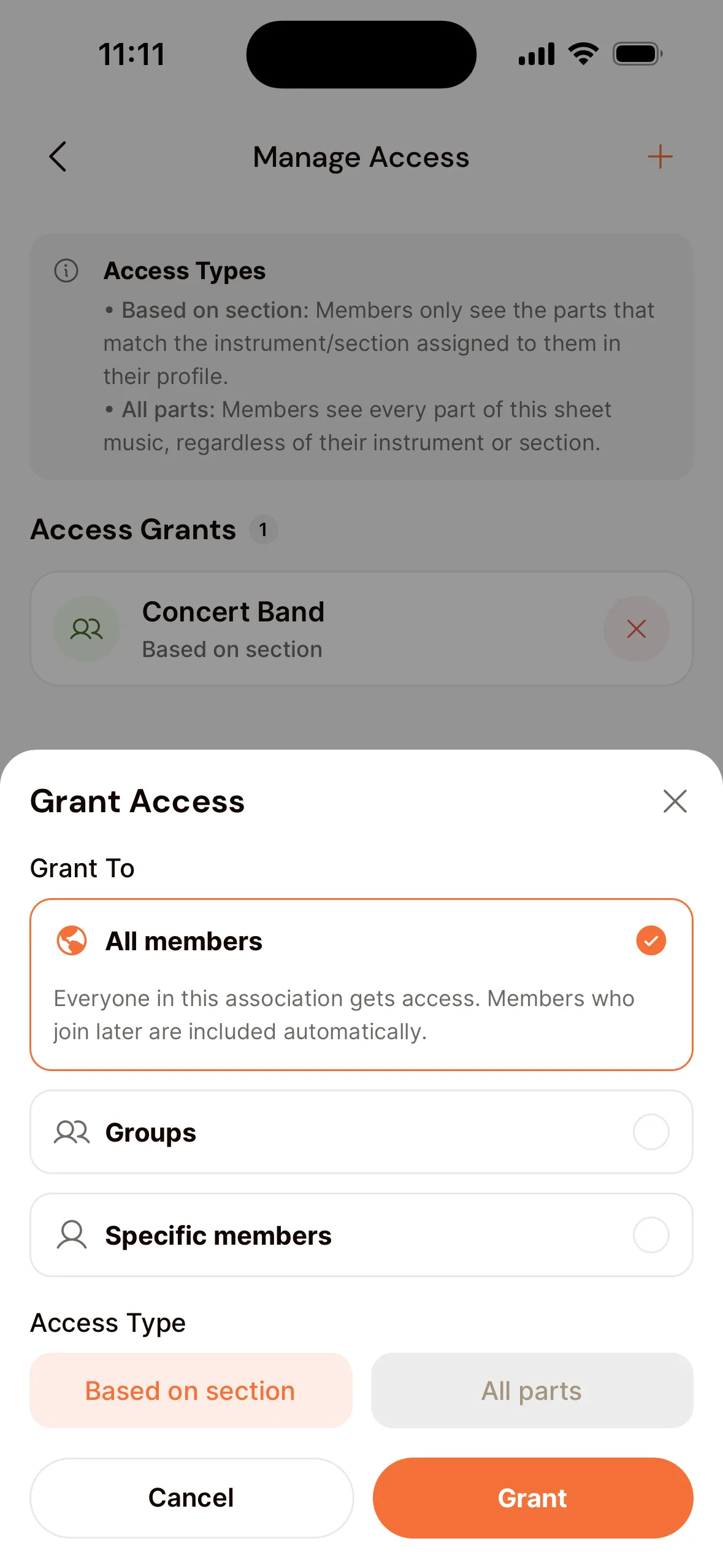
Access per setlist is given in the web app. That’s also where you see Who has access to a piece or setlist. Uploading pieces and parts is easiest there too, on the computer where your PDF files are.
Who sees the setlist itself?
This is separate from access to the music. A setlist is either visible to all members, or has Restricted visibility.
A setlist with Restricted visibility can only be seen by:
- the members invited to an event the setlist is linked to;
- the members who were given access to the setlist itself;
- the admin, the conductor, the sheet music manager and agenda managers.
A setlist that’s visible to all members doesn’t give access to the music by itself. Members can see which pieces are on it. They can only open a piece once they have access through an event, the setlist or the piece.
Want new setlists to be restricted by default? Set that in the association settings, under Sheet music.
Good to know: the admin, the conductor and the sheet music manager always see the whole library with every part. You don’t need to arrange access for them.
A member can’t see the music?
Check these points:
- Is the member listed under Who has access for the piece, in the web app?
- Was the member invited to the event, and is the setlist linked to that event?
- Did the event end more than a day ago? Then give access per setlist or per piece.
- Is the member in the right section, and does the part have the right instrument type?
Last updated:
Did this article help?
Great, thanks for letting us know!
Thanks! We’ll use this to improve the article.
Still stuck?