Step 9 of 9 · Setting up your associationDone in about 1 min(How long it takes to do this in Orchesi)
Give roles to the board, conductor and managers
Give board members, the conductor and other volunteers exactly the rights they need, so not everything rests on one person.
Where do you use Orchesi?
Everyone you invite joins as a regular member. Once someone is in, you give board members, the conductor and other volunteers a role. That way the conductor can plan rehearsals and the sheet music manager looks after the music, without everything going through one person.
Give a role
- Go to Members in the menu and open the member.
- Click Manage Roles.
- Turn on the roles that fit and click Save Changes.
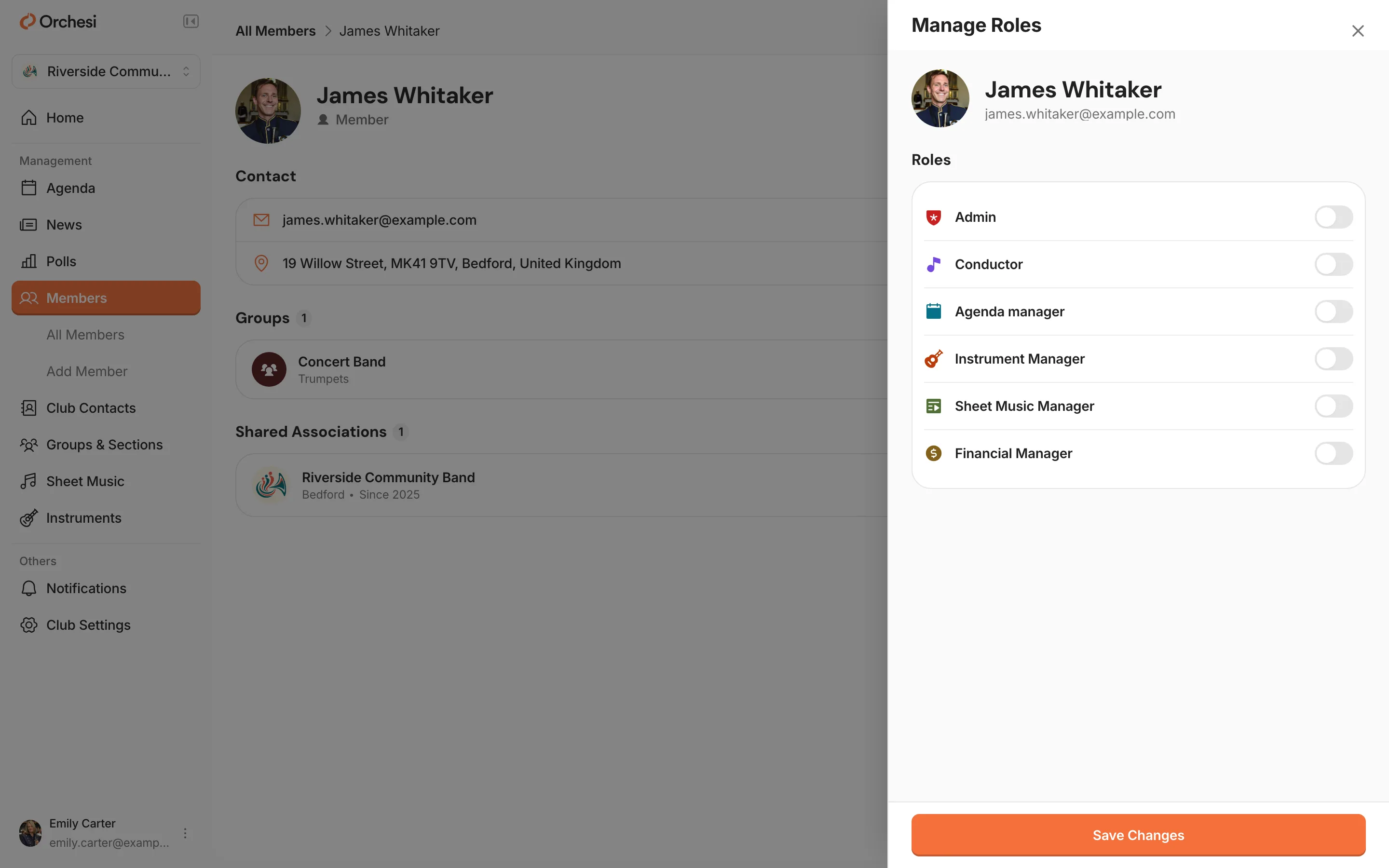
Give a role
- Open the Club tab, go to the members and tap the member.
- Tap Manage Roles.
- Turn on the roles that fit and save.
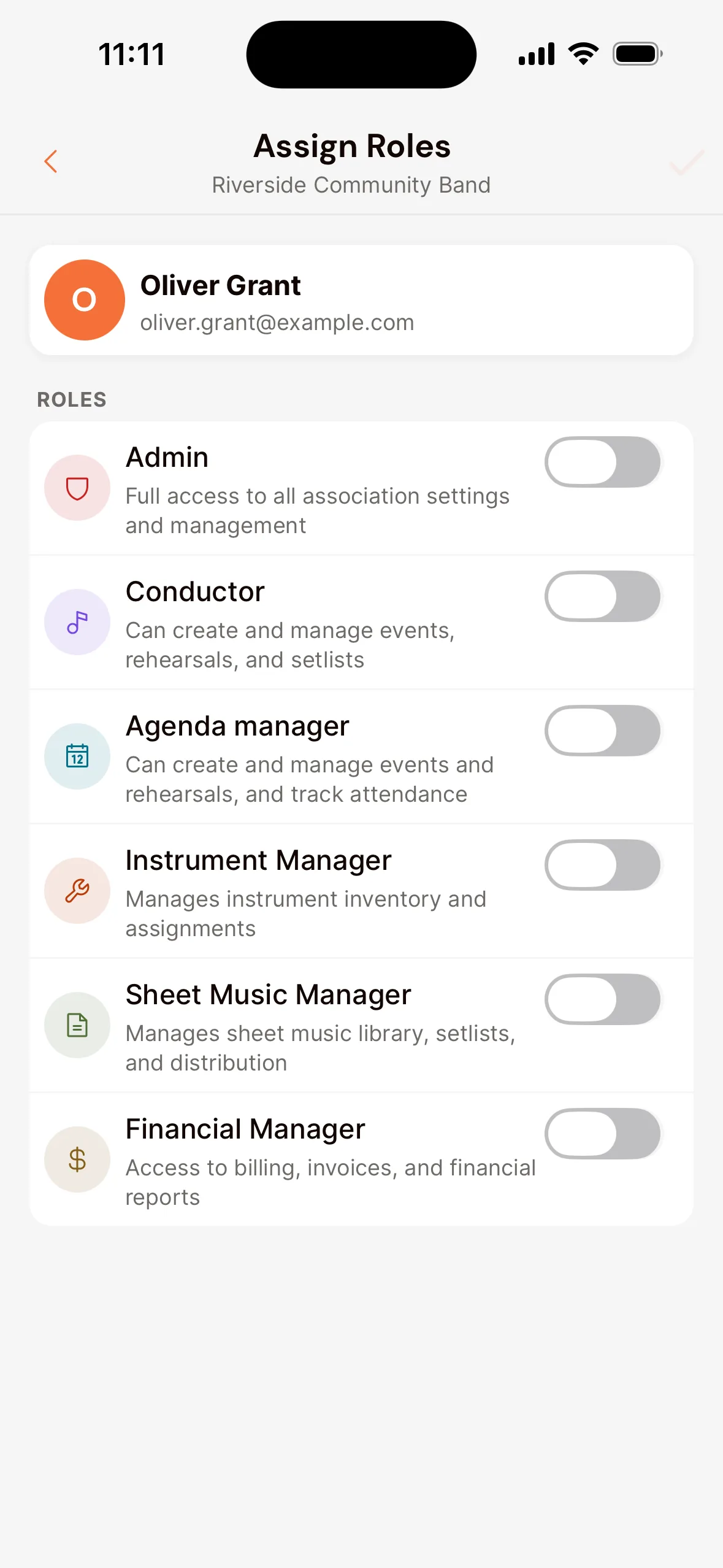
What can each role do?
A check mark means the role can do this. On top of that, everyone can do what every member can: see the agenda and sheet music, say whether they’re coming, vote and read the news.
| Task | Admin | Board | Conductor | Agenda | Sheet music | Instruments | Financial |
|---|---|---|---|---|---|---|---|
| Members & association | |||||||
| Invite, import and remove members | Yes | No | No | No | No | No | No |
| Approve sign-ups with the code | Yes | No | No | No | No | No | No |
| Invite guests | Yes | No | No | No | No | No | No |
| Give roles | Yes | No | No | No | No | No | No |
| Manage groups and sections | Yes | No | No | No | No | No | No |
| Manage club contacts | Yes | No | No | No | No | No | No |
| Association details, verification and settings | Yes | No | No | No | No | No | No |
| Agenda | |||||||
| Plan, change and cancel events | Yes | No | Yes | Yes | No | No | No |
| Tasks and attachments on events | Yes | No | Yes | Yes | No | No | No |
| Keep the roll call | Yes | No | Yes | Yes | No | No | No |
| Sheet music | |||||||
| Upload sheet music and give access | Yes | No | No | No | Yes | No | No |
| Create and manage setlists | Yes | No | Yes | No | Yes | No | No |
| See the whole library | Yes | No | Yes | No | Yes | No | No |
| See all setlists, restricted ones too | Yes | No | Yes | Yes | Yes | No | No |
| Communication | |||||||
| Post news | Yes | Yes | Yes | No | No | No | No |
| Create polls | Yes | Yes | No | No | No | No | No |
| Instruments & subscription | |||||||
| Manage and lend instruments | Yes | No | No | No | No | Yes | No |
| Subscription, payment and invoices | Yes | No | No | No | No | No | Yes |
Which role fits whom?
- Admin: your main point of contact for Orchesi, for example the secretary. Give this role to at least two people. If your only admin is unreachable or leaves the association, nobody can invite members, give roles or change the settings anymore. Is your board changing? See Change the admin when your board changes.
- Board member: for the rest of the board. They can share news and run polls, and are shown as the board of the association.
- Conductor: plans rehearsals, puts the program together and sees the whole music library.
- Agenda manager: for whoever keeps the agenda, without the rest of the admin work.
- Sheet music manager: your association’s librarian.
- Instrument manager: keeps track of instrument loans, maintenance and damage.
- Financial manager: the treasurer, for the subscription and invoices.
Good to know: an admin already has every permission, so there’s no need to turn on the other roles as well. You can give someone several roles at once, for example Board member and Financial manager. Guests don’t get a role; you invite them separately, see Invite guests.
Last updated:
Did this article help?
Great, thanks for letting us know!
Thanks! We’ll use this to improve the article.
Still stuck?
You’ve done every step in this route. Nice work!
All steps
Setting up your association
- Create your association in Orchesi
- Create groups and sections
- Plan rehearsals and events
- How to bring your members along to Orchesi
- Ready-made messages for your members
- The easiest way to invite all your members
- Invite members straight into the right groupsoptional
- Import your members from Excel or CSVoptional
- 9Give roles to the board, conductor and managers