Step 7 of 9 · Setting up your associationDone in about 1 min(How long it takes to do this in Orchesi)
Invite members straight into the right groups
Invite members by email and put them in their groups and sections right away, so they see their rehearsals as soon as they accept.
Where do you use Orchesi?
Invite your members by email and choose their groups and sections as you invite them. As soon as someone accepts, they’re in the right groups and see the rehearsals and events of those groups straight away. No sorting people out afterwards.
Tip: set up your association first. Create your groups and sections and plan your first rehearsals, and only then invite your members. That way you can put everyone in the right place in one go.
Inviting the whole association? Then one message with your invite code in the group chat is the easiest. You put people in their groups when you approve their request. See The easiest way to invite all your members. Got a very long list? You can also import your members.
Invite by email
- In the app, go to Members and tap +.
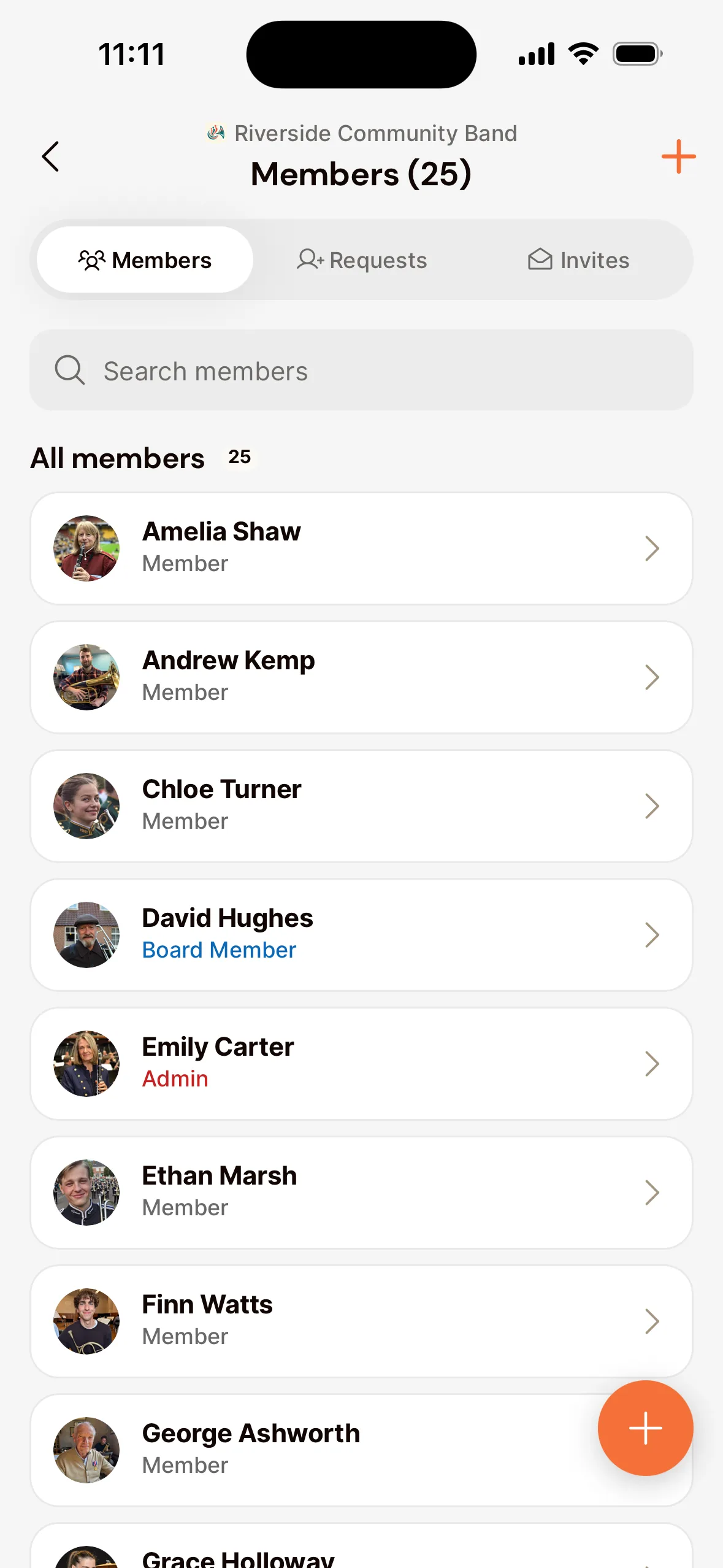
- Choose By Email and enter the email address. Inviting more people? Tap Add another email.
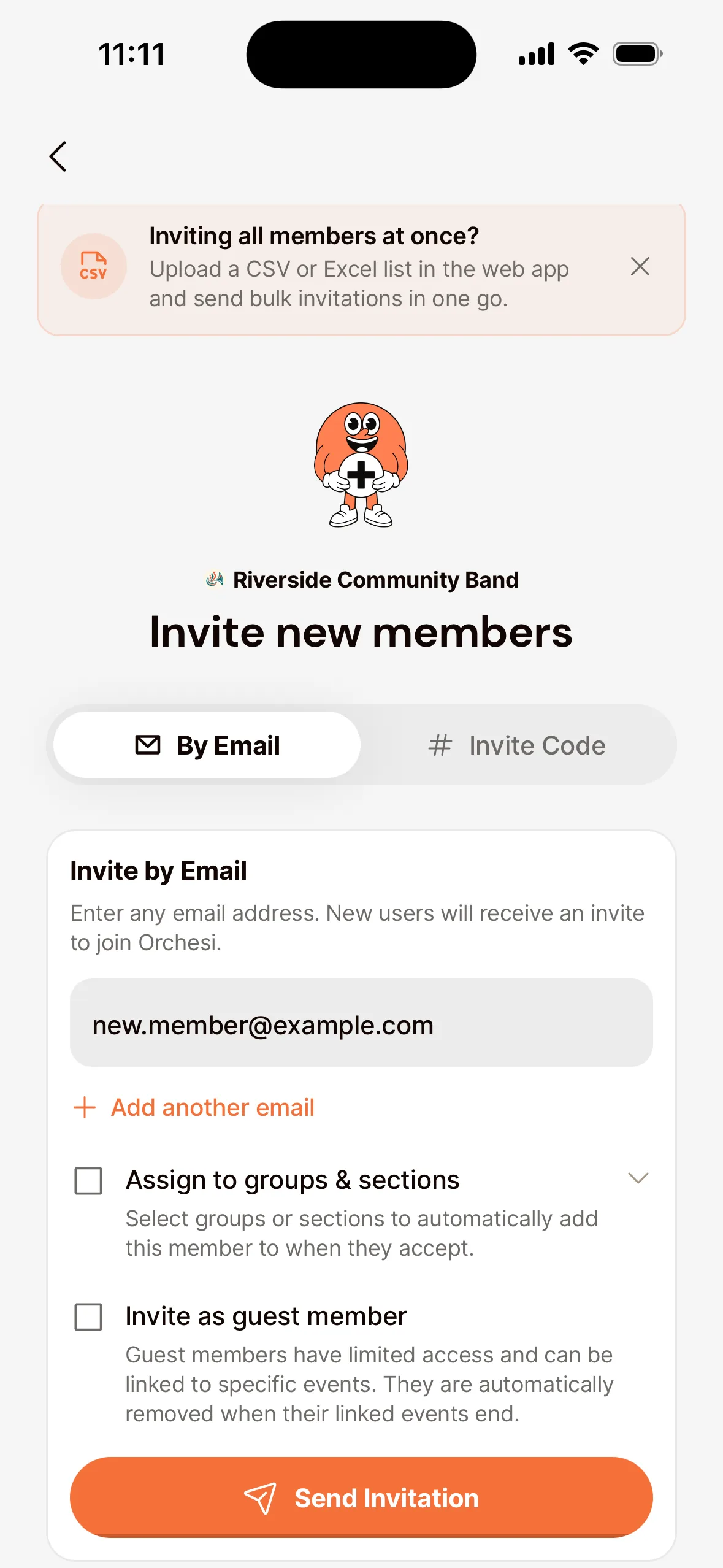
- Under Assign to groups & sections, choose the groups and sections this person should join. Inviting several people at once? Do it per group: everyone in the same invitation gets the same groups.
- Tap Send Invitation.
The invitation appears under Invites until it’s accepted.
Stand-in player for one concert? Turn on Invite as guest member and link the events. Guest members have limited access and are removed automatically once their events have ended. More in Invite guests for a concert or rehearsal.
Share your invite code
- Go to Members, tap + and choose Invite Code.
- Tap Share. You get a ready-made message with the code and a download link for the app, which you can post straight in the group chat.
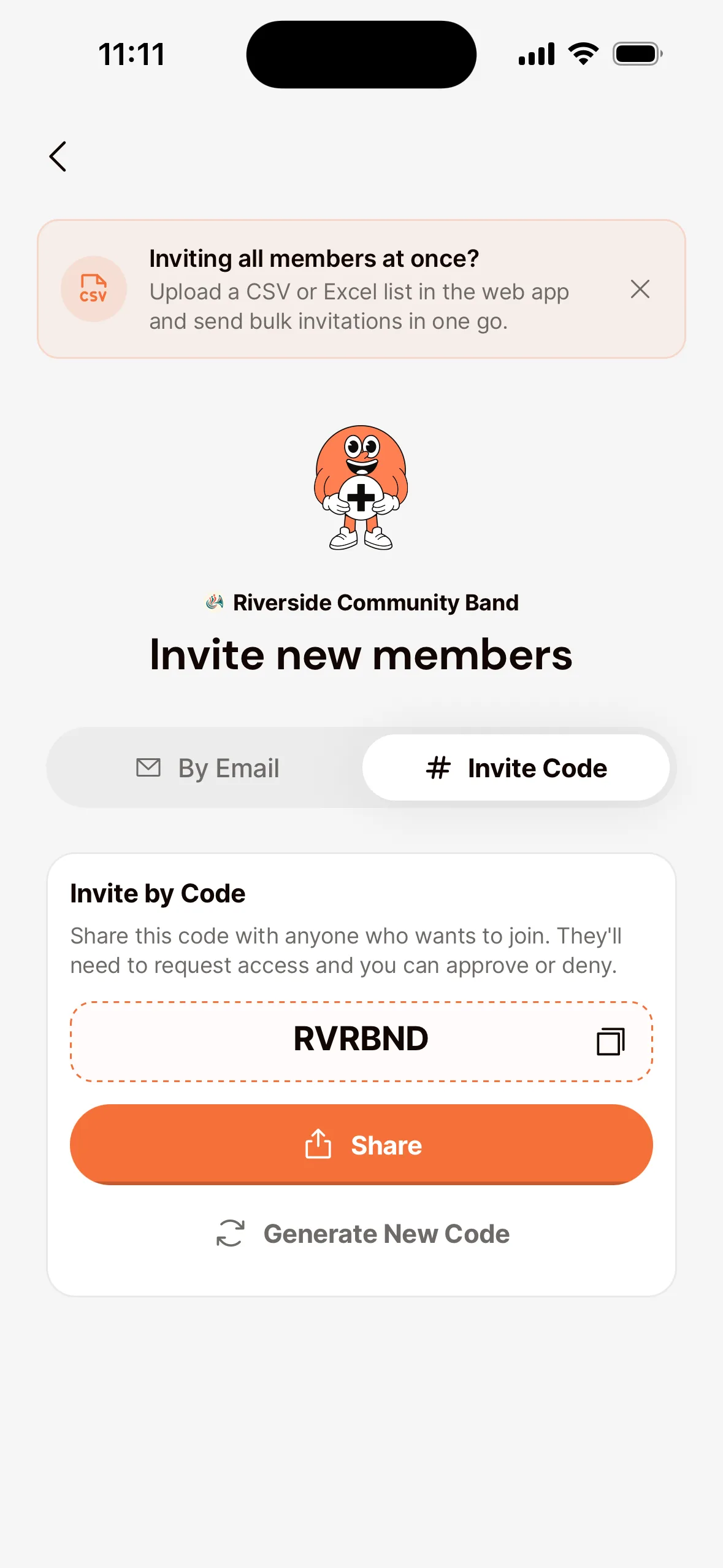
- Anyone who uses the code shows up under Requests. Tap Approve, or swipe the request to the right. Under Add to groups and sections, choose right away where this person goes: sections that match the instruments they play are marked Suggested. To give a role, use Role management. Then tap Approve. To decline, tap Deny or swipe to the left.
Code ended up in the wrong place? Tap Generate New Code. The old code stops working right away.
Invite by email
- Go to Members in the menu and click Add Member.
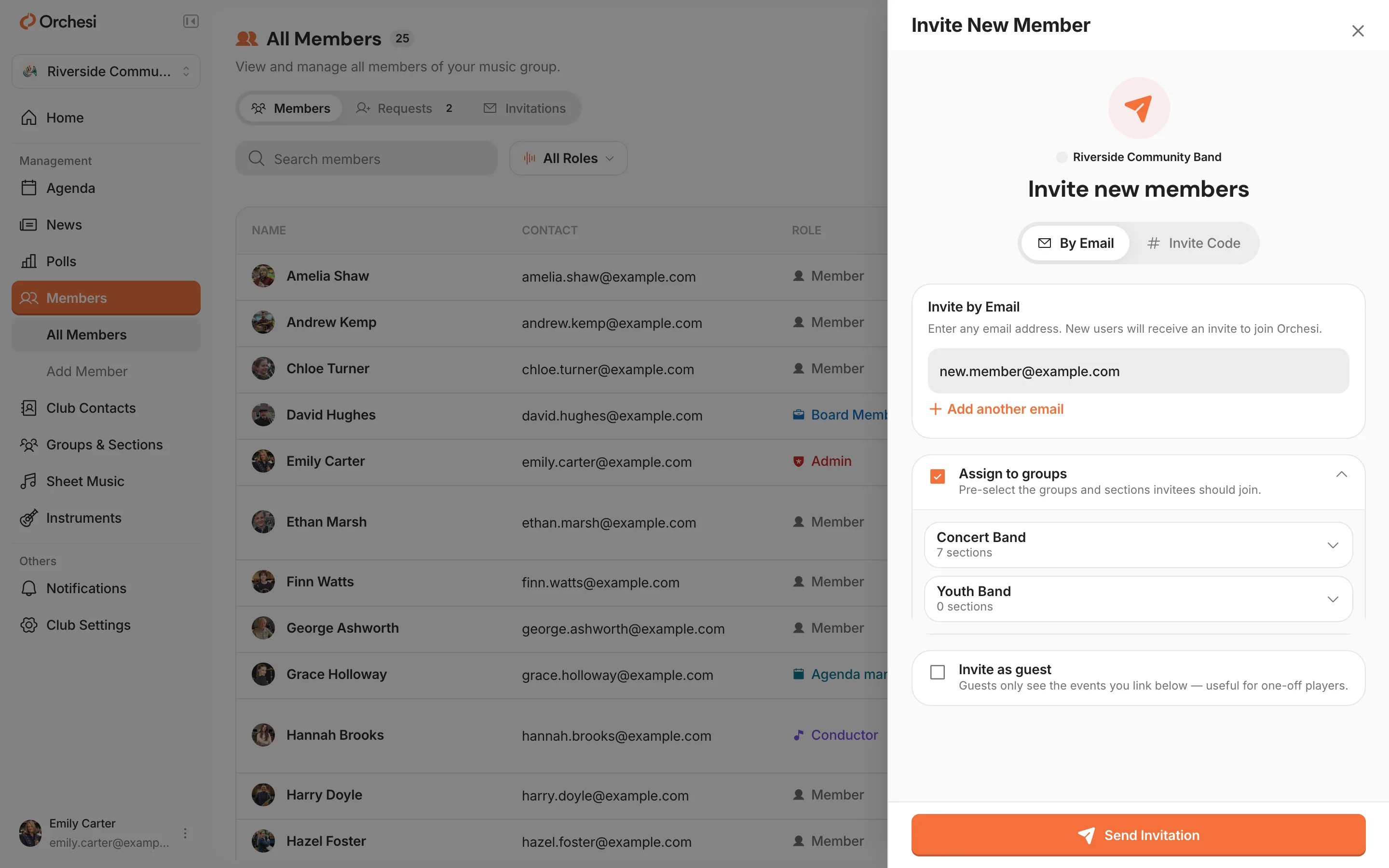
- Under By Email, enter the email address. Inviting more people? Click Add another email.
- Under Assign to groups, choose the groups and sections this person should join. Inviting several people at once? Do it per group: everyone in the same invitation gets the same groups.
- Click Send Invitation.
The invitation appears in the Invitations tab until it’s accepted.
Stand-in player for one concert? Turn on Invite as guest and pick the events they should see. Guests only see those events, not the rest of your association. More in Invite guests for a concert or rehearsal.
Share your invite code
Handy when you’d rather post one message in the group chat than collect email addresses.
- Go to Members, click Add Member and open the Invite Code tab.
- Click Copy code or Share and send it to the people who want to join.
- Anyone who uses the code shows up under Requests. Click Approve and, under Add to groups and sections, choose right away where this person goes: matching sections are marked Suggested. To give a role, use Role management. Confirm with the button at the bottom, for example Approve and add to 1 group. To decline, click Deny.
Code ended up in the wrong place? Click Generate New Code. The old code stops working right away.
Last updated:
Did this article help?
Great, thanks for letting us know!
Thanks! We’ll use this to improve the article.
Still stuck?
All steps
Setting up your association
- Create your association in Orchesi
- Create groups and sections
- Plan rehearsals and events
- How to bring your members along to Orchesi
- Ready-made messages for your members
- The easiest way to invite all your members
- 7Invite members straight into the right groupsoptional
- 8Import your members from Excel or CSVoptional
- 9Give roles to the board, conductor and managers