Done in about 5 min(How long it takes to do this in Orchesi)
Change the admin when your board changes
Is the secretary stepping down or is there a new board? Here's how to pass on the Admin role and check what else needs to change.
Where do you use Orchesi?
When you get a new secretary, chair or treasurer, you also pass on their roles in Orchesi. Do it before the old admin steps down. An association always needs at least one admin: as long as someone is the only admin, they can’t give up their own role, leave the association or delete their account.
The new admin must already be a member of the association in Orchesi. If they aren’t yet, invite them first and wait until they’ve accepted the invitation.
1. Make the new admin
- Go to Members in the menu and open the new admin.
- Click Manage Roles.
- Turn on Admin and click Save Changes.
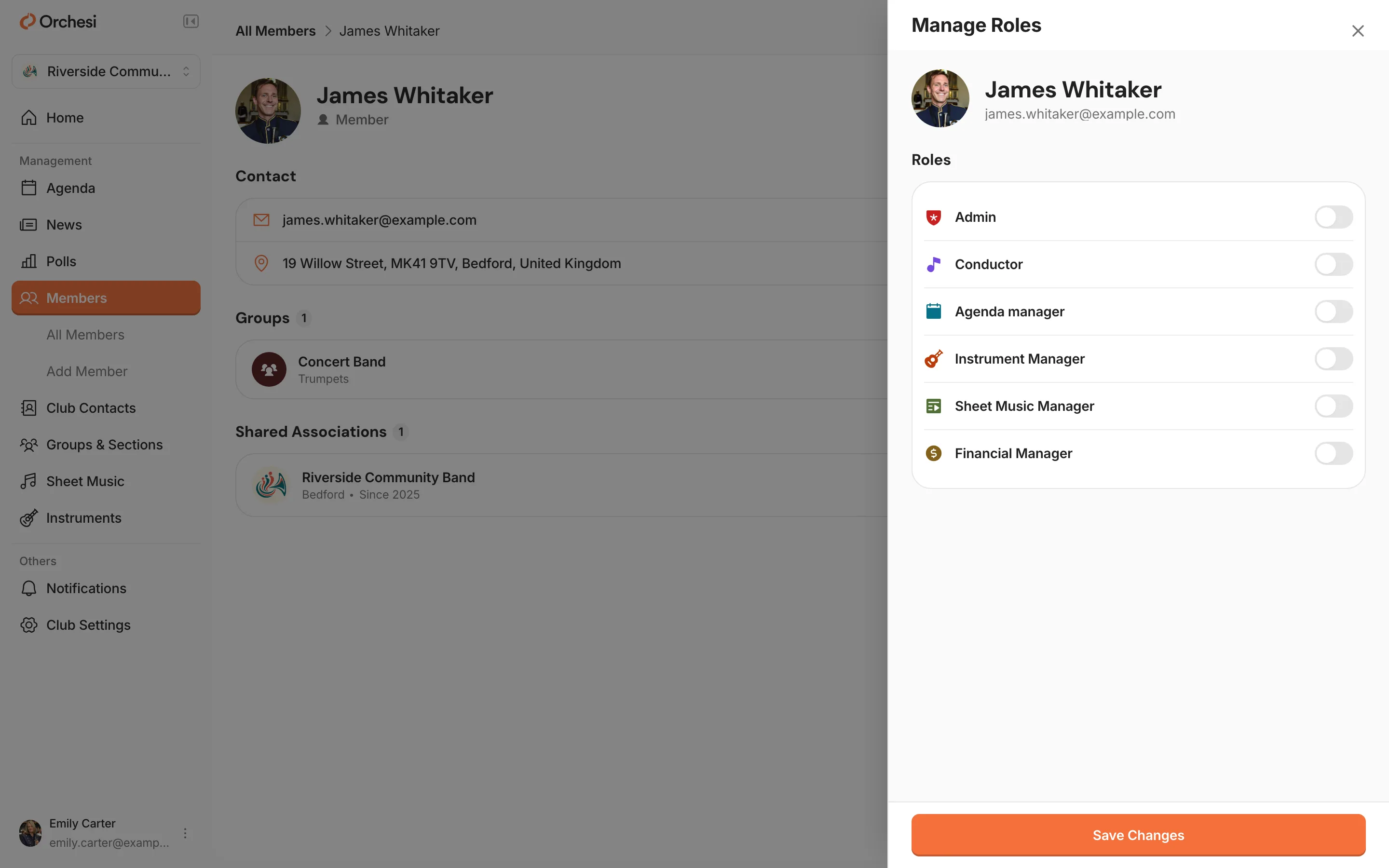
From now on, the new admin can do everything you can do as an admin.
2. Give the old admin a different role
- Go to Members and open the old admin. If that’s you, open your own name.
- Click Manage Roles.
- Turn off Admin. If they’re staying on the board, turn on Board Member, for example.
- Click Save Changes.
1. Make the new admin
- Open the Club tab, go to the members and tap the new admin.
- Tap Manage Roles.
- Turn on Admin and save.
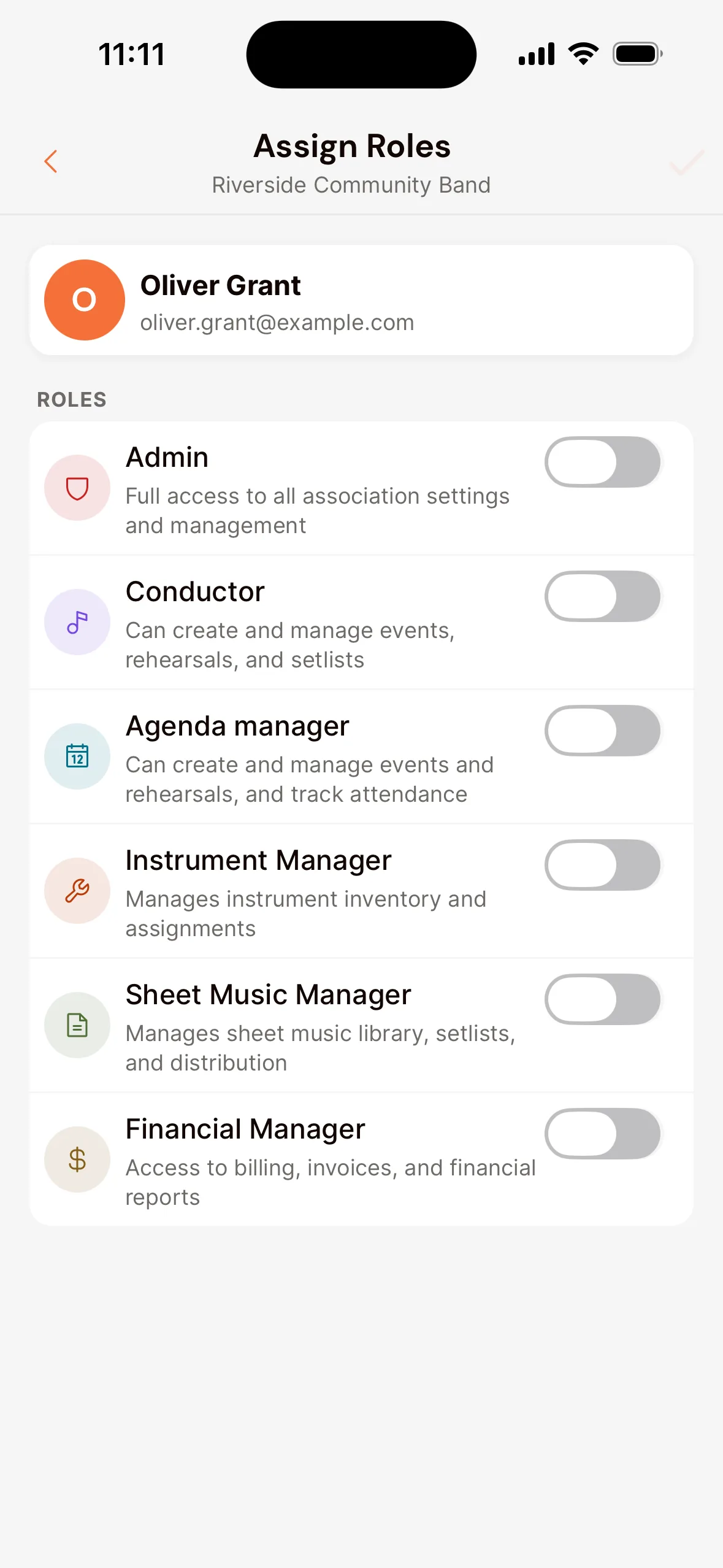
From now on, the new admin can do everything you can do as an admin.
2. Give the old admin a different role
- Open the Club tab, go to the members and tap the old admin. If that’s you, tap your own name.
- Tap Manage Roles.
- Turn off Admin. If they’re staying on the board, turn on Board Member, for example.
- Save.
Only do step 2 once step 1 is done. As long as there’s no other admin, Orchesi won’t let the old admin give up the role.
3. Check the rest of the handover
After a board change, Orchesi often still holds details of the old board members. Go through this together:
- The other roles. Give the new treasurer the Financial Manager role and new board members the Board Member role, and remove them from those who are stepping down. See Give roles.
- The association’s contact details. Do they still show the old secretary’s email address or phone number? Change them in your association settings.
- The subscription. Do invoices still go to the old treasurer’s email, or is their account or card still paying? Change the billing email and payment method with Manage Billing. See Your subscription and payment.
- The club contacts. Is the old secretary or treasurer still listed as the person to contact? Update the club contacts.
- Is the old admin leaving the association altogether? Then remove them from the association, see Organize, update and remove members. If they keep playing, they stay on as a member without an extra role.
Is no admin reachable anymore?
If the only admin has left or can’t be reached, nobody in the association can give roles anymore. Contact us through Help & Support in the app or Need help? in the bottom right of this help center. Tell us which association it is and who is on the board now, and we’ll work out a solution with you.
Prevent this: always give the Admin role to at least two people, for example the secretary and the chair. Then the association can carry on if one of them steps down or is unreachable for a while.
Last updated:
Did this article help?
Great, thanks for letting us know!
Thanks! We’ll use this to improve the article.
Still stuck?