Done in about 2 min(How long it takes to do this in Orchesi)
Your association's settings
Change the name, logo, address and contact details, choose a default response deadline and decide how new setlists are visible.
Where do you use Orchesi?
Your association’s settings define how it looks and works. Members see the name, logo and contact details. The defaults for the agenda and sheet music save you work on every new event and every new setlist.
Open the settings
Go to Club Settings in the menu. You see four tabs: Association details, Roles, Billing and Danger Zone.
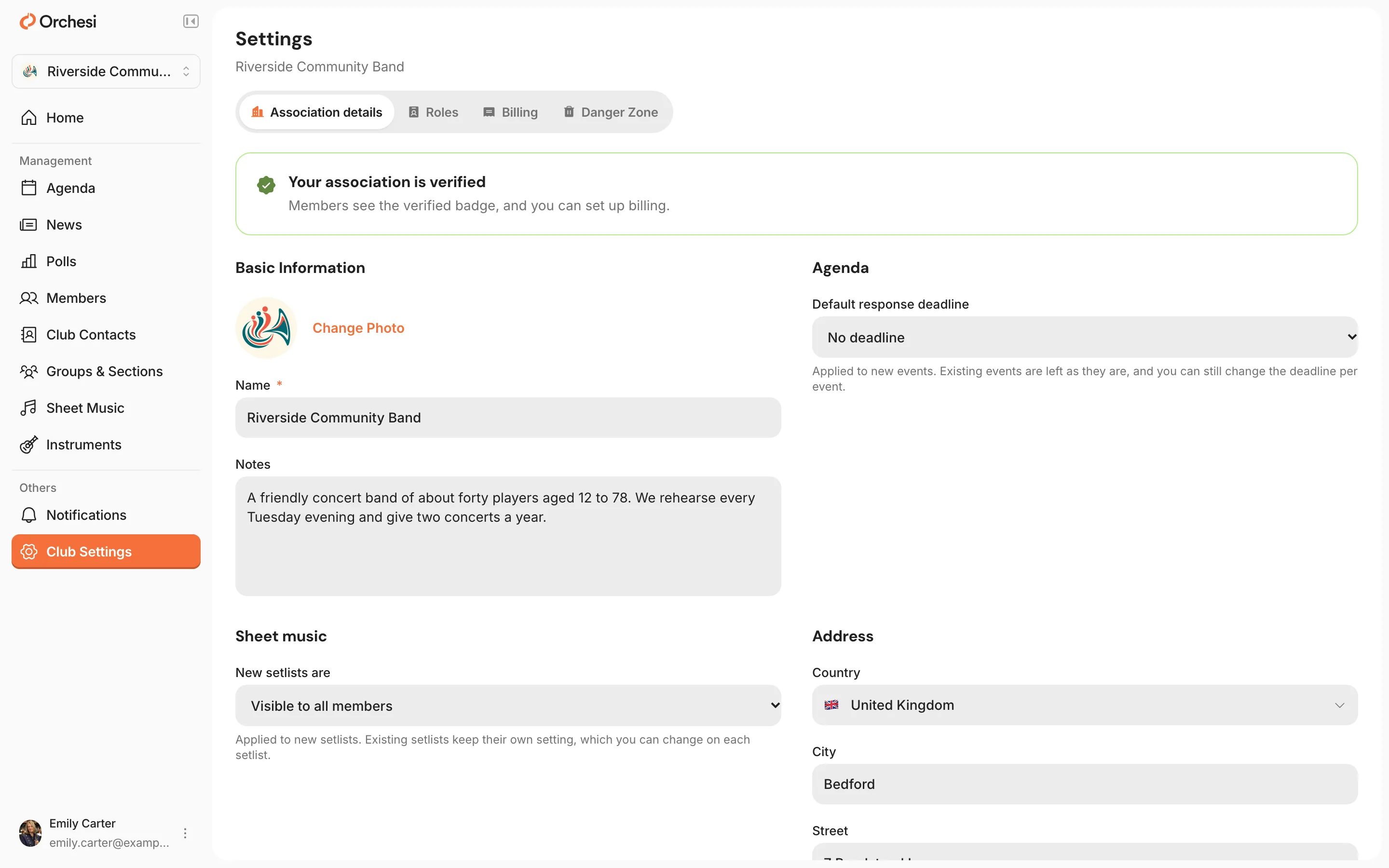
Open the settings
Open the Club tab and choose Settings. Under Association Details you change the details. Below that you find roles, Billing & Subscription and the danger zone.
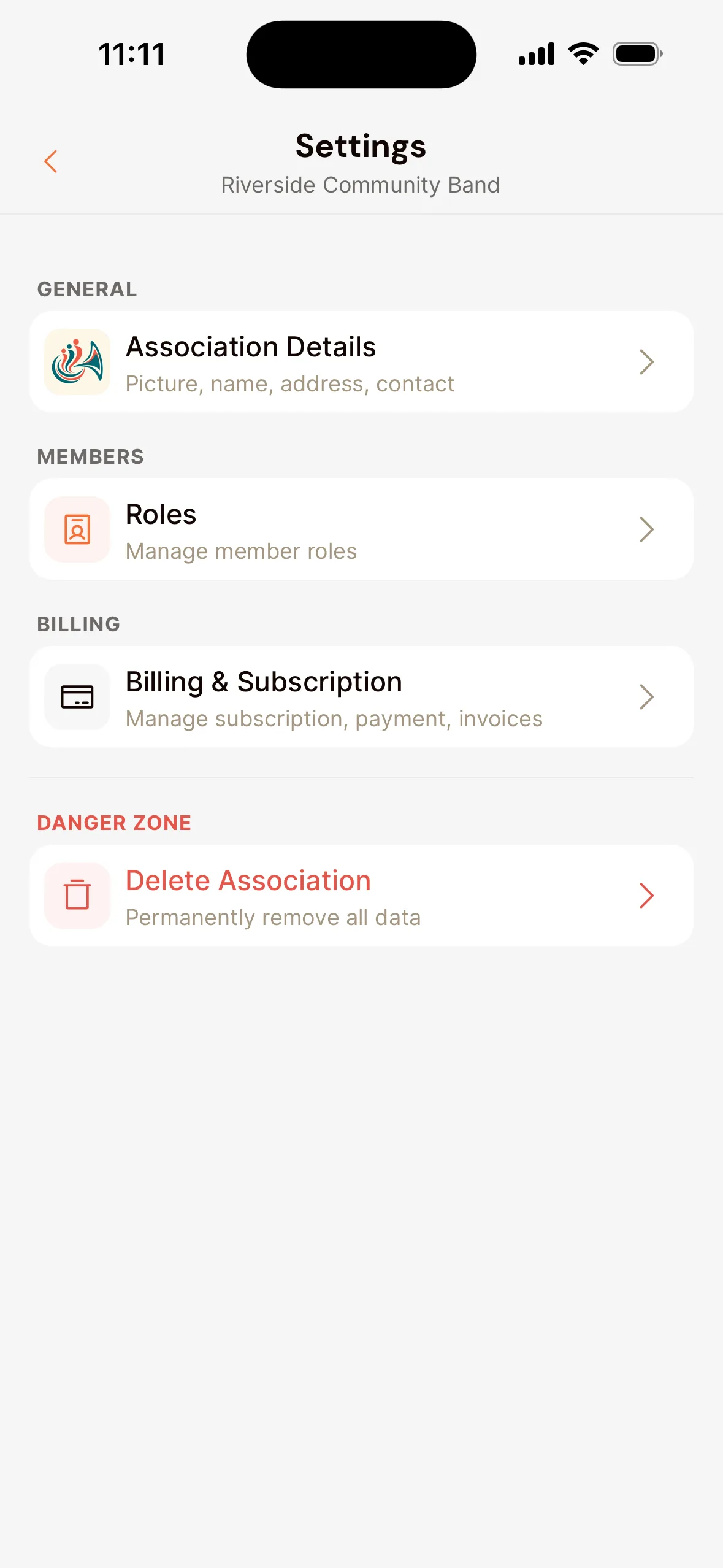
What you can set
- Photo, name and description: so members recognize their association in the app.
- Address: your association’s official address. That’s also where we send the verification letter.
- Contact details: your association’s website, email address and phone number.
- Default response deadline (under agenda): how long before the start members can decline at the latest, for example 1 day before start. This deadline is filled in for new events. You can always change it per event.
- Visibility of new setlists (under sheet music): visible to all members, or only via events or explicit access. Read more in Manage sheet music access and setlists.
Giving roles is covered in Give roles to the board, conductor and managers, the subscription in Your subscription and payment.
Delete your association
Is your association leaving Orchesi? Under Danger Zone, choose Delete Association. You confirm this in a few steps, including typing the association’s name.
This deletes everything, permanently: all members, events and attendance, groups, documents, sheet music and instruments. It can’t be undone. Not sure? Get in touch with us first.
Last updated:
Did this article help?
Great, thanks for letting us know!
Thanks! We’ll use this to improve the article.
Still stuck?