Step 8 of 9 · Setting up your associationDone in about 3 min(How long it takes to do this in Orchesi)
Import your members from Excel or CSV
Invite your whole association at once: upload a spreadsheet or paste a list of email addresses, check the preview and send up to 500 invitations.
Where do you use Orchesi?
Moving from a spreadsheet to Orchesi? You don’t have to add everyone by hand. Upload your member list and Orchesi sends every member an invitation in one go. Each member then creates their own account, so names, phone numbers and instruments come from the members themselves and are always up to date.
Good to know: only admins can import members, and only in the web app at orchesi.app. Everyone you import joins as a regular member.
Import or invite? When you import, you can’t choose groups or sections (yet): you put people in them afterwards. If you share the invite code in the group chat, you put everyone in the right group and section as you approve them. See The easiest way to invite all your members. Importing is mainly handy when you already have a list of email addresses.
You do this in the web app
Importing members from a file isn’t possible in the app, because that’s not where your Excel or CSV file is. In the app, under Members → +, you’ll see the tip Inviting all members at once?.
- Open orchesi.app on your computer and sign in with the same account.
- Choose Web app at the top of this article for the steps.
Want to invite one or a few people from your phone? That does work in the app: see Invite a new member.
Prepare your file
You need one thing per member: an email address. Orchesi accepts:
- Excel (
.xlsxor.xls) or CSV (.csv) - up to 500 rows per import
Orchesi finds the column with email addresses itself. A heading like Email, E-mail, Email address or E-mailadres is recognised; capitals, spaces and hyphens don’t matter. If no column has such a heading, or your list has no headings at all, Orchesi picks the column with the most @ signs. Other columns, like names, are ignored, so you can upload your existing member list as it is.
If no column holds an email address at all, the import window says No email column found in this file.
Not sure about the format? In the import window, click Download CSV template for an example file.
Import your members
- Go to Members in the menu and click Bulk invite at the top right.
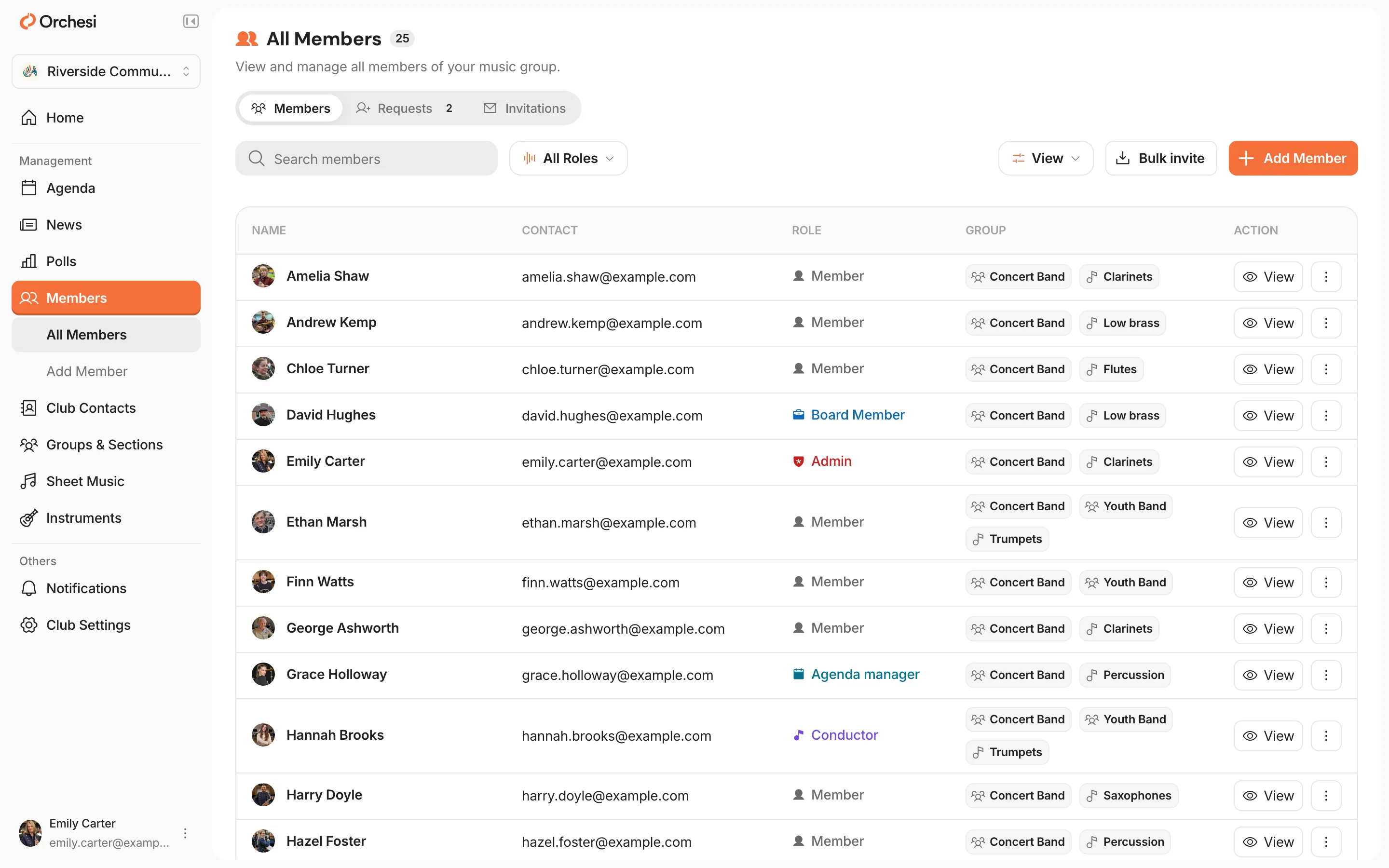
- Drag your file into the upload area, or click it to choose a file. Only have a list of addresses, for example from an email? Choose Paste emails and paste them: one per line, or separated by commas or semicolons.
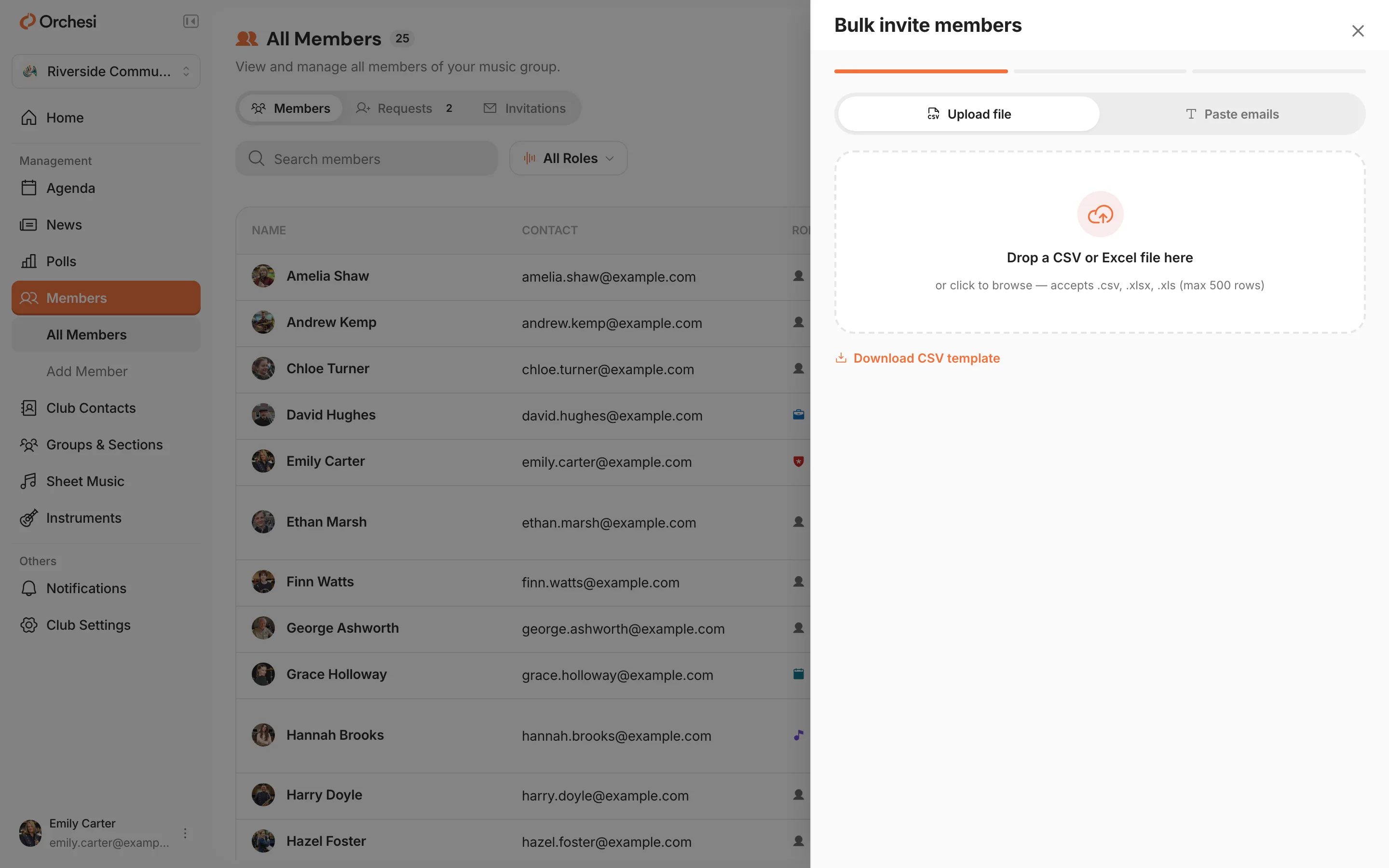
- Check the preview. Orchesi shows each address with a status (see the table below). Remove any row you don’t want to invite with the bin icon at the end of the row, then click Continue.
- Confirm with the send button, for example Send 42 invitations. Orchesi only sends to the addresses marked Valid; the other rows are skipped.
That’s it. Your members get an email with a link to join your association.
What the statuses in the preview mean
| Status | What it means | What to do |
|---|---|---|
| Valid | A correct address that isn’t linked to your association yet. | Nothing: this person gets an invitation. |
| Invalid email | The address has a typo or is incomplete. | Fix it in your file and upload again, or remove the row. |
| Duplicate | The address appears more than once in your file. | Nothing: everyone gets one invitation. |
| Already a member | This person is already in your association. | Nothing: no new invitation is sent. |
| Pending invite | An earlier invitation to this address is still open. | Cancel the old one under Invitations if you want to send a new one. |
After the import
- Invited members appear in the Invitations tab on the Members page until they accept.
- Once they’ve joined, put them in their groups via Groups & Sections: open a group or section and click Add Member. Then give board members and conductors their roles.
- Someone didn’t get the email? Ask them to check their spam folder, or cancel the invitation and send a new one.
Last updated:
Did this article help?
Great, thanks for letting us know!
Thanks! We’ll use this to improve the article.
Still stuck?
All steps
Setting up your association
- Create your association in Orchesi
- Create groups and sections
- Plan rehearsals and events
- How to bring your members along to Orchesi
- Ready-made messages for your members
- The easiest way to invite all your members
- Invite members straight into the right groupsoptional
- 8Import your members from Excel or CSVoptional
- 9Give roles to the board, conductor and managers