Step 6 of 9 · Setting up your associationDone in about 3 min(How long it takes to do this in Orchesi)
The easiest way to invite all your members
Share one invite code in the group chat. Members create their own account, and you put them in the right group and section as you approve them.
Where do you use Orchesi?
You don’t need to build a member list or collect email addresses. You post your association’s invite code in the group chat. Each member creates their own account and enters the code. You approve the request and put that person in the right group and section as you do.
This is the way we recommend, whether your association has twenty members or a hundred.
- You don’t have to make, upload or match an Excel file.
- Members fill in their own name and instrument, so the details are up to date from day one.
- When you approve someone, Orchesi suggests the sections that match what they play.
- The code doesn’t expire. An email invitation is valid for 7 days.
Good to know: only an admin can share the code and approve requests.
Set up your association first
Share the code once your association is ready. That way you can place everyone right away, and members see their own rehearsals as soon as you approve them.
- Create your association.
- Create your groups and sections.
- Put your first rehearsals and events in the agenda.
Share the invite code
- In the app, go to Members and tap +.
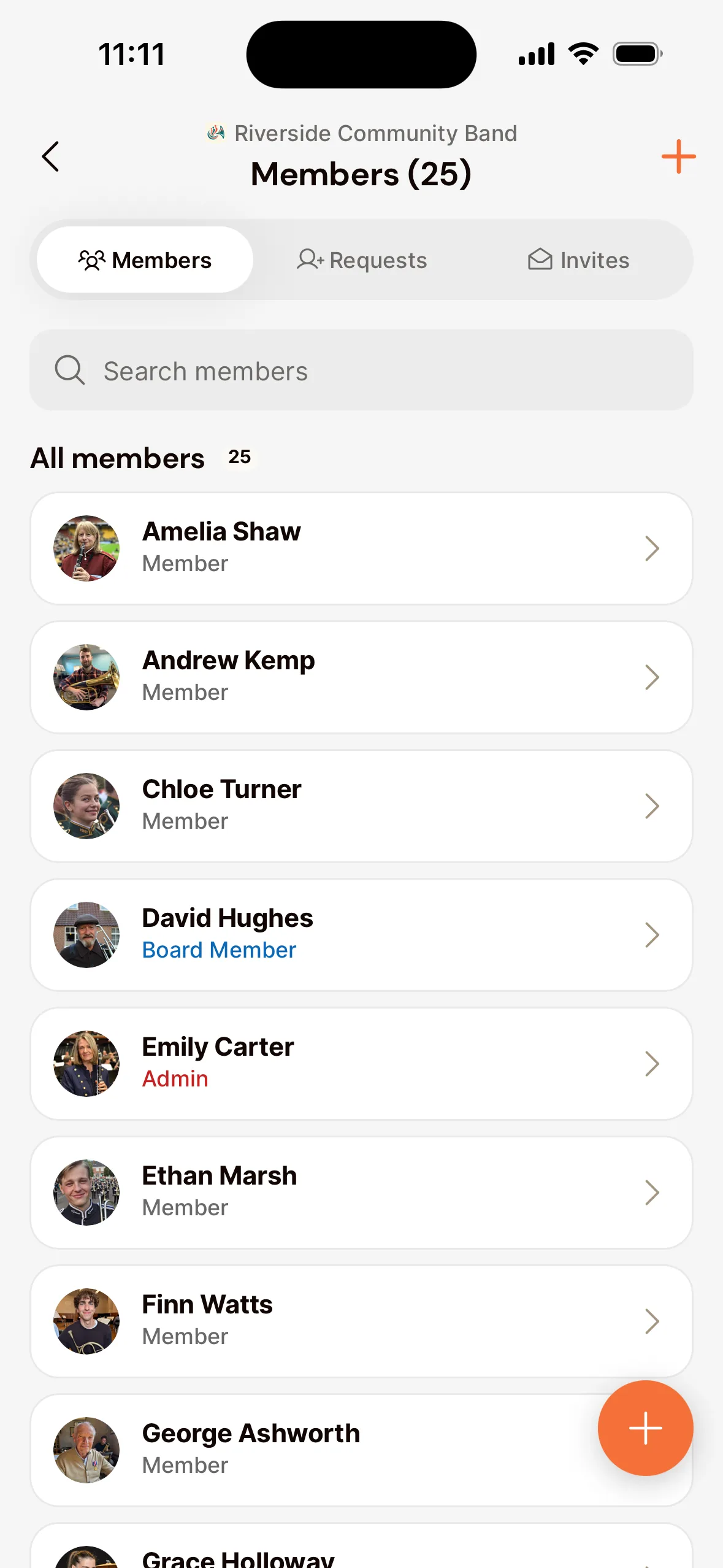
- Choose Invite Code and tap Share.
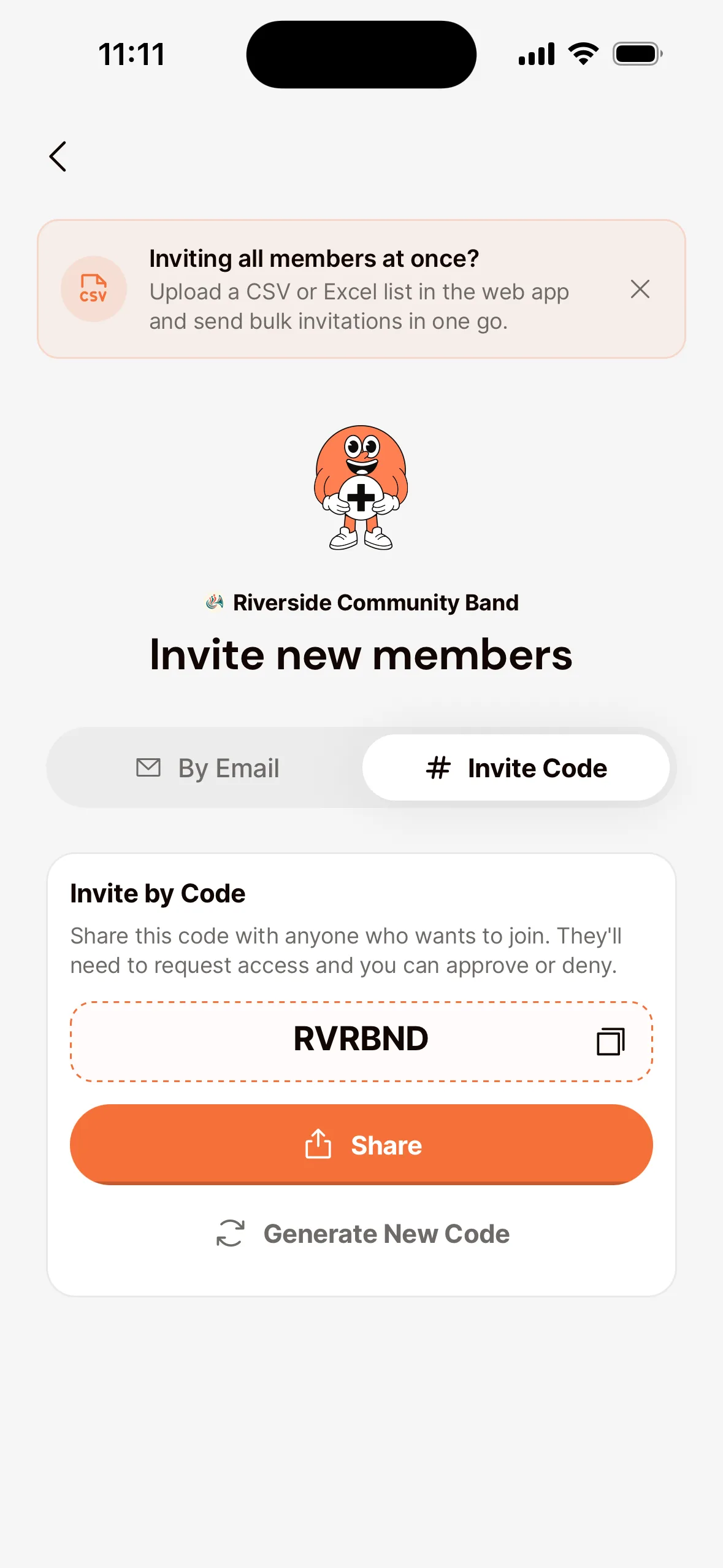
- Pick your association’s group chat. The message with the code and the download link for the app is ready to send.
Approve the requests and place people
Anyone who enters the code shows up in Members under Requests. You get a notification when that happens.
- Tap Approve on a request, or swipe it to the right.
- At the top you see what the person plays. Under Add to groups and sections, the sections that match are already ticked. They’re marked Suggested.
- Not right? Tick another group or section.
- Tap Approve.
That person is now a member and sees the rehearsals of their groups straight away.
Does someone need a role too, such as the conductor? You set that on the same screen with Role management. Don’t know the person? Tap Deny, or swipe the request to the left.
Share the invite code
- Go to Members in the menu and click Add Member.
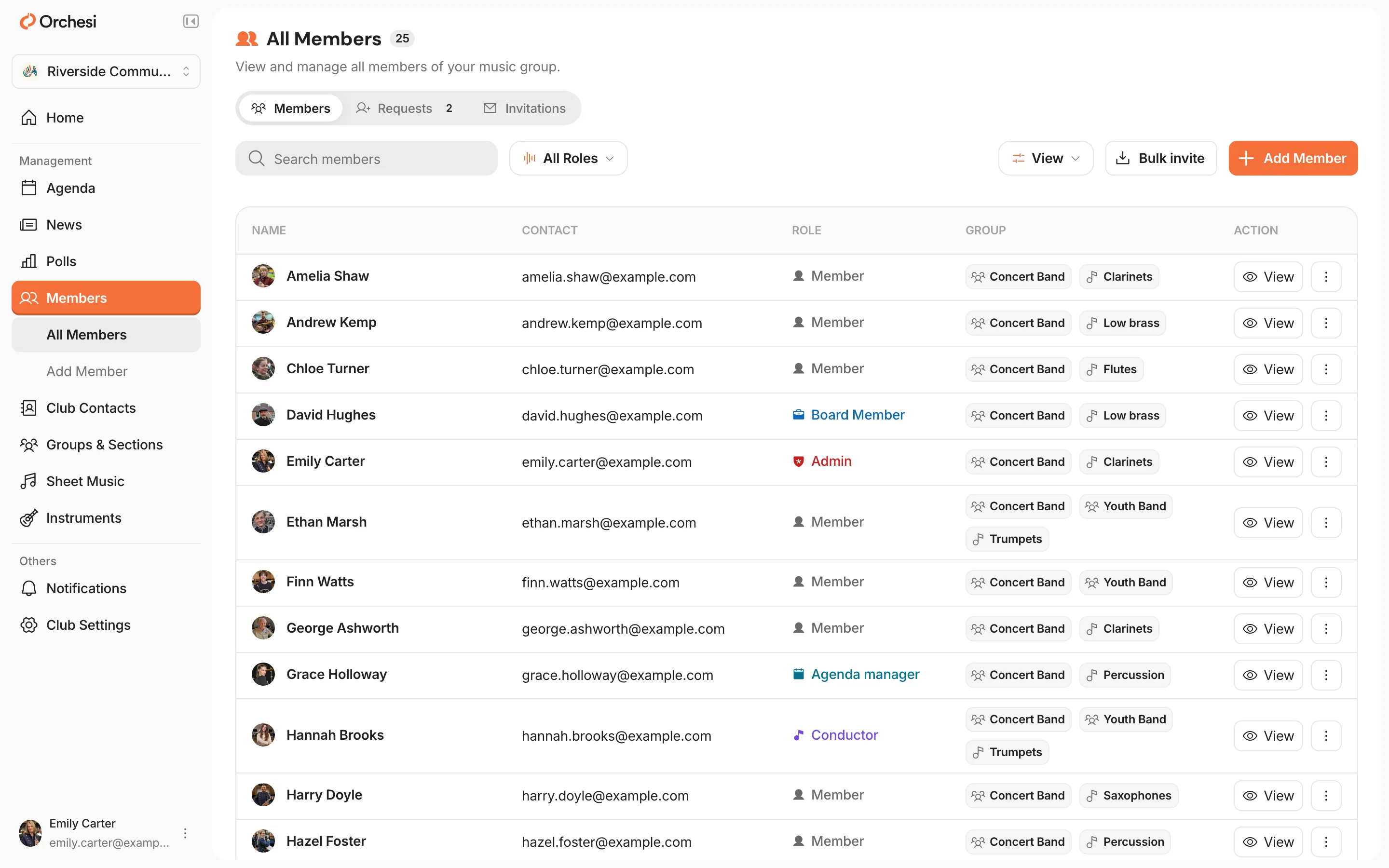
- Open the Invite Code tab.
- Click Copy code or Share and post the code in your association’s group chat.
Approve the requests and place people
Anyone who enters the code shows up in Members in the Requests tab. You get a notification when that happens.
- Click Approve on a request.
- At the top you see what the person plays. Under Add to groups and sections, the sections that match are already ticked. They’re marked Suggested.
- Not right? Tick another group or section.
- Confirm with the button at the bottom, for example Approve and add to 1 group and 1 section.
That person is now a member and sees the rehearsals of their groups straight away.
Does someone need a role too, such as the conductor? You set that in the same panel with Role management. Don’t know the person? Click Deny.
What your members do
It takes a member a few minutes.
- Download the app and create an account. No smartphone? It also works on a computer, at orchesi.app.
- Choose in the app which instrument they play.
- Enter the 6-letter code.
Then the member waits until you approve the request. The steps for members are in Join your association in Orchesi.
A message for the group chat
Share gives you a short message with the code and the download link. Want to add some explanation? Copy this message and fill in your own code.
Tips
- Ask members to fill in their instrument. Without one, Orchesi can’t suggest a section and you pick it yourself.
- More than one group, such as a concert band and a youth band? The groups you chose at the previous approval are already ticked at the next one. So take a second look when someone belongs to another group.
- Don’t put the code on your website or on social media. Share it where your members are, such as the group chat or the newsletter.
- Did the code end up in the wrong place anyway? Choose Generate New Code. The old code stops working right away.
When do you invite by email after all?
- Someone joins later and you already have their email address. With an email invitation you choose the groups up front and there’s nothing to approve.
- A stand-in player or soloist joins for one concert. Invite them as a guest.
- You already have a list with the email addresses of all your members. Then you can import your members in the web app. You place them in groups and sections afterwards.
Last updated:
Did this article help?
Great, thanks for letting us know!
Thanks! We’ll use this to improve the article.
Still stuck?
All steps
Setting up your association
- Create your association in Orchesi
- Create groups and sections
- Plan rehearsals and events
- How to bring your members along to Orchesi
- Ready-made messages for your members
- 6The easiest way to invite all your members
- 7Invite members straight into the right groupsoptional
- 8Import your members from Excel or CSVoptional
- 9Give roles to the board, conductor and managers