Step 1 of 6 · Getting started as a memberDone in about 2 min(How long it takes to do this in Orchesi)
Join your association in Orchesi
Invited by your association or given a code? Here’s how to create your account and join your orchestra, choir or band.
Where do you use Orchesi?
Your association has moved to Orchesi. From now on, that’s where you’ll find the agenda, the sheet music and your association’s messages. All you need is an account. How you get in depends on how you were invited.
Which way is yours? Got an email from Orchesi? Follow With an email invitation. Did the board send you a code, for example in the group chat? Follow With an invite code.
With an email invitation
- Open the email from Orchesi on your phone and tap the link in the invitation.
- Create an account, or sign in if you already have an Orchesi account.
- You’ll see You’re Invited! with the name of your association and your role under You’ll join as:. Tap Accept Invitation.
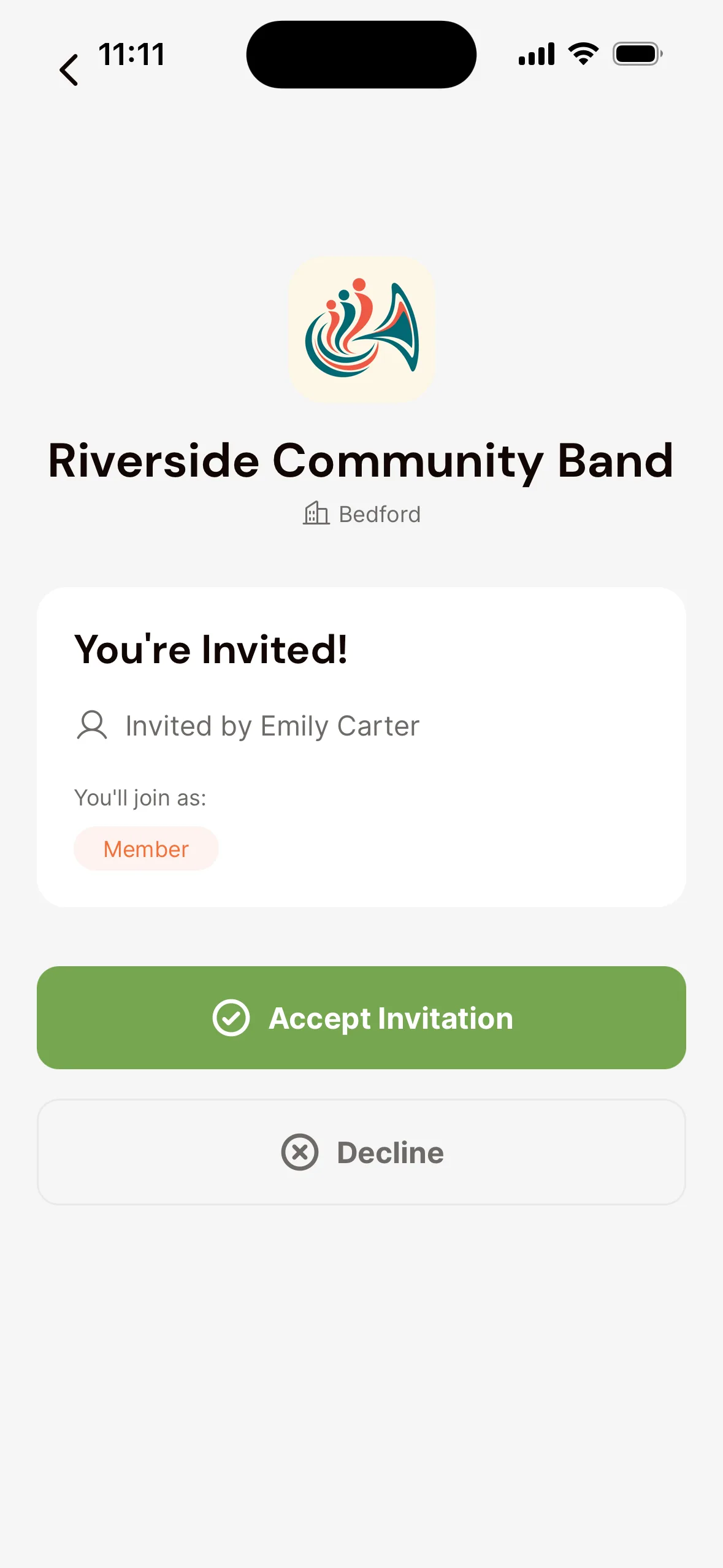
You’re in, and you’ll see your association’s agenda and messages straight away.
Link not working? The email also contains a 6-character join code. In the app, choose Enter Join Code, enter the code, tap Verify Code and then Claim Invitation.
Created your account with an email address and password? Then enter the join code from the invitation email first: under the invitation on Home, tap Have a join code from an invitation email?, enter the code, tap Verify Code and then Claim Invitation. After that you can accept the invitation. The code shows that the invitation is yours: anyone could sign up with your email address. Signed in with Apple or Google using the invited address? Then you don’t need the code.
With an invite code
- Download the Orchesi app from the App Store or Google Play and create an account.
- After you’ve filled in your profile, the app asks to connect you to your music association. Choose Join an Association.
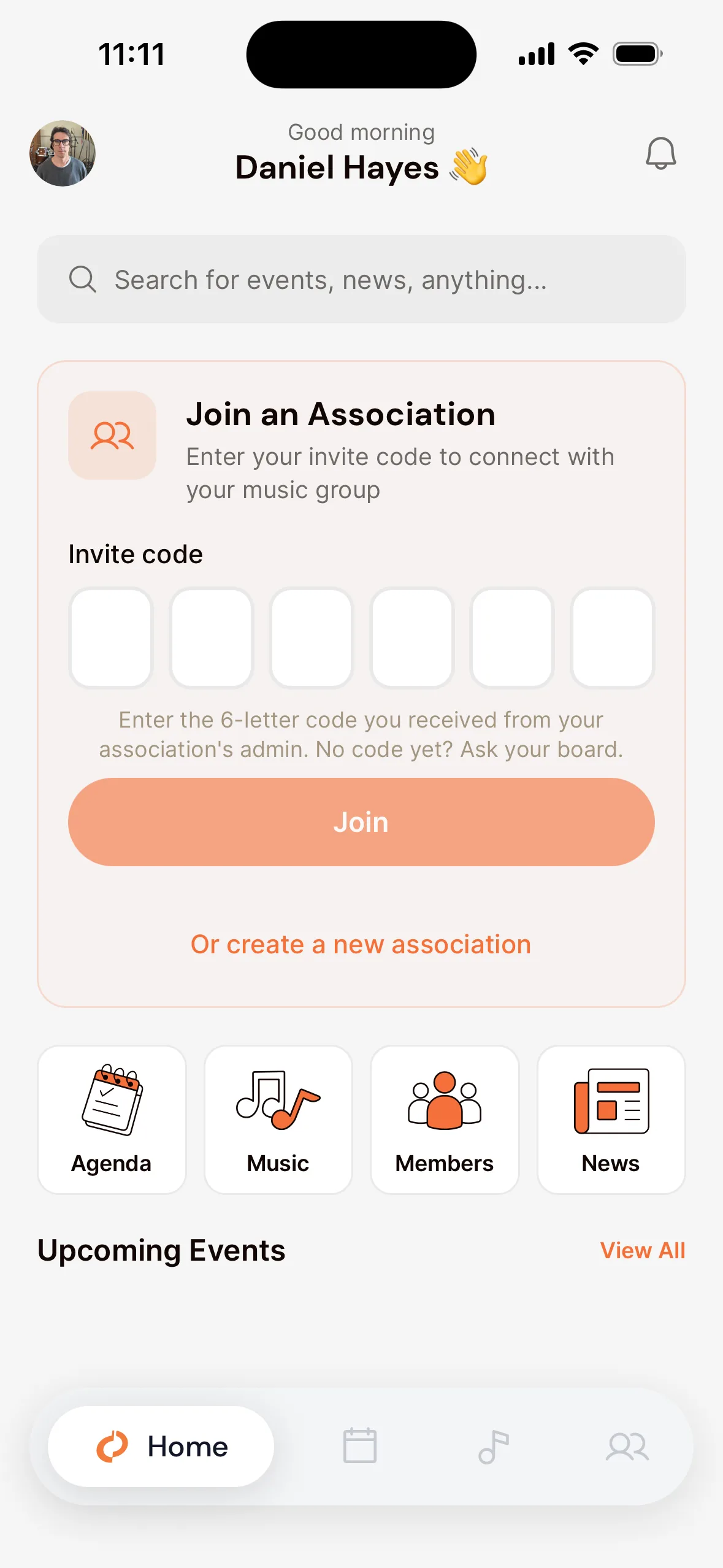
- Under Invite code, enter the 6 letters the board gave you, one letter per box. You can also paste the code: all boxes then fill at once. Then tap Join (on the screen right after you sign up, it’s called Join Association). That button works once all 6 boxes are filled.
- The board sees your request and approves it. After that, your association shows up in the app.
With an invite code
- On your computer, go to orchesi.app and create an account.
- Home then shows You’re not part of an association yet. Choose Join an existing association.
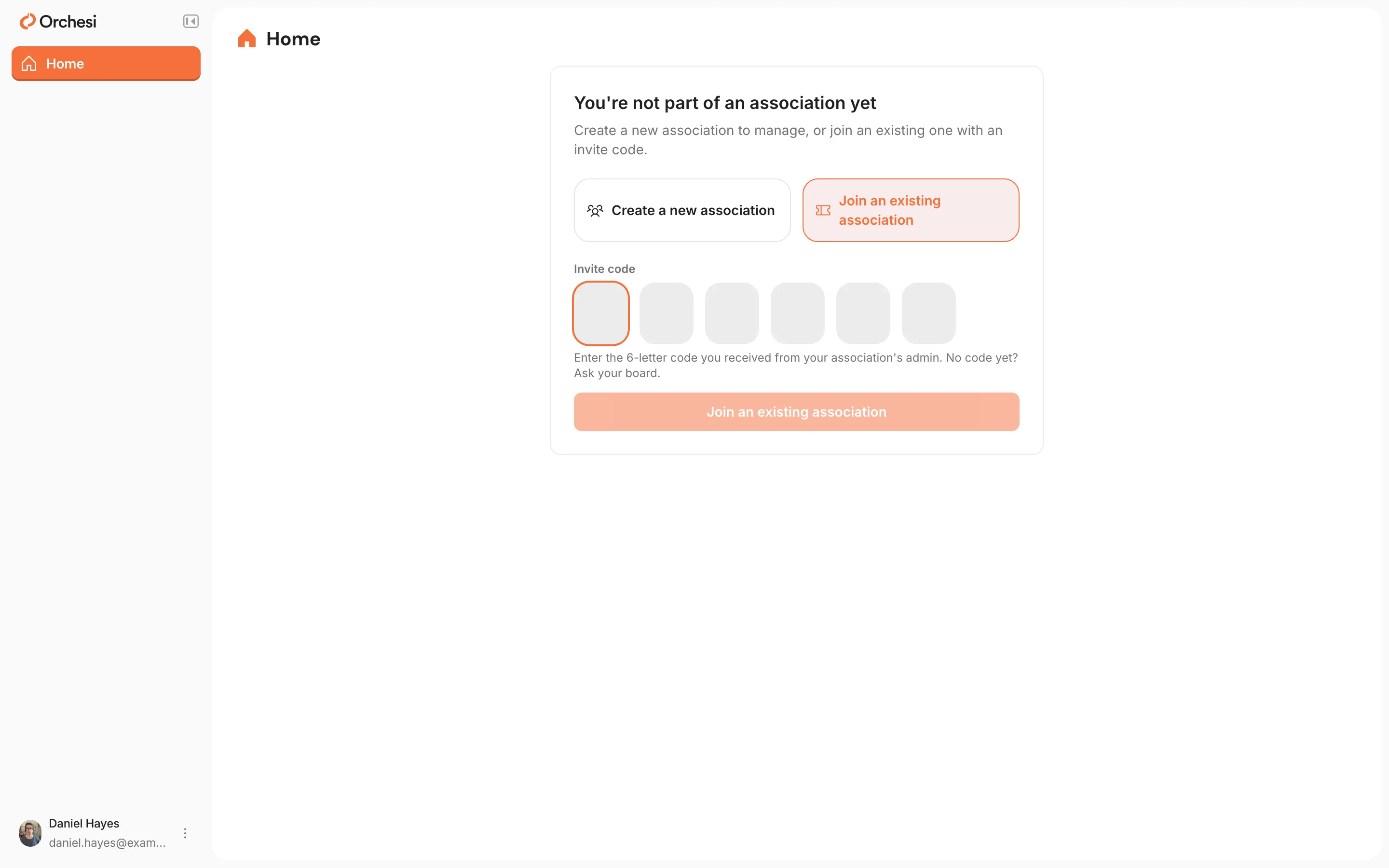
- Under Invite code, enter the 6 letters the board gave you, one letter per box (pasting works too), and click Join an existing association.
- The board sees your request and approves it. After that, your association shows up in the web app.
With an email invitation
You accept an email invitation in the app. Choose App at the top of this article for the steps. After that, you can sign in to the web app with the same account.
Not in yet?
- The invitation has expired or was already used. Ask the board for a new invitation.
- Your request with the code is still pending. You’ll see You already have a pending request for this association. The board has to approve it first. A quick reminder usually helps.
- This code doesn’t exist or has expired. Check that you copied the letters correctly, or ask the board for the latest code. An old code stops working as soon as the board creates a new one.
- You’re already a member of this association. Then there’s nothing left to do: your association is already in the app and the web app.
- First enter the code from your invitation email. You signed up with the invited email address and a password. Enter the join code from the invitation email as described under With an email invitation, then accept the invitation.
- Too many attempts. You tried several codes in a short time. Wait a minute and try again.
- No email? Check your spam folder, or ask the board to check your email address.
Last updated:
Did this article help?
Great, thanks for letting us know!
Thanks! We’ll use this to improve the article.
Still stuck?
All steps
Getting started as a member