Step 5 of 6 · Getting started as a memberDone in about 2 min(How long it takes to do this in Orchesi)
Add the agenda to your own calendar
Put all rehearsals and concerts in your own calendar automatically, like Google Calendar, Apple Calendar or Outlook. Changes show up by themselves.
Where do you use Orchesi?
Rather check your own calendar than a separate app? Let Orchesi add your rehearsals, concerts and meetings to your calendar automatically. New and changed events show up by themselves.
Turn it on
- Tap your profile photo in the top left and choose Calendar Sync.
- Tap Add to Calendar. Your calendar app opens and asks whether to add the subscription. Confirm it.
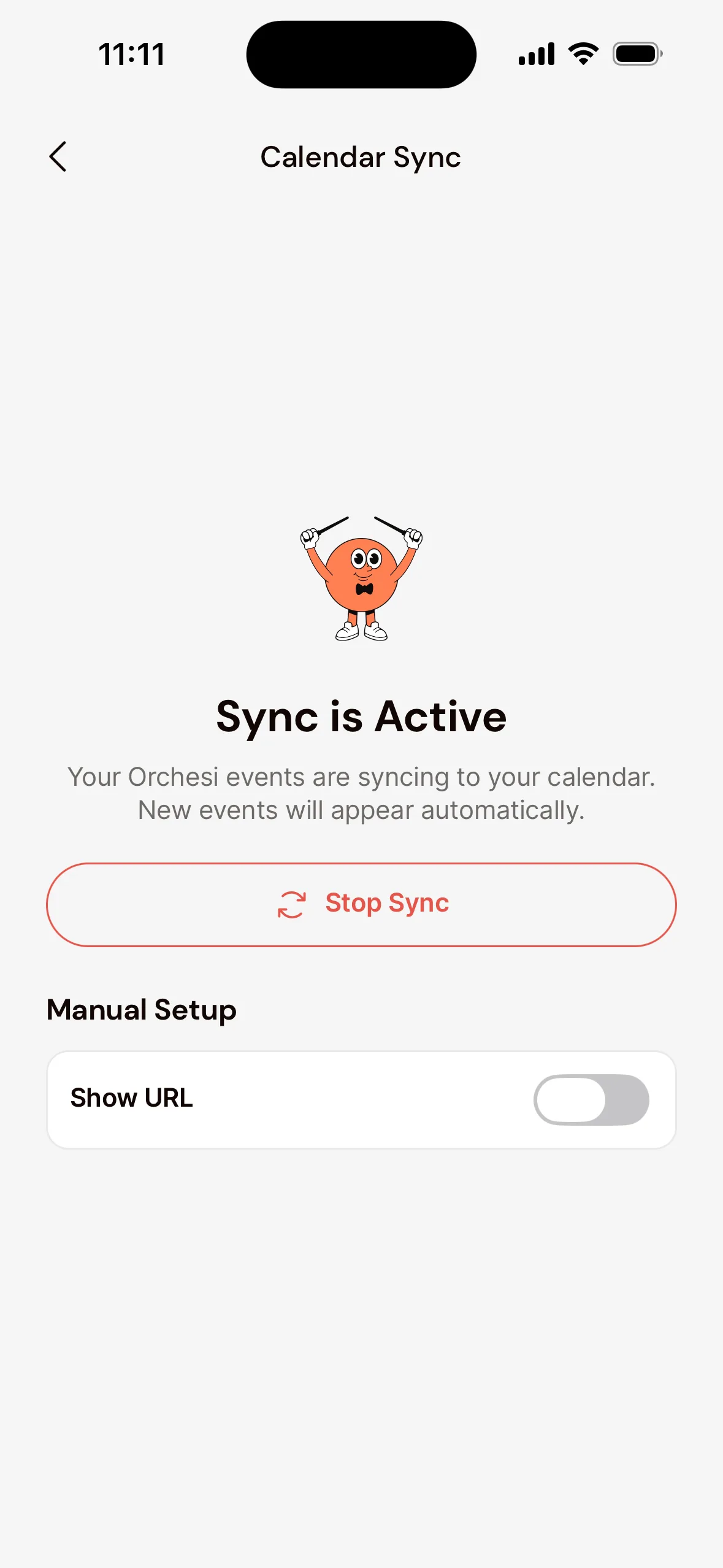
- You’ll now see Sync is Active. Your events appear in your calendar shortly.
Using a different calendar?
Choose Manual Setup and tap Copy URL. In your calendar app, add a calendar subscription and paste this link. Don’t share the link with others: it’s your personal calendar.
Want to stop?
Go to Calendar Sync and tap Stop Sync. You can turn it back on at any time.
Turn it on
- Click your name at the bottom left of the menu and choose Settings. Or, in the Agenda, click Sync calendar.
- Under Sync your calendar, click Link my calendar.
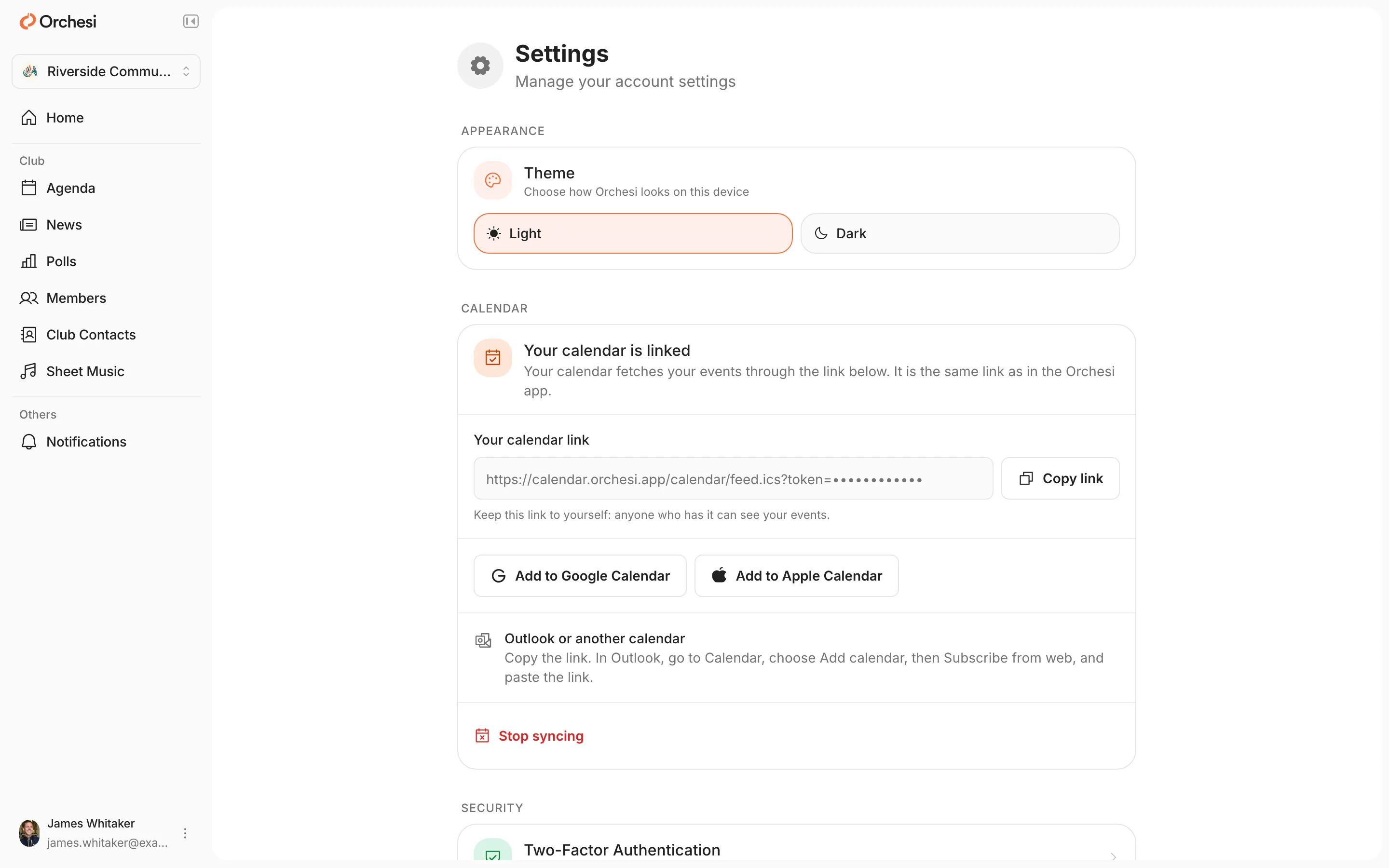
- You’ll now see Your calendar is linked. Click Add to Google Calendar or Add to Apple Calendar and confirm the subscription in your calendar.
It’s the same link as in the app. If you already turned on syncing in the app, you’ll see that same link here.
Using Outlook or another calendar?
Click Copy link. In Outlook, go to Calendar, choose Add calendar, then Subscribe from web, and paste the link. Don’t share the link with others: anyone who has it can see your events.
Want to stop?
Click Stop syncing and confirm. The link then stops working, in the app too. You can always link your calendar again; you’ll get a new link.
Good to know: you still say whether you’re coming in Orchesi. Your calendar only shows what’s planned.
Last updated:
Did this article help?
Great, thanks for letting us know!
Thanks! We’ll use this to improve the article.
Still stuck?
All steps
Getting started as a member
- Join your association in Orchesi
- Find your way around Orchesi
- Set up your profile and notifications
- Say whether you're coming to a rehearsal
- 5Add the agenda to your own calendaroptional
- 6Find the sheet music for your part