Step 6 of 6 · Getting started as a memberDone in about 1 min(How long it takes to do this in Orchesi)
Find the sheet music for your part
Find the sheet music for your instrument, search for a piece by title or composer and check the setlist for a concert. On your phone or your computer.
Where do you use Orchesi?
No more folder full of loose copies: your sheet music is in Orchesi, and you see the part for your instrument straight away.
Good to know: you usually only see the parts that belong to your section. If you play trumpet, you see the trumpet parts.
Open your sheet music
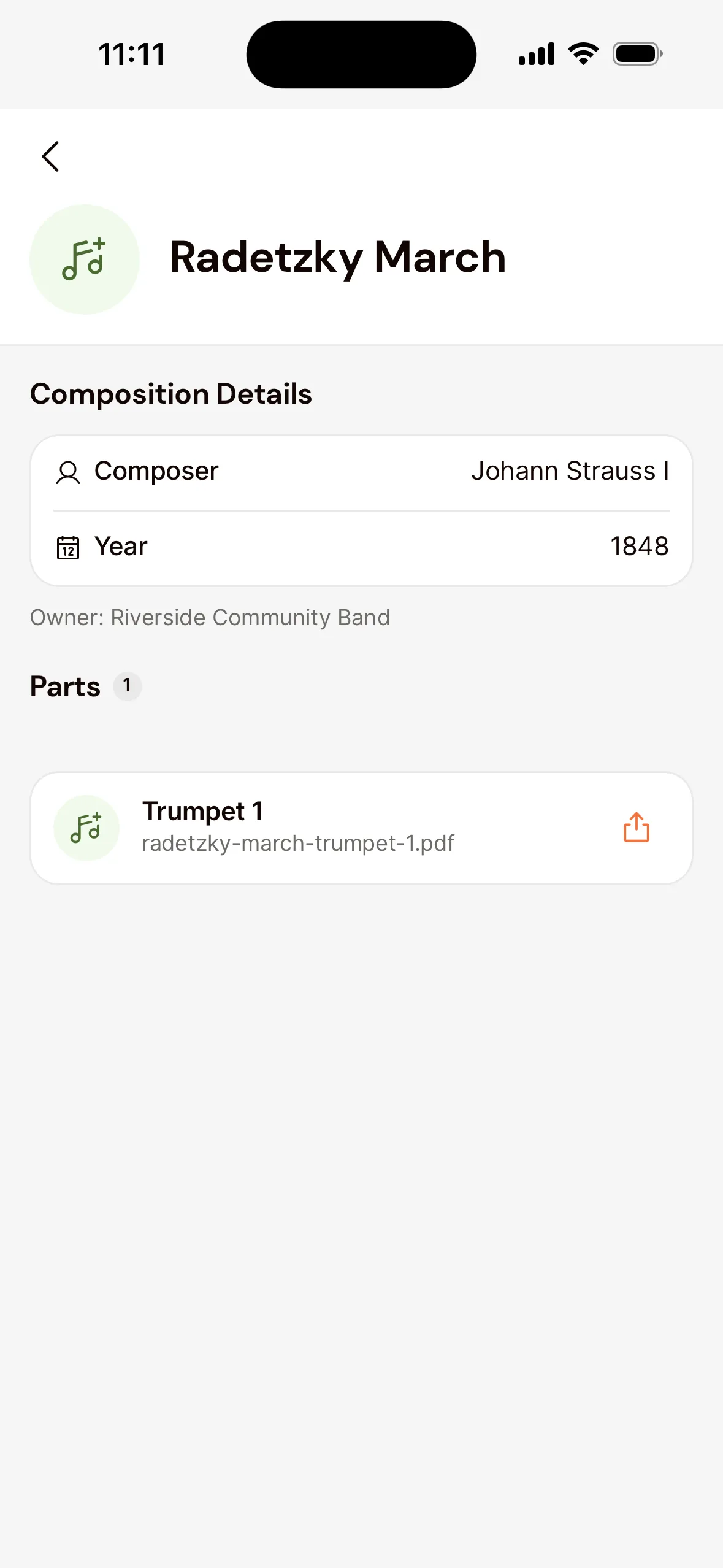
- Open the Music tab. Under My Music you’ll find your association’s pieces, in alphabetical order. The number of pieces is shown in the button itself.
- Search for a piece in the search bar, by title, composer or year.
- Tap the piece and open your part. It opens in the PDF viewer, so you can zoom in and turn pages.
The music for a concert
Under Setlists you’ll find, per concert, which pieces are being played, in the right order. That way you have the whole program together.
Member of more than one association?
Then you’ll see buttons with the names of your associations above the list. Tap one or more to see only their music, or choose All associations to see everything. If your choice finds nothing, tap Show all.
Open your sheet music
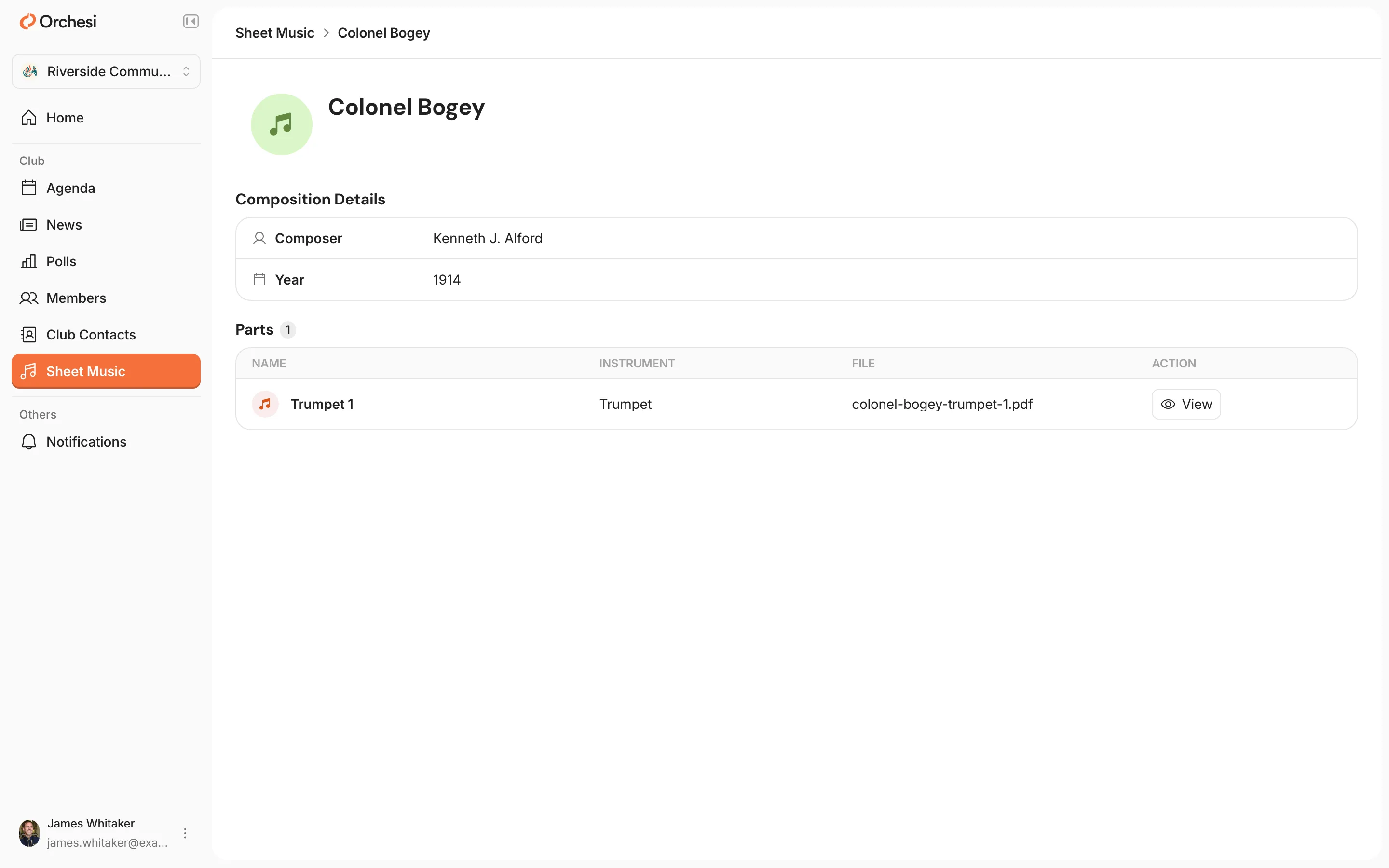
- Go to Sheet Music in the menu.
- Search for a piece with Search Sheet Music, by title or composer.
- Click the piece and open your part under Parts.
The music for a concert
Under Sheet Music you’ll also find the setlists: per concert, which pieces are being played. Handy for printing the parts for the whole program at home.
Member of more than one association? Then you see the music of all your associations in one list, with an Association column. Use the All associations button to choose which ones you see.
New music
When you get access to new sheet music, you get a notification, and an email if you receive emails from your association. Several pieces at once, for example for a concert, come together in one notification. Tap it to see your music for that association.
Pieces you got in the last 7 days and haven’t opened yet carry a New label. The label disappears as soon as you open the piece.
Rather not be notified about new music? Turn off New Sheet Music in your notification settings. See Set up your profile and notifications for how.
Can’t see your part?
Does it say No parts available for your instrument, or do you see the wrong part? Then you’re probably not in the right section yet. Ask the board to put you in the right section. It’s also possible the sheet music manager hasn’t added that part yet.
Last updated:
Did this article help?
Great, thanks for letting us know!
Thanks! We’ll use this to improve the article.
Still stuck?
You’ve done every step in this route. Nice work!
All steps
Getting started as a member
- Join your association in Orchesi
- Find your way around Orchesi
- Set up your profile and notifications
- Say whether you're coming to a rehearsal
- Add the agenda to your own calendaroptional
- 6Find the sheet music for your part