Step 3 of 9 · Setting up your associationDone in about 3 min(How long it takes to do this in Orchesi)
Plan rehearsals and events
Put rehearsals, concerts and meetings in the agenda, repeat them weekly and invite exactly the right groups or sections.
Where do you use Orchesi?
A rehearsal in Orchesi is more than a date. The right members see it, can say whether they’re coming, and get a reminder beforehand. Weekly rehearsals go into the agenda for the whole season in one go.
Tip: plan rehearsals before you invite members and aim them at the right groups. Anyone who joins that group later sees the rehearsals straight away.
Create an event
- Go to Agenda in the menu and click New Event.
- Choose the type: Rehearsal, Concert, Meeting or Other.
- Enter the Title, for example Weekly rehearsal, and the date, time and location.
- Rehearse every week? Under Repeat, choose Weekly. That creates a whole series at once.
- Under Invites, choose who’s coming: All Members, or only some through Select Group, Select Section or Select Members.
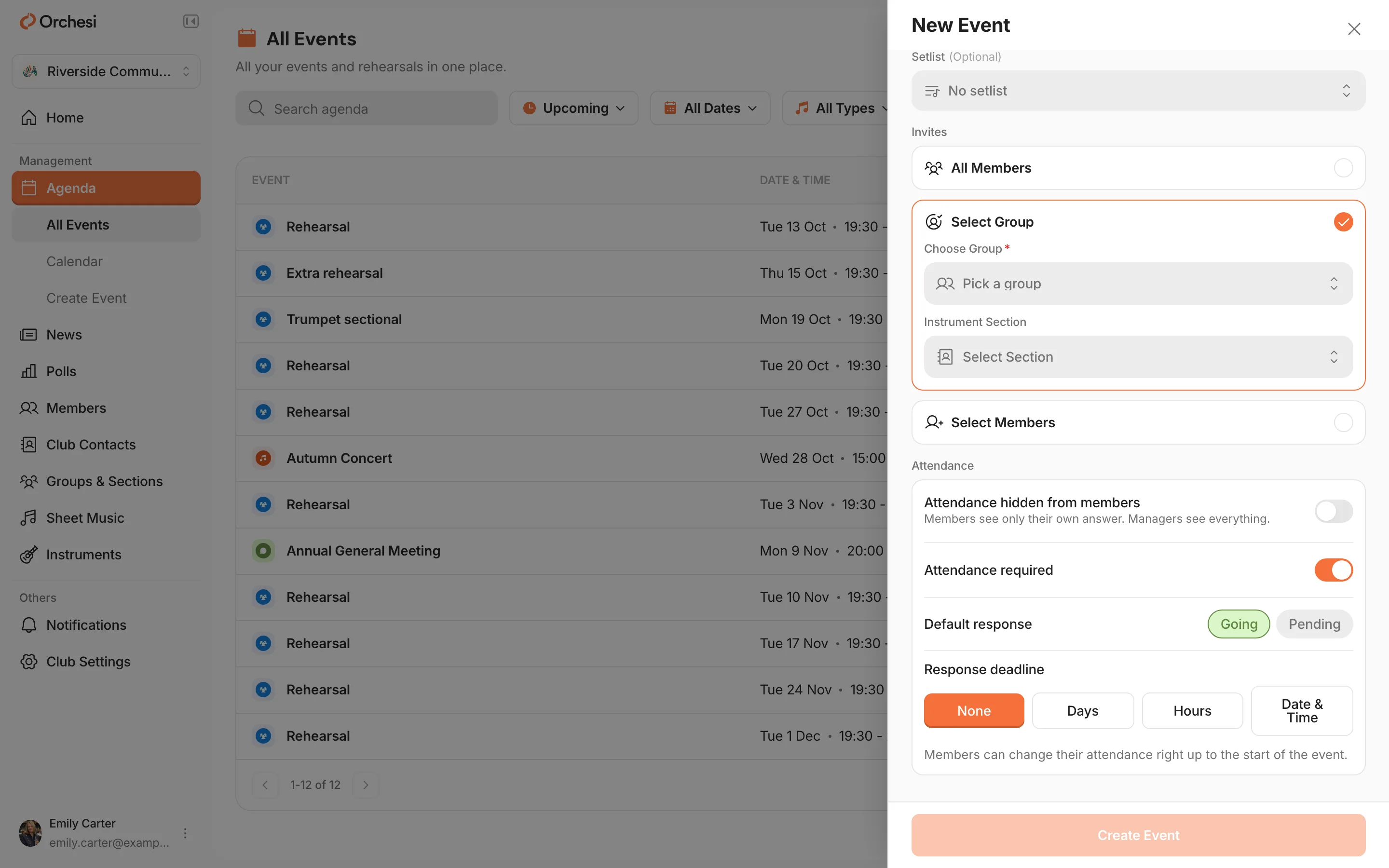
- Under Attendance, set whether members need to respond (Attendance required) and, optionally, a Response deadline. Shouldn’t members see who else is coming? Turn on Attendance hidden from members.
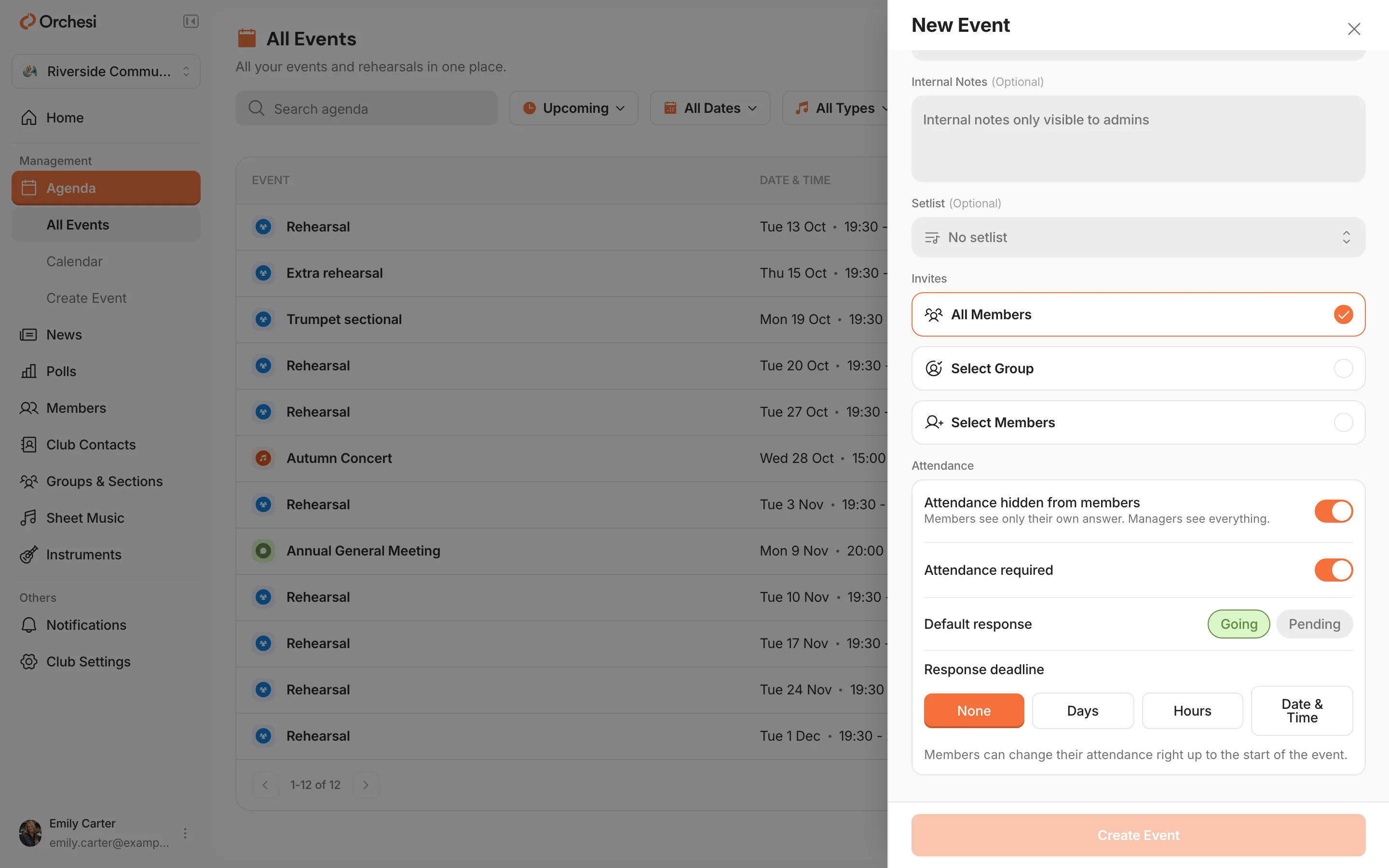
- Click Create Event, or Create Series for a repeating event.
Create an event
- Open the Agenda tab and tap the plus.
- Choose the type, fill in the title, date, time and location, and set a repeat if needed.
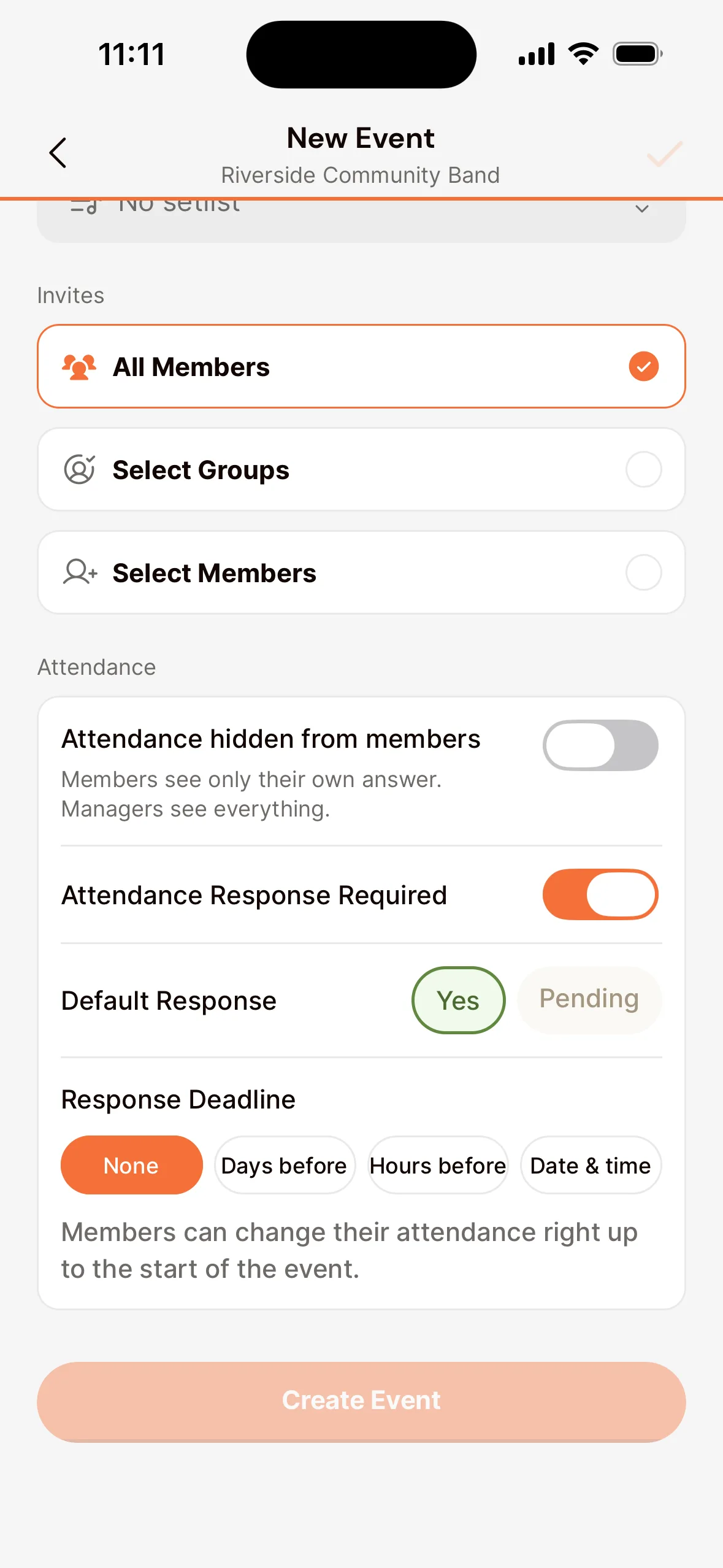
- Choose who’s invited: all members, or certain groups, sections or members.
- Set whether members need to respond (Attendance Response Required) and, optionally, a response deadline. Shouldn’t members see who else is coming? Turn on Attendance hidden from members.
- Tap Create Event.
Good to know
- Response deadline: without a deadline, members can change their answer until the event starts. With a deadline you know where you stand in time, for example for a concert.
- Attendance hidden from members: members then see only their own answer, not who else is coming or how many. Admins, conductors and agenda managers still see everyone. Turn it on for a series and it applies to every rehearsal in that series.
- Changing a series: when you edit a repeating rehearsal, you choose whether it applies to this event only or to all following ones as well.
- Music for a concert: link a setlist to the event, and invited members see the right pieces straight away. See Add and share sheet music.
- Who’s coming? You see that per event; read See who’s coming.
Last updated:
Did this article help?
Great, thanks for letting us know!
Thanks! We’ll use this to improve the article.
Still stuck?
All steps
Setting up your association
- Create your association in Orchesi
- Create groups and sections
- 3Plan rehearsals and events
- 4How to bring your members along to Orchesi
- 5Ready-made messages for your members
- 6The easiest way to invite all your members
- 7Invite members straight into the right groupsoptional
- 8Import your members from Excel or CSVoptional
- 9Give roles to the board, conductor and managers