Done in about 2 min(How long it takes to do this in Orchesi)
Tasks and attachments for an event
Share out jobs like setting up and packing away, let members sign up themselves and attach files, like directions or the program.
Where do you use Orchesi?
Who sets up the chairs, who brings the coffee, who drives the percussion to the concert? With tasks you share out those jobs in Orchesi instead of the group chat. Members sign up themselves, and you see at a glance what’s still open.
Add a task
- Open the event in the Agenda and tap the plus next to Tasks.
- Enter the Task name, for example Setting up, and optionally a description.
- Under People needed, choose how many people you need, and save the task.
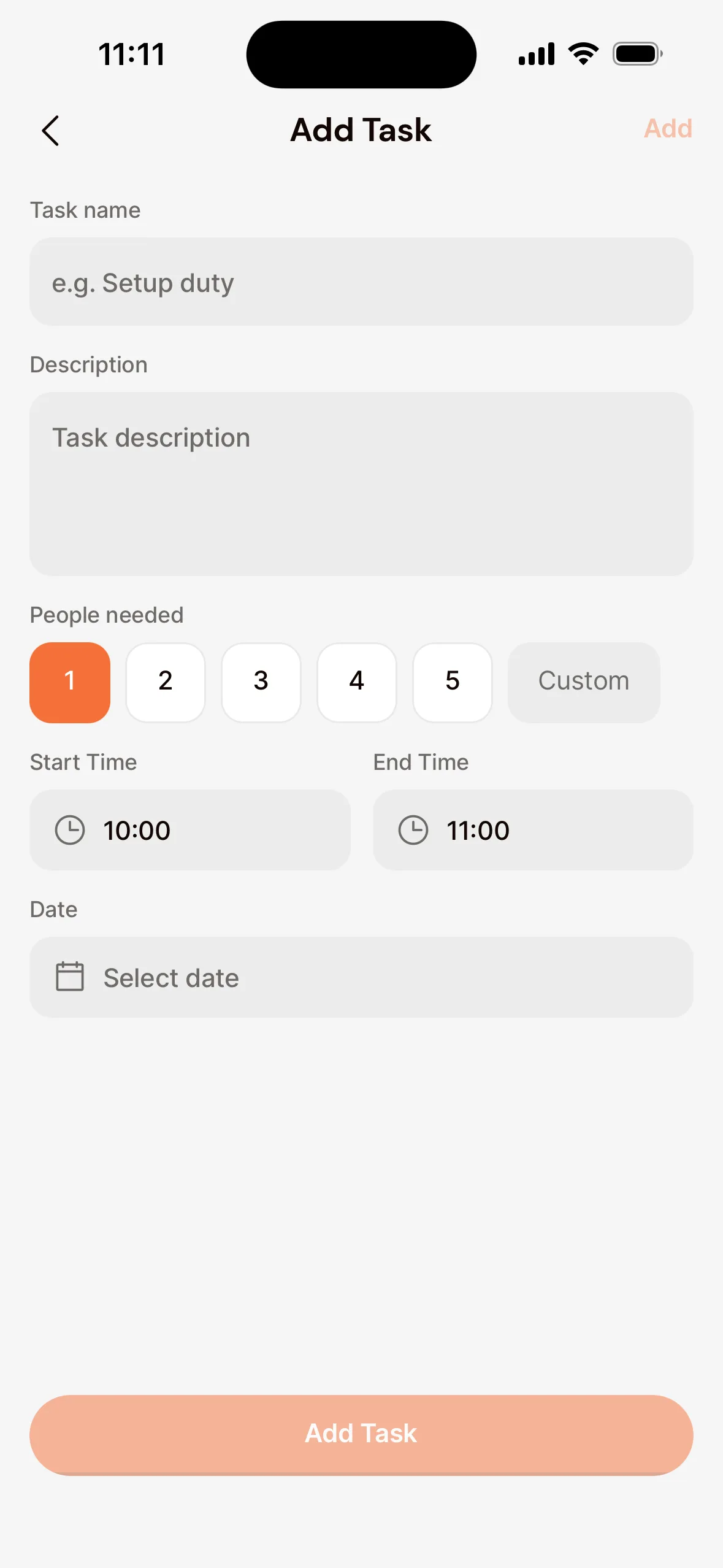
If saving doesn’t work, for example because you have no connection, the form says so above your task and keeps what you typed. Tap Try again.
Members see the task on the event and sign up by swiping it to the right or tapping Join. Once the task is full, it says full.
Want to put someone on it yourself? Open the task and tap Assign. They get a notification about it.
Add an attachment
- Open the event and tap Add Attachment under Attachments.
- Choose Choose Document, Take photo or Choose from library.
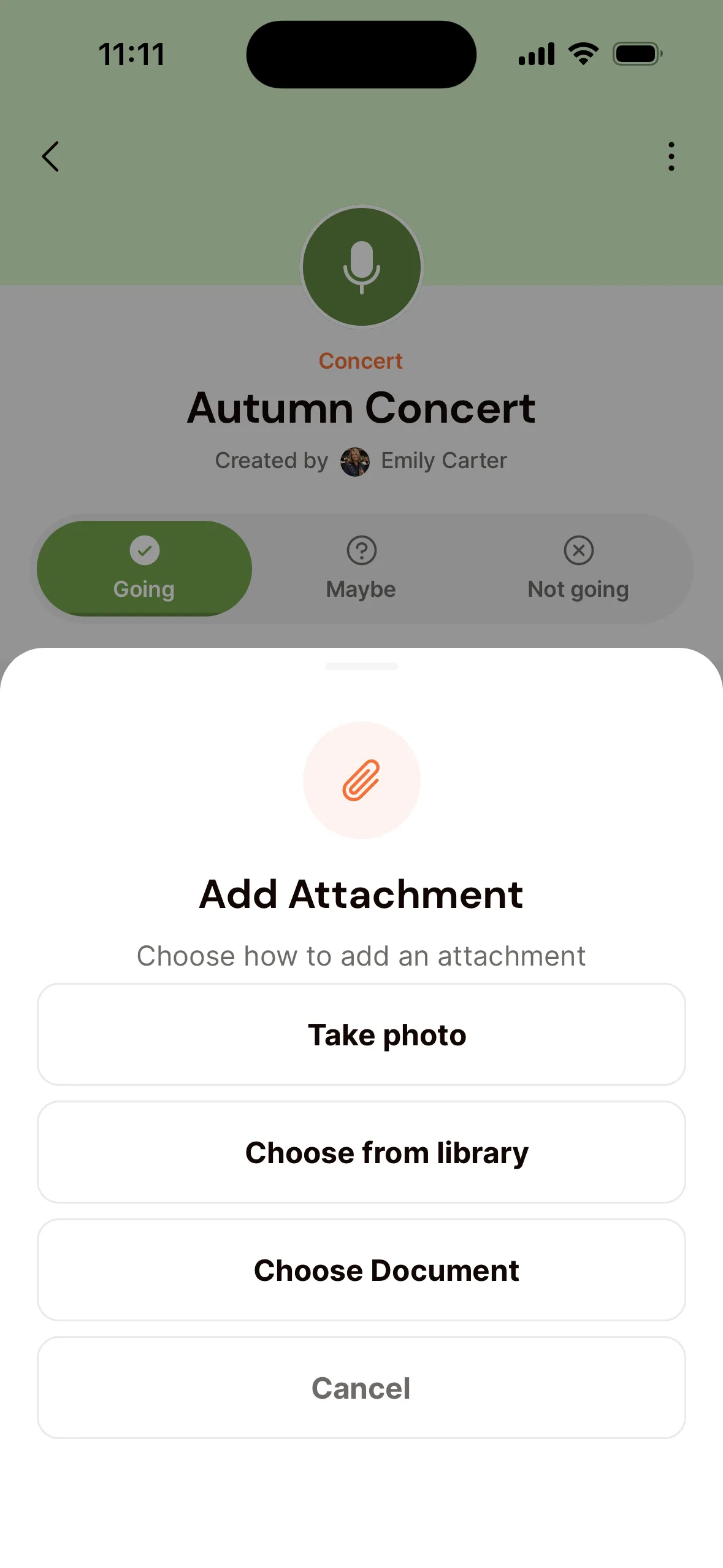
You can add a PDF, a photo, or a Word, Excel, PowerPoint or CSV file, up to 50 MB. Think of the agenda or the minutes of a meeting. Files with a password or macros, and older .doc, .xls or .ppt files, can’t be added. Save those in the current format (.docx, .xlsx, .pptx) first.
Everyone invited to the event can open the attachment.
See tasks and attachments
- Go to Agenda in the menu and open the event.
- Under Tasks you see every task and who signed up for it.
- Under Attachments are the files for the event.
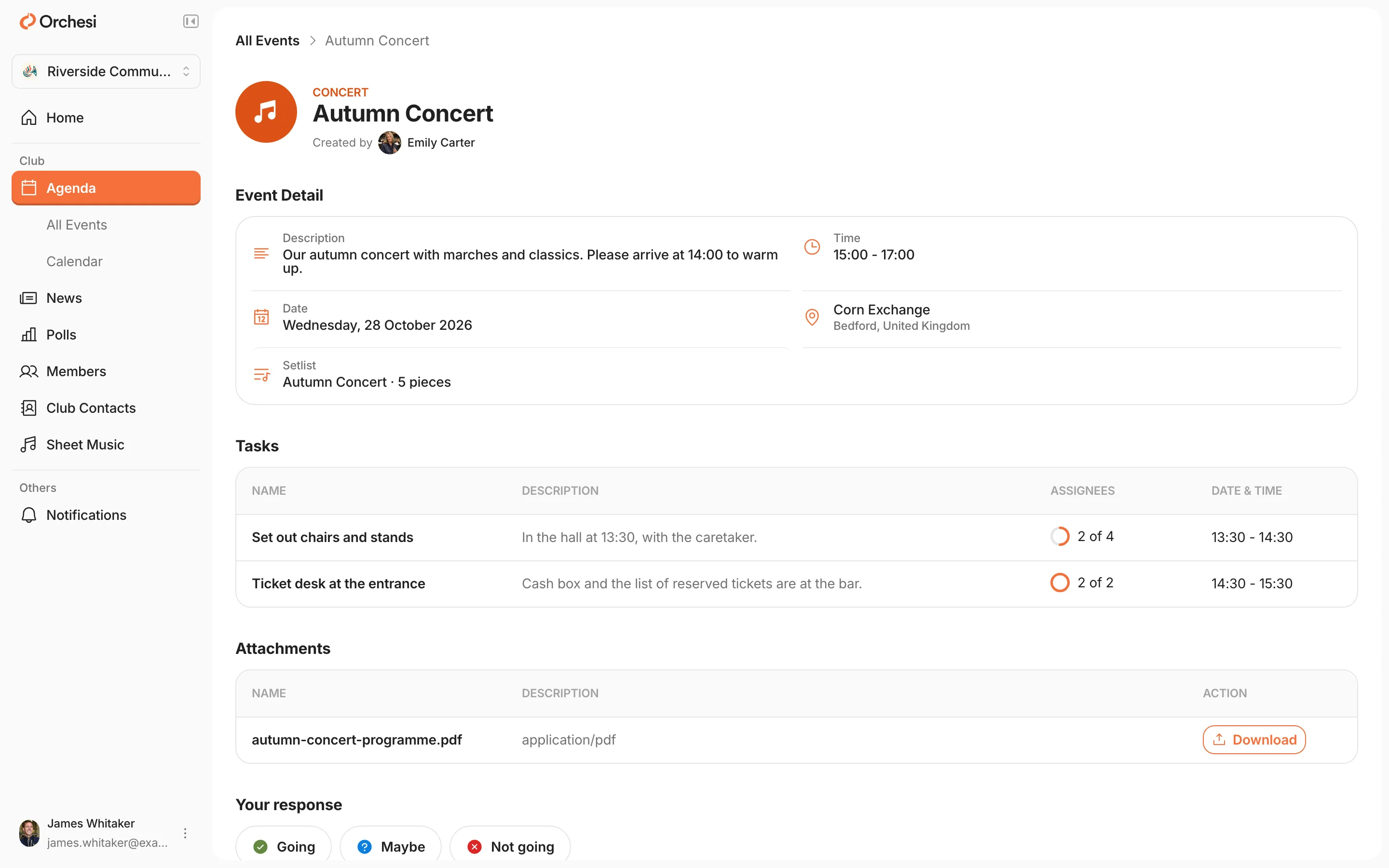
Adding tasks and attachments is done in the app. Choose App at the top of this article.
Good to know
- Internal notes: when you create or edit an event, you can fill in Internal Notes. Only admins see them, not members.
- Recurring jobs: for a series of rehearsals, add the task to each rehearsal separately, so you can see whose turn it is each week.
Last updated:
Did this article help?
Great, thanks for letting us know!
Thanks! We’ll use this to improve the article.
Still stuck?