Done in about 1 min(How long it takes to do this in Orchesi)
App settings and more than one association
Playing in more than one association, like a band and a choir? Here's how you have everything in one app, plus where to choose the language.
Where do you use Orchesi?
If you play in more than one association, you have everything in one app. At the bottom, you’ll see where to choose the app’s language.
Member of more than one association
If you’re a member of, say, a concert band and a choir, everything is in the same app:
- The Agenda shows the rehearsals of all your associations. Use the association filter to see just one.
- On the Club tab, choose at the top which association’s members, news and polls you want to see.
Joining another association? In your profile, go to your associations, tap Add association and choose Join with a code.
App settings
Tap your profile photo in the top left and choose App Settings. There you choose English or Dutch under language, and light or dark under appearance.
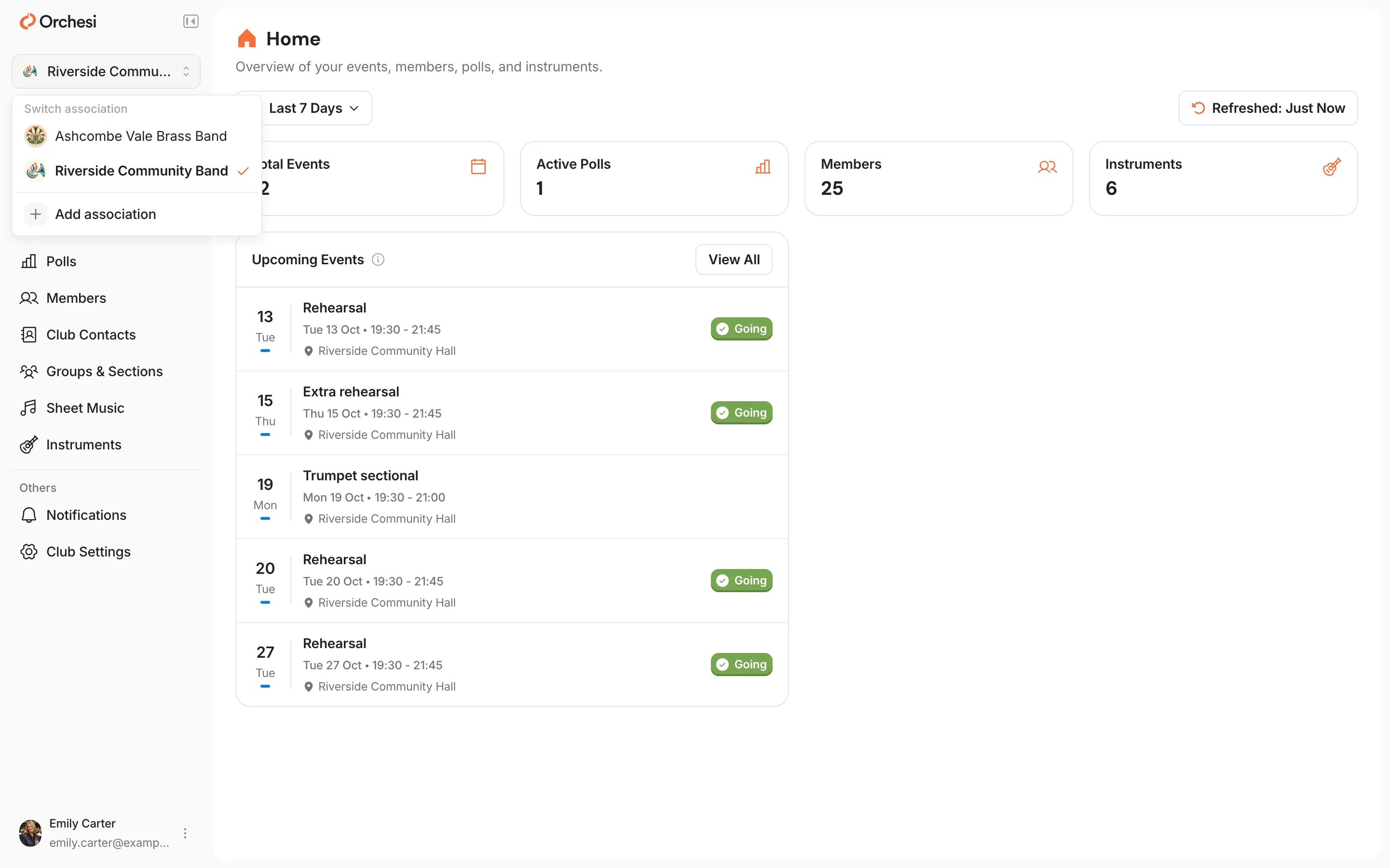
Member of more than one association
At the top of the menu, choose the association you’re working in. Joining another one? Choose Add association and enter the invite code.
Light or dark is under Settings in the menu, at Theme.
Last updated:
Did this article help?
Great, thanks for letting us know!
Thanks! We’ll use this to improve the article.
Still stuck?