Done in about 2 min(How long it takes to do this in Orchesi)
Signing in, your password and two-factor authentication
Forgot or change your password, change your email address, sign in with Google, Facebook or Apple, and protect your account with two-factor authentication.
Where do you use Orchesi?
You sign in with your email address and password. Here’s what to do if you’ve lost your password, and how to protect your account even better.
Signing in
Sign in with your email address and password. In the app you can also sign in with Google or Facebook, and on an iPhone with Apple.
Does the app say there is already an Orchesi account with this email address? Then you created your account in another way, for example with your email address and password. Sign in the way you did before. To keep others out of your account, Google or Facebook is only connected to an existing account when Google has confirmed that the email address is yours. Forgot your password? See below.
Does the app ask for your name or email address after you sign in? Your account doesn’t have it yet, for example because Apple, Google or Facebook didn’t share it. Fill it in, so your fellow members know who you are. You confirm an email address with the 6-digit code we send to it. If you choose Later, the app reminds you on Home and in your profile.
Forgot your password
- On the sign-in screen, tap Forgot password?.
- Enter your email address. You’ll get an email to choose a new password.
Change your password
- Tap your profile photo in the top left and choose Privacy & Security.
- Choose Change password, enter your current and new password and confirm.
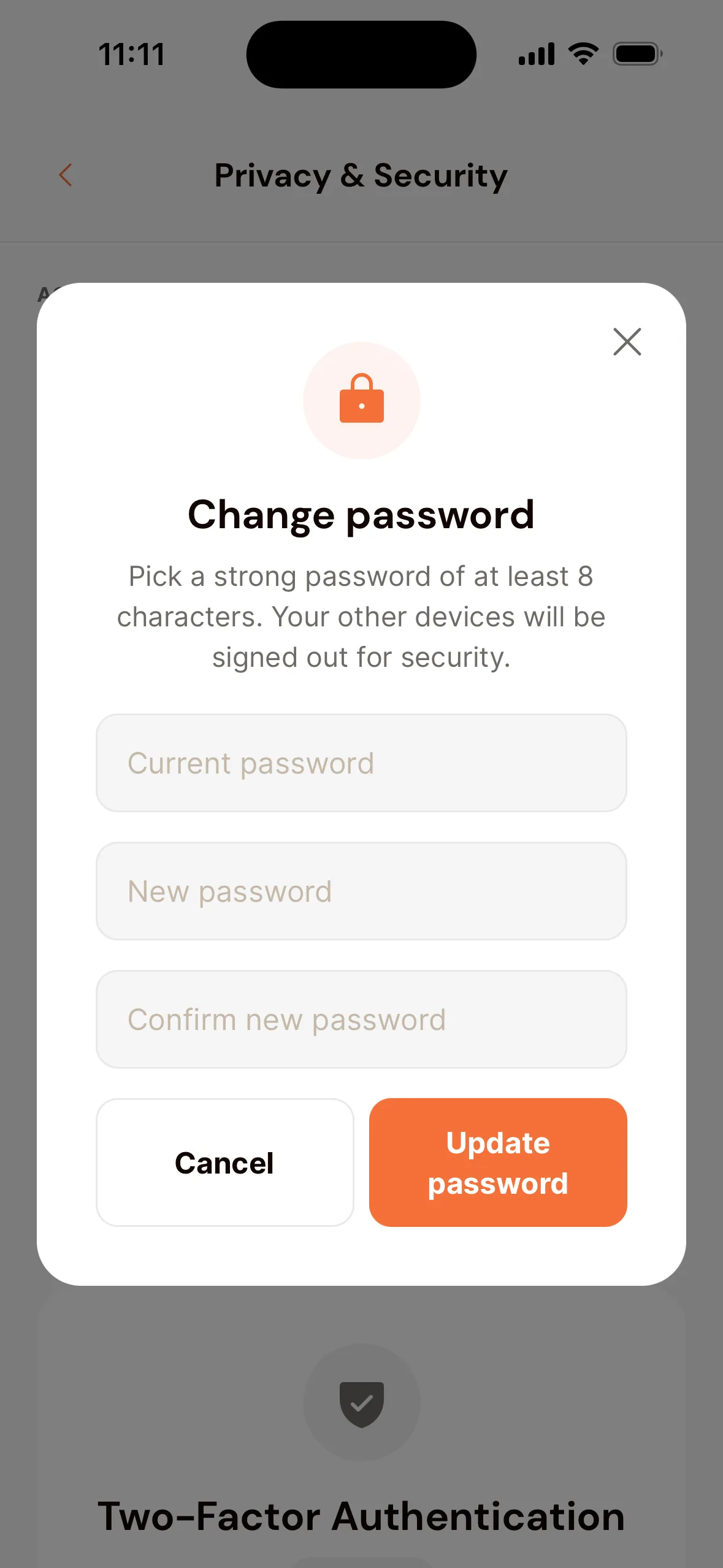
To be safe, you’re signed out on your other devices.
Change your email address
- Tap your profile photo in the top left and choose Edit Profile.
- Tap Change next to your email address.
- Enter your New email address and show it’s you: enter Your password, plus the Code from your authenticator app if you use one. Do you sign in with Google, Apple or Facebook and have no password? Then tap, for example, Confirm with Google and sign in there again.
- Tap Send code. We send a 6-digit code to your new address. It’s valid for 15 minutes.
- Enter the code and tap Confirm.
You’ll see Email address changed. From now on, sign in with your new address. You’re signed out on your other devices.
Set up two-factor authentication
With two-factor authentication, signing in takes a second step on top of your password. That keeps others out of your account, even if they know your password.
- Tap your profile photo in the top left and choose Privacy & Security.
- Under Two-Factor Authentication, choose a method:
- Email verification: tap Enable. When you sign in, you get a link by email.
- Authenticator app: tap Set up, then Continue. Scan the QR code with an app like Google Authenticator. Can’t scan it? Tap Can’t scan? Show setup key and copy the key into the app. Tap I’ve scanned the code, enter the 6-digit code from the app, one digit per box, and tap Verify.
- Keep the recovery codes somewhere safe: you only see them once. They get you in if you lose your phone. Tick I have saved my recovery codes and tap OK. You’re back in Privacy & Security.
Sign out
Scroll all the way down in your profile and tap Sign Out.
Forgot your password
- On the sign-in screen of orchesi.app, click Forgot password?.
- Enter your email address. You’ll get an email to choose a new password.
Change your email address
- Click your name at the bottom left of the menu, choose View Profile and click Edit Profile.
- Click Change next to your email address.
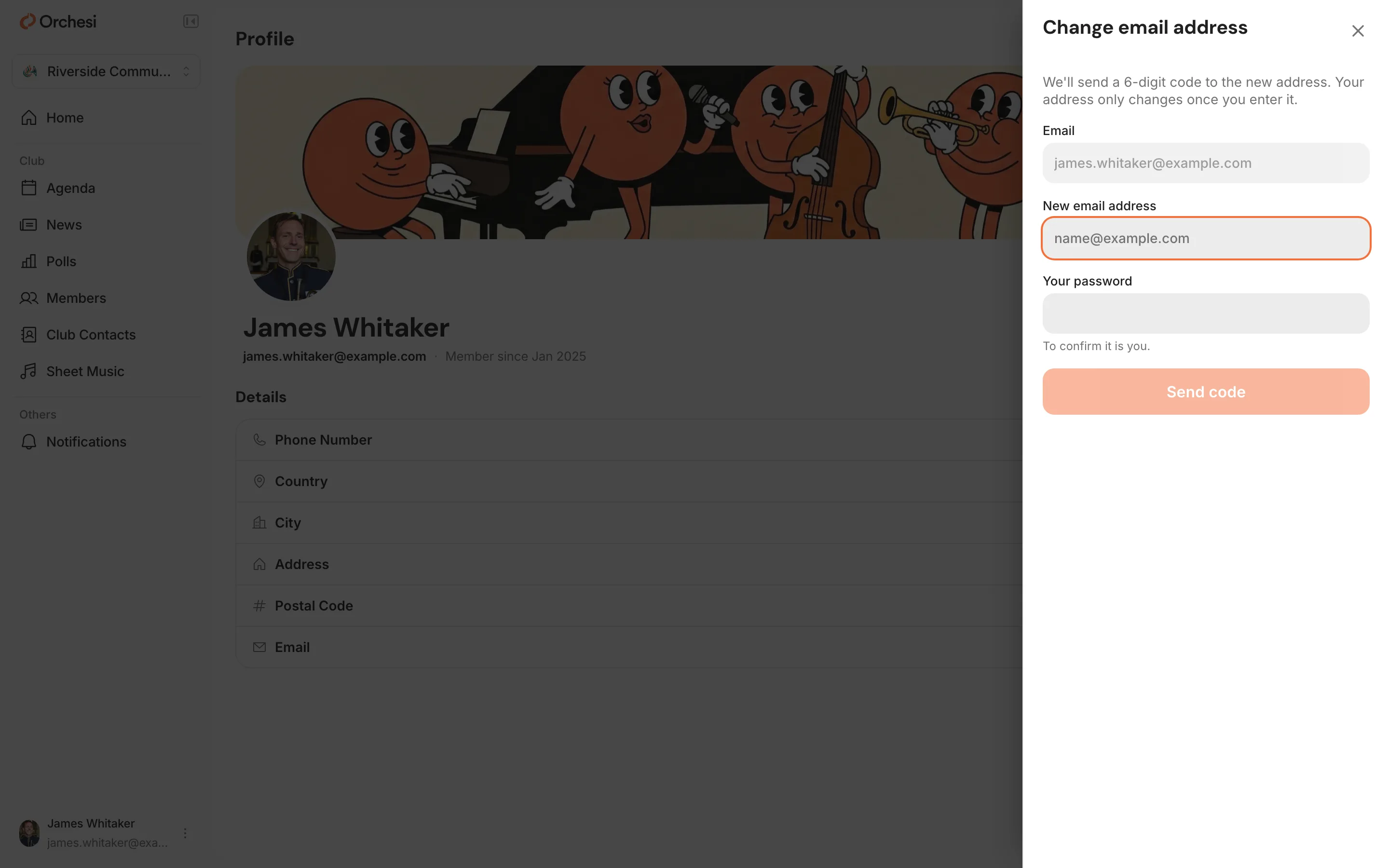
- Enter your New email address, and Your password to show it’s you. If you use an authenticator app, also enter the Code from your authenticator app.
- Click Send code. We send a 6-digit code to your new address. It’s valid for 15 minutes.
- Enter the code and click Confirm.
You’ll see Email address changed. From now on, sign in with your new address. You’re signed out on your other devices.
Do you sign in with Apple, Google or Facebook and have no password? Then change your email address in the app, where you sign in with that provider again to show it’s you.
Set up two-factor authentication
With two-factor authentication, signing in takes a second step on top of your password. That keeps others out of your account, even if they know your password.
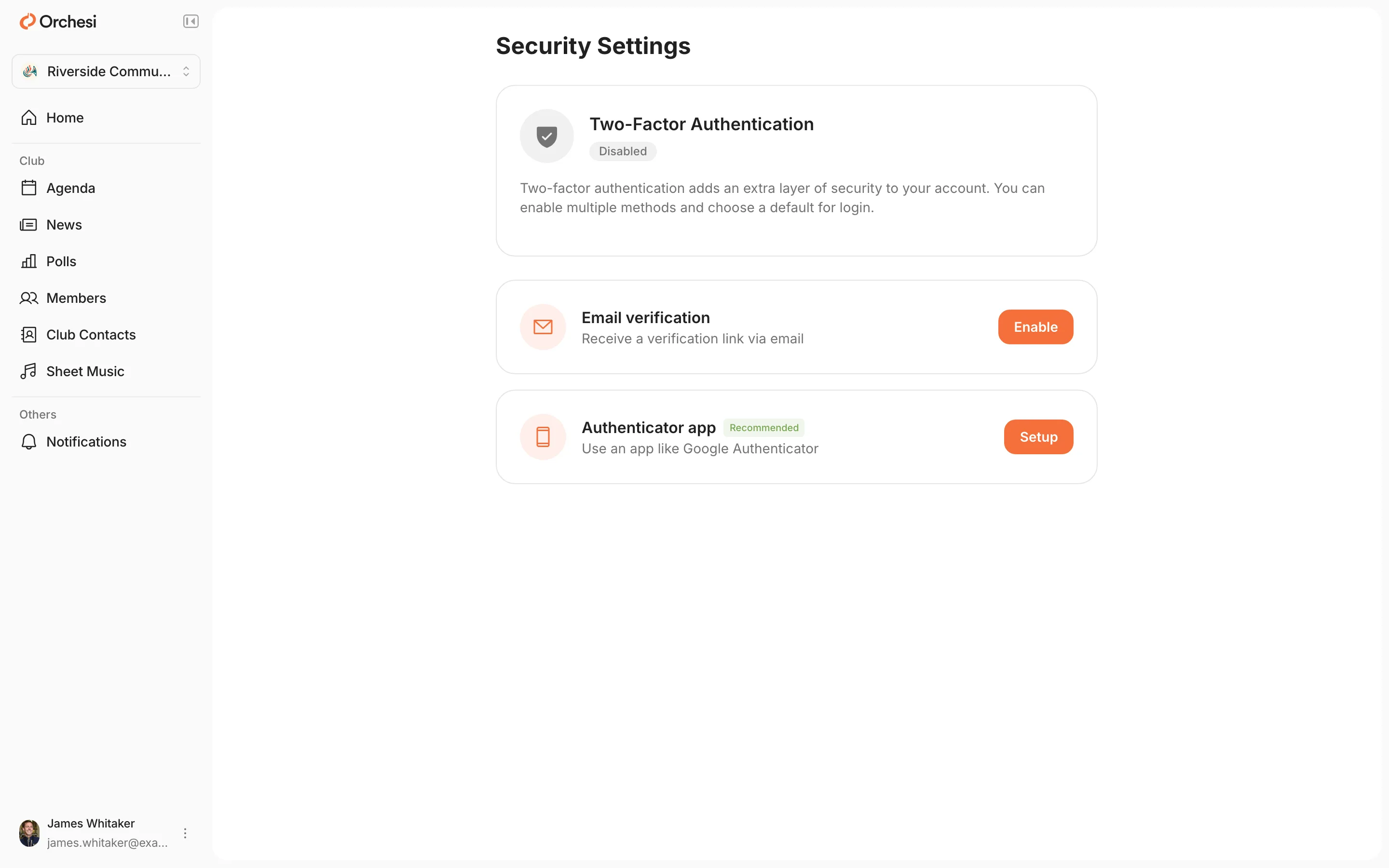
- Click your name at the bottom left of the menu, choose Settings and, under Security, choose Two-Factor Authentication.
- Choose a method:
- Email verification: you get a link by email when you sign in;
- Authenticator app: you scan a QR code with an app like Google Authenticator and enter its 6-digit code when you sign in, one digit per box. If you paste the code, all boxes fill at once.
- Keep the Recovery Codes somewhere safe. They get you in if you lose your phone.
Not you?
When someone asks to change your email address, your current address gets an email straight away with a link to cancel it. Once the change has gone through, that address gets an email that lets you undo it for another 14 days. Open the link and click Cancel the change.
If you undo a change that has gone through, your account gets its old address back and you’re signed out on all devices. Your password no longer works and two-factor authentication is off: choose a new password with Set a new password, then turn two-factor authentication back on.
Do you manage an association? Turn on two-factor authentication. You can see every member’s details, so a well-protected account matters even more.
Last updated:
Did this article help?
Great, thanks for letting us know!
Thanks! We’ll use this to improve the article.
Still stuck?