Done in about 3 min(How long it takes to do this in Orchesi)
Not getting push notifications on your phone? Here's the fix
Not getting Orchesi notifications about rehearsals, changes or tasks? Check these points, on your phone and in the app.
Where do you use Orchesi?
You only get push notifications with the Orchesi app on your phone, not in the web app. If they don’t come through, a switch is almost always off somewhere: on your phone or in the app. Go through the points below, from top to bottom.
1. Are you signed in to the app?
Your phone only gets notifications while you’re signed in to the app. After you tap Sign Out, that device gets nothing. Open the app and sign in again, and the notifications come back.
Do you use Orchesi on more than one phone or tablet? Then every device you’re signed in on gets the notifications.
2. Is Orchesi allowed to send notifications on your phone?
The first time, the app asks if you want notifications. If you chose Skip for now or Don’t Allow then, your phone won’t ask again. Turn it on yourself:
iPhone
- Open your iPhone’s Settings app and choose Notifications.
- Tap Orchesi and turn on Allow Notifications.
- Also choose where you want to see them, for example on the Lock Screen and as Banners.
Android
- Open your phone’s Settings and choose Apps.
- Tap Orchesi, then Notifications.
- Turn notifications on. If you see separate types, such as Events, Attendance and Tasks, turn those on too.
Menu names differ a little from phone to phone. Can’t find it? Type notifications in the search field of your settings.
3. Are notifications on in Orchesi?
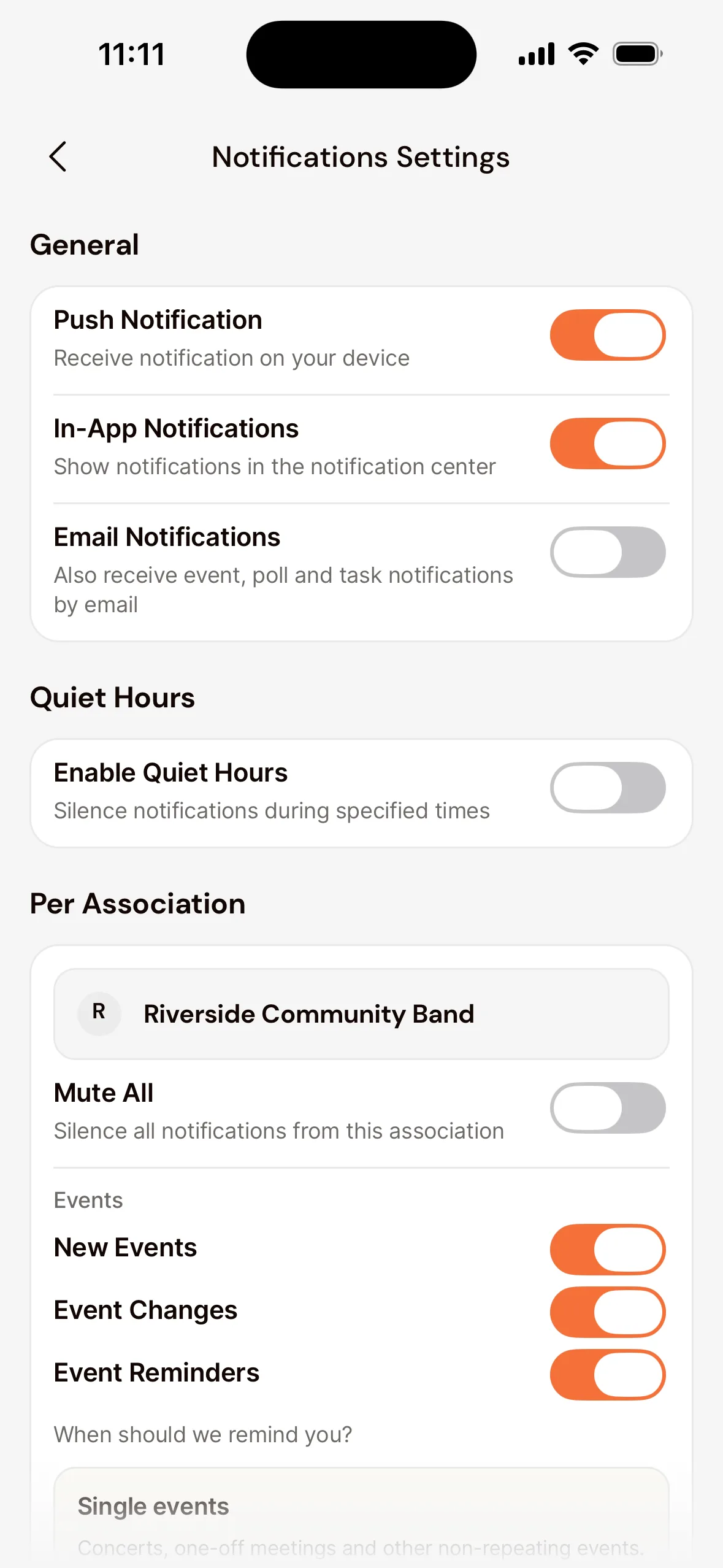
- Tap your profile photo in the top left and choose Notifications.
- Under General, turn on Push Notification.
- Under Per Association, check that Mute All is off. If you’re a member of more than one association, choose the right one there first.
- Turn on the topics you want a notification about, such as New Events, Event Changes and Event Reminders.
4. Are quiet hours or Do Not Disturb on?
- Quiet hours in Orchesi: if Enable Quiet Hours is on under Quiet Hours, you get no push notifications during those hours. The notification is still waiting under the bell in the top right of the app.
- Do Not Disturb or a Focus mode on your phone: notifications then arrive silently or later. Turn it off, or add Orchesi to the apps that are allowed through.
5. Is your phone stopping the app to save battery?
Some phones, mostly Android, put apps to sleep. In your settings, go to Apps > Orchesi > Battery and choose Unrestricted or Don’t optimize. This doesn’t apply to iPhone.
Still not working?
- Check the App Store or Google Play for an Orchesi update and install it.
- Sign out and back in. Your phone then signs up for notifications again.
- If that doesn’t help, let us know through Help & Support. See Get help or report a bug.
Good to know: you don’t get a push notification about everything. A news post only comes in as a push notification if the board chose that for the post. Anything you miss is still in the app, under the bell and in the agenda. To choose which notifications you get, see Set up your profile and notifications.
Not in the web app. You can do this in the app.
Last updated:
Did this article help?
Great, thanks for letting us know!
Thanks! We’ll use this to improve the article.
Still stuck?