Done in about 2 min(How long it takes to do this in Orchesi)
Use Orchesi on a tablet
Orchesi works on an iPad and on Android tablets, with a layout made for the bigger screen. Here's how it differs from the phone.
Where do you use Orchesi?
The Orchesi app also runs on an iPad and on Android tablets, including a foldable phone when it’s unfolded. You sign in with the same account and see the same association, agenda and sheet music as on your phone. Only the layout is made for the bigger screen: lists and details sit side by side, and your sheet music is easy to read.
Which tablets? An iPad with iPadOS 16.4 or later, and an Android tablet with Android 7.0 or later. Download the app from the App Store or Google Play, the same app as on your phone.
Landscape: the menu on the left
Hold your tablet in landscape and the menu sits on the left, instead of the tabs at the bottom. It has Home, Agenda and Sheet music, then News, Polls, Members, Club contacts and Documents. If you have a role on the board or in management, Management follows, with for example Groups & sections, Board & committees and Sheet music library. Notifications and Help are always at the bottom, under Other.
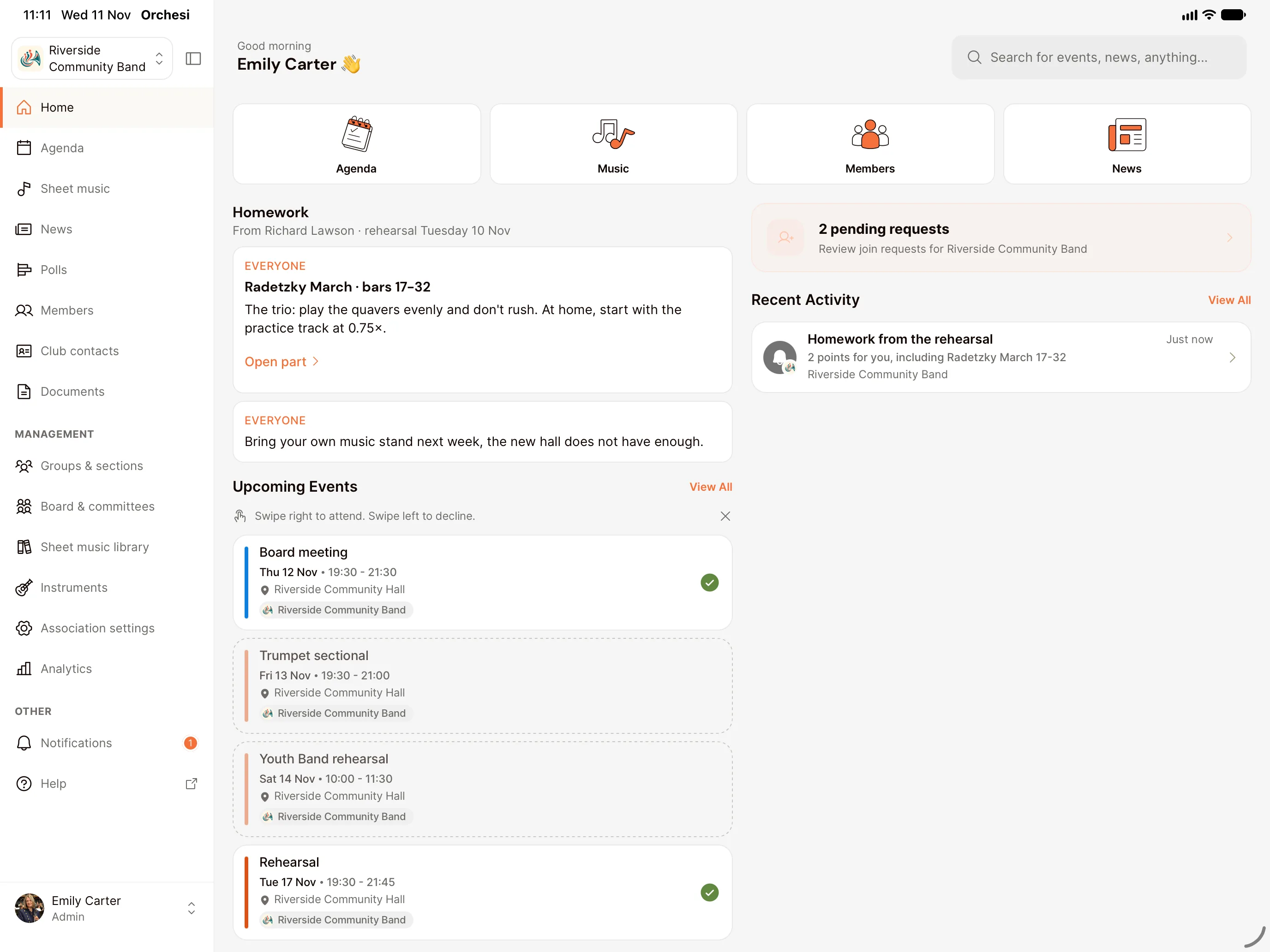
Tap your name at the bottom of the menu for Profile, My instruments, Settings and Language. Member of more than one association? Tap the association at the top of the menu to switch. Want more room for the content? Fold the menu into icons with its fold button.
Portrait: the tabs at the bottom
Hold your tablet upright and you get the tabs at the bottom, as on your phone: Home, Agenda, Music and Club. Lists and details still sit side by side: tap an event and it opens next to the agenda, without leaving the list.
On Home, the app points out that you see even more side by side in landscape. Just turn your tablet: Orchesi follows straight away.
Next to another app
Using Orchesi in Split View or Slide Over on an iPad, or in a split screen on Android? In a narrow window Orchesi shows the phone layout, so everything still fits. Make the window wider and the tablet layout comes back.
Forms
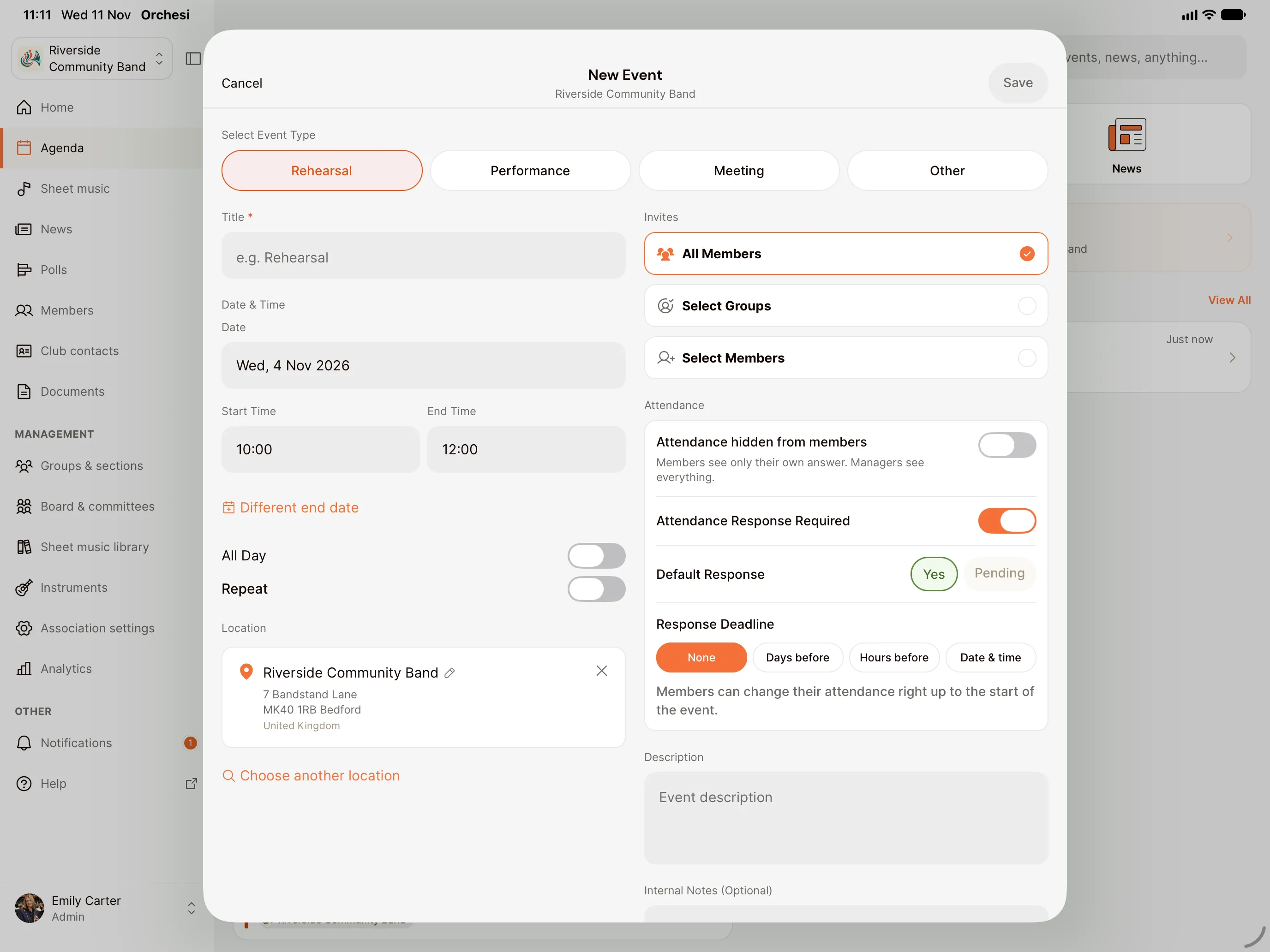
On an iPad, a form, such as a new event or a recording, opens as a panel in the middle of the screen. Cancel is at the top left, the orange button to save at the top right. On an Android tablet the form fills the screen, with the same buttons at the top.
Reading sheet music
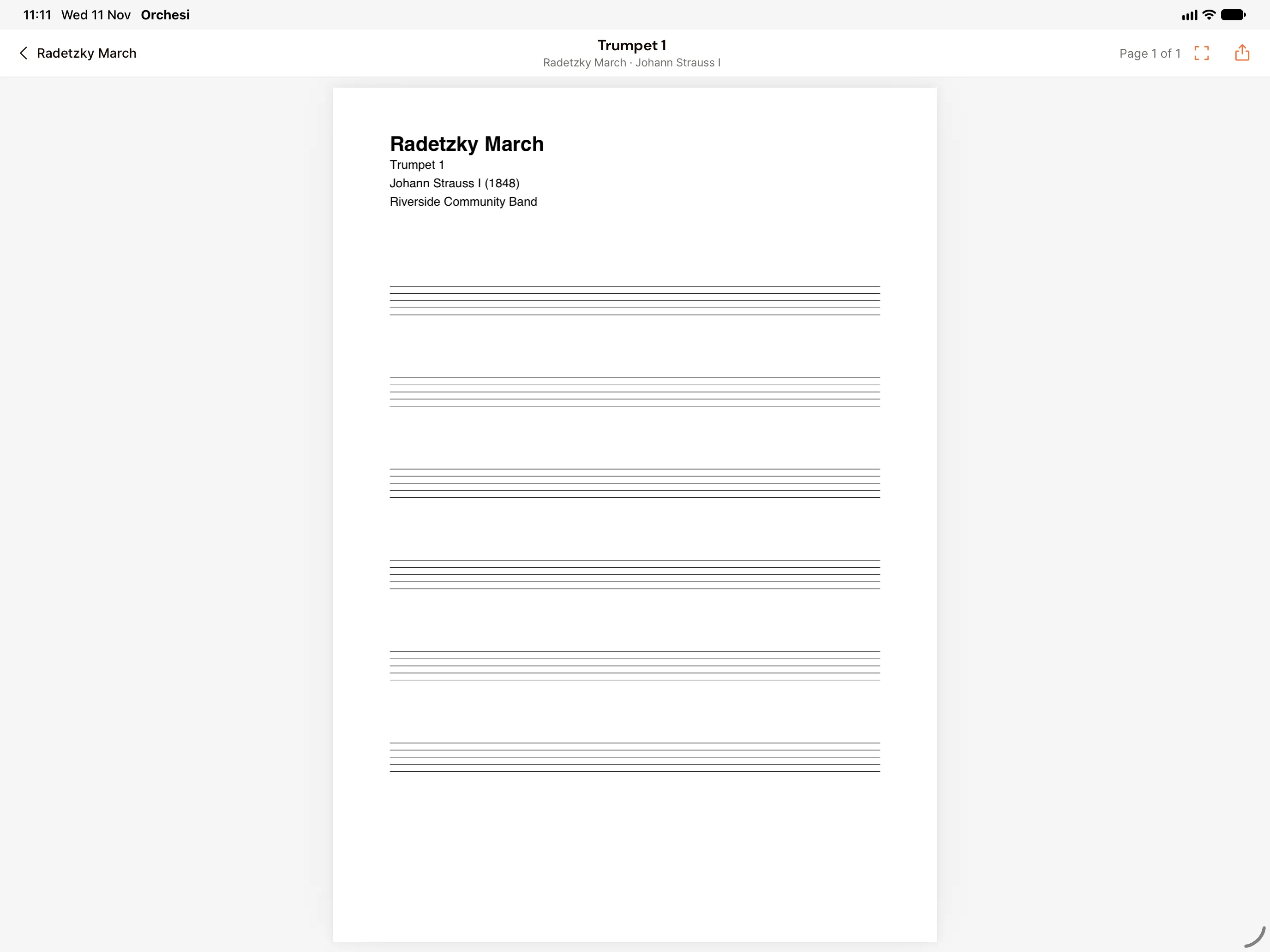
The big screen is made for sheet music. Open your part as usual, in Sheet music (landscape) or the Music tab (portrait).
- Landscape: you see two pages side by side, like an open folder. A part of one page sits in the middle.
- Portrait: you see one whole page at a time. Tap the left or right side of the page, or swipe, to turn.
- Full screen: tap the full-screen button to see only the music. Tap the middle of the page to bring the buttons back.
Tip: everything else works the same as on your phone. Where an article in this help center says “tab” or “tap”, you’ll find the same item in the menu on the left when your tablet is in landscape.
Not in the web app. You can do this in the app.
Last updated:
Did this article help?
Great, thanks for letting us know!
Thanks! We’ll use this to improve the article.
Still stuck?