Done in about 2 min(How long it takes to do this in Orchesi)
Let Orchesi support look along
With a support code, Orchesi support can look along in your association for a while, read-only and for 7 days at most. How to create a code and revoke it.
Where do you use Orchesi?
Sometimes we can help you faster if we see what you see. A support code gives Orchesi support temporary access to your association. Your permission applies to Orchesi’s whole support team, so whoever picks up your question can help. Support can only look: saving, deleting, sending or exporting isn’t possible. Only admins can create a code, and only in the web app.
Create a support code
- Go to Club Settings in the menu, under Association, and open the Support access tab.
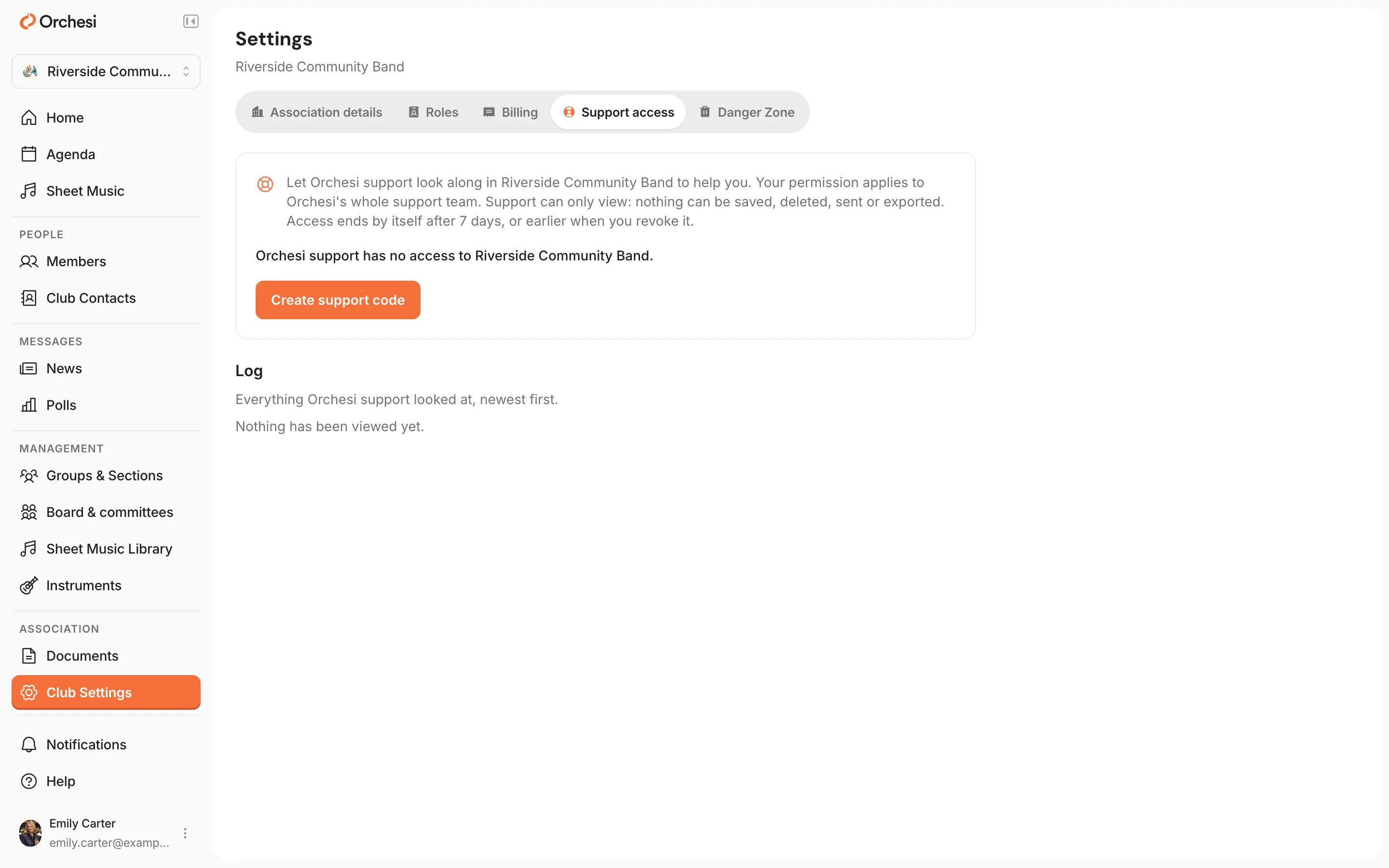
- Click Create support code.
- Click Copy code and share the code with Orchesi support, for example in your ticket or on the phone.
You only see the code once. It can be used for 72 hours, until the date shown with it.
While support is looking along
- The Support access tab shows since when and until when Orchesi support can look along.
- Admins get a notification and an email when support starts looking along, and again when the access ends.
- Access keeps running until the 7 days are over, you revoke it or you make a new code. A support employee who stops looking along doesn’t end it, so a colleague can pick up where they left off.
- Under Log you see what support looked at, newest first. A refused attempt to change something is listed too.
Revoke access
Click Stop access now, or Revoke code if the code hasn’t been used yet, and then Revoke access. Support can then no longer look along, and a code that wasn’t used yet stops working.
If you make a new code with Create new code, the old code and any running access stop right away.
Good to know: does someone ask for a code outside your contact with Orchesi support? Then don’t give it. Whoever has the code can look along for as long as it’s valid.
Not in the app. You can do this in the web app.
Last updated:
Did this article help?
Great, thanks for letting us know!
Thanks! We’ll use this to improve the article.
Still stuck?