Done in about 2 min(How long it takes to do this in Orchesi)
Share the rules, minutes and other documents
Put your association's official papers in Documents, decide who sees each one and upload a new version when something changes.
Where do you use Orchesi?
The rules, the minutes of the general meeting, the privacy statement: under Documents your association’s official papers have one fixed place. Members always see the latest version, and a PDF opens right in the app. No more searching through old emails.
Admins and board members manage the documents. Every other member sees the documents that are meant for them.
Add a document
- Open the Club tab and, under Association, choose Documents.
- Tap Add.
- Fill in the Title, for example Rules of the association, and pick a Category.
- Under Who can see this?, choose who gets to see the document (see below).
- Tap Choose a file and pick the file.
- Want members to know? Turn on Inform members: everyone who can see the document gets a notification.
- Tap Upload.
Add a document
- Go to Documents in the menu, under Association, and click Add document.
- Fill in the Title, for example Rules of the association, and pick a Category.
- Under Who can see this?, choose who gets to see the document (see below).
- Choose the file under File.
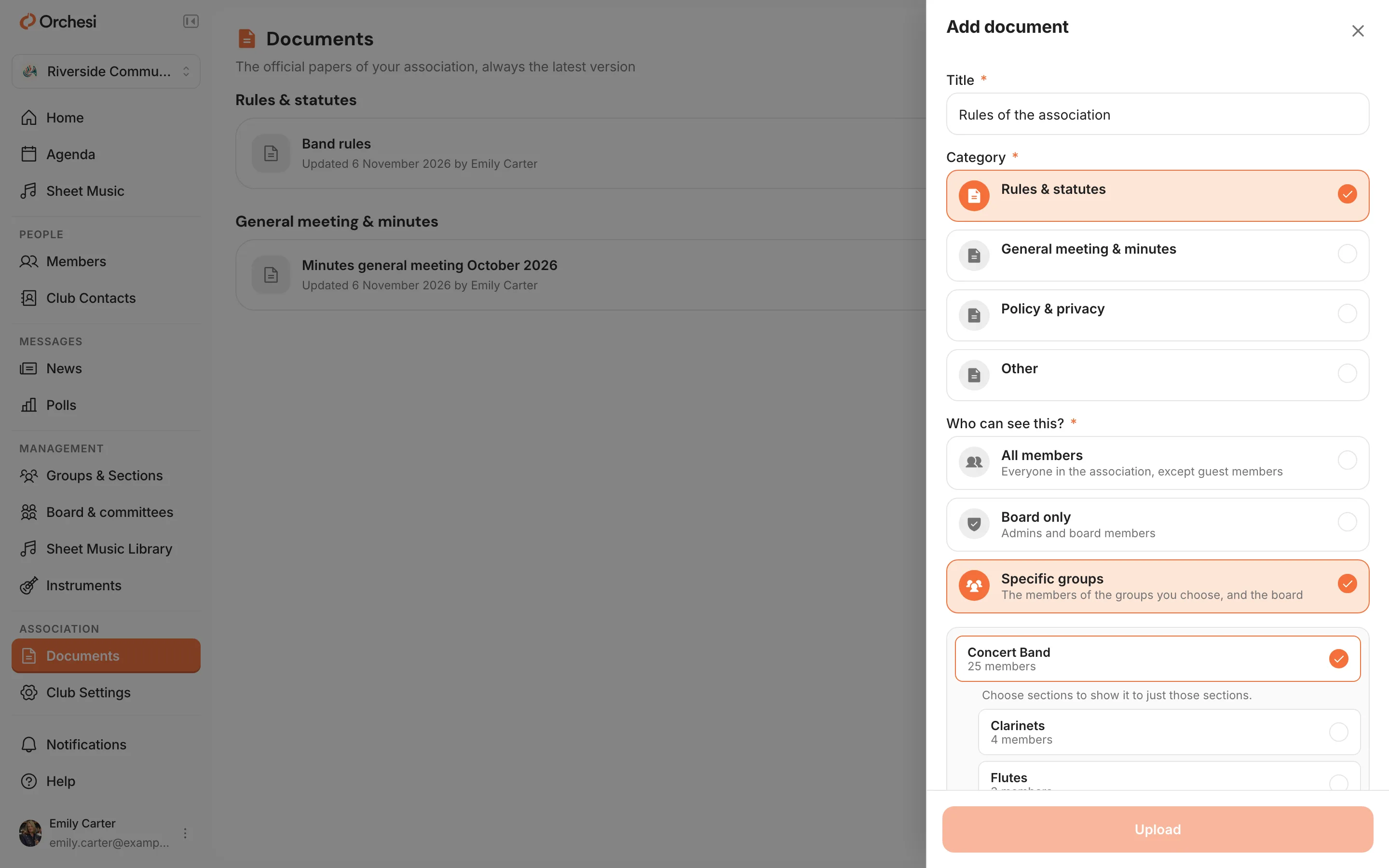
- Want members to know? Turn on Inform members: everyone who can see the document gets a notification.
- Click Upload.
The documents are sorted into four categories: Rules & statutes, General meeting & minutes, Policy & privacy and Other.
Use a PDF if you can: it opens right in the app. JPG, PNG and Word files (.docx) can be downloaded. A file can be up to 50 MB.
Who sees what
You choose per document who can see it:
- All members: everyone in the association, except guest members.
- Board only: admins and board members.
- Specific groups: the members of the groups you tick, and the board. When you tick a group, you can also choose sections of that group: then only those sections see it.
Admins and board members always see every document and every version. In the list they also see who a document is for, when that isn’t all members. Guests don’t see documents.
A new version
Have the rules changed, or are the minutes final? Upload a new version, so the document keeps its place and members always open the latest one.
- In Documents, tap the arrow next to the document.
- Tap New version, choose the file and, if you like, turn on Inform members.
- Tap Upload.
On the same screen you’ll find Edit details (title, category and who can see it), Delete, and under Versions the earlier versions.
- In Documents, click the ⋮ next to the document.
- Choose New version, choose the file and, if you like, turn on Inform members.
- Click Upload.
The same menu has Versions (the earlier versions), Edit details (title, category and who can see it) and Delete.
Deleting a document deletes all its earlier versions too. That can’t be undone.
For members: members find the documents in the app in the Club tab under Documents, and in the web app in the menu. They only see the current version.
Last updated:
Did this article help?
Great, thanks for letting us know!
Thanks! We’ll use this to improve the article.
Still stuck?