Done in about 2 min(How long it takes to do this in Orchesi)
Your association's storage
How much room your association has for sheet music and attachments, where you see how full it is, and what to do when it's almost full.
Where do you use Orchesi?
Everything your association puts in Orchesi, such as sheet music and attachments, is kept in your association’s storage. Every association has 10 GB as standard. Here you read what counts towards it, where you see how much room is left and what to do when it fills up.
What counts?
This counts:
- every part of your sheet music. Only the current version counts: when you replace a part with a new PDF, Orchesi deletes the old one;
- attachments to events and news posts;
- documents and pictures of the association’s instruments.
This doesn’t count:
- profile pictures and your association’s picture;
- documents and pictures of members’ own instruments;
- exports.
Good to know: when you replace a part with a new PDF, the old version is gone. You can’t restore it afterwards.
Who sees the storage?
- Admins and financial managers see how much room is in use in the Storage overview.
- Admins and sheet music managers get a notice on Home when the storage is almost full (see below). Sheet music managers also see it in the web app under Manage Parts, above the button for uploading PDFs.
- Everyone who adds files sees how full the storage is when a file is refused.
See how much room you use
- Go to Club Settings in the menu, Billing tab.
- Scroll to Storage. It says, for example, 7.1 GB of 10 GB, with a bar below it.
- Below that you see how much room each kind of file takes up: Sheet music, Event and news attachments, Instrument documents and Instrument pictures.
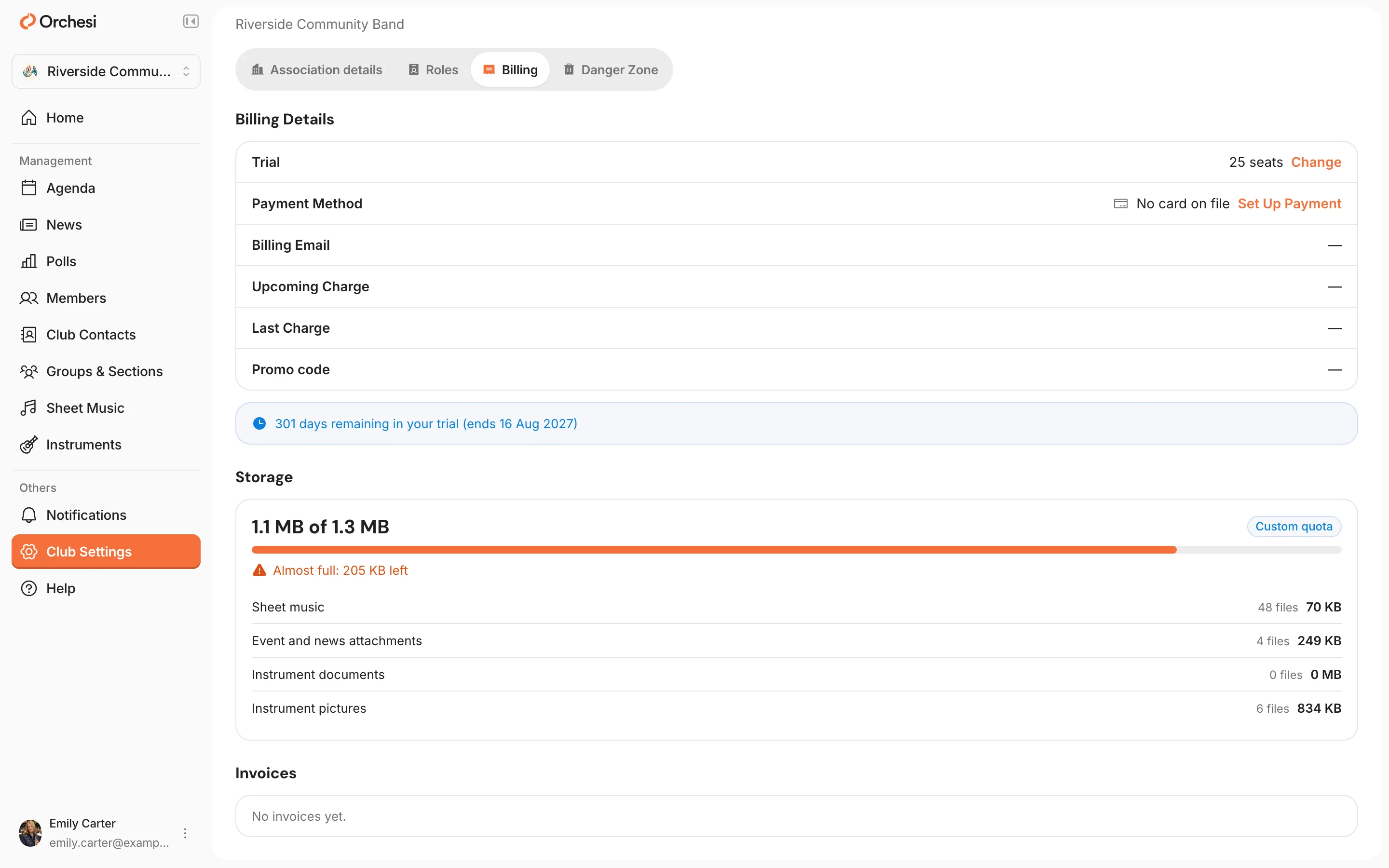
See how much room you use
- Open the Club tab, choose Settings and then Billing & Subscription.
- Scroll to Storage. It says, for example, 7.1 GB of 10 GB, with a bar below it.
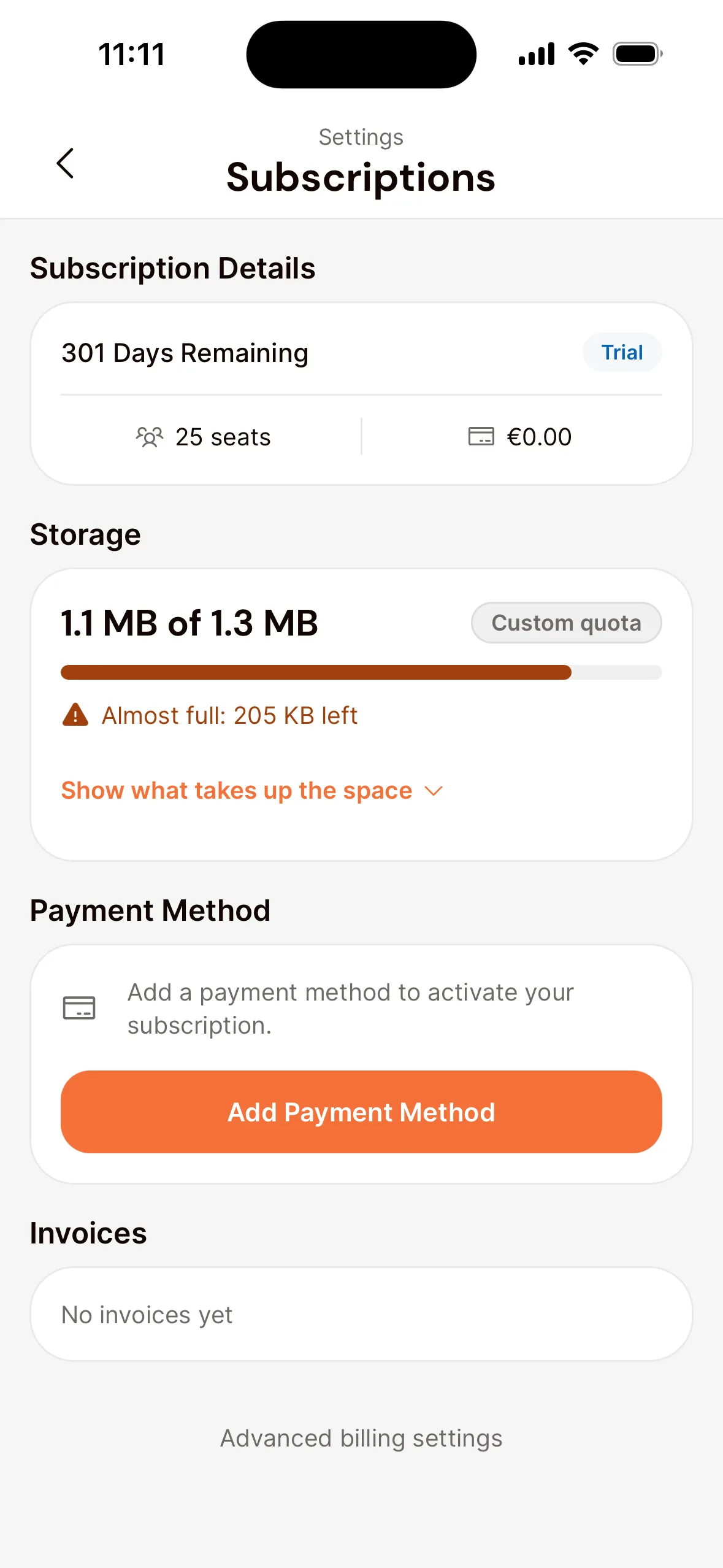
- Tap Show what takes up the space. You then see how much room sheet music, attachments, instrument documents and instrument pictures take up.
What the bar tells you
- Green: there’s plenty of room. Below the bar you see the percentage in use.
- Orange, from 80%: it says Almost full, with how much room is left.
- Red, from 100%: it says Full.
Next to the amount it says Free: that’s the standard 10 GB. If Orchesi has set a different amount for your association, it says Custom quota.
A notice when it’s almost full
Once the storage is 80% full, admins and sheet music managers see a notice such as Storage almost full: 8.5 GB of 10 GB in use. at the top of Home. If you’re an admin, tap or click the notice to go straight to the Storage overview.
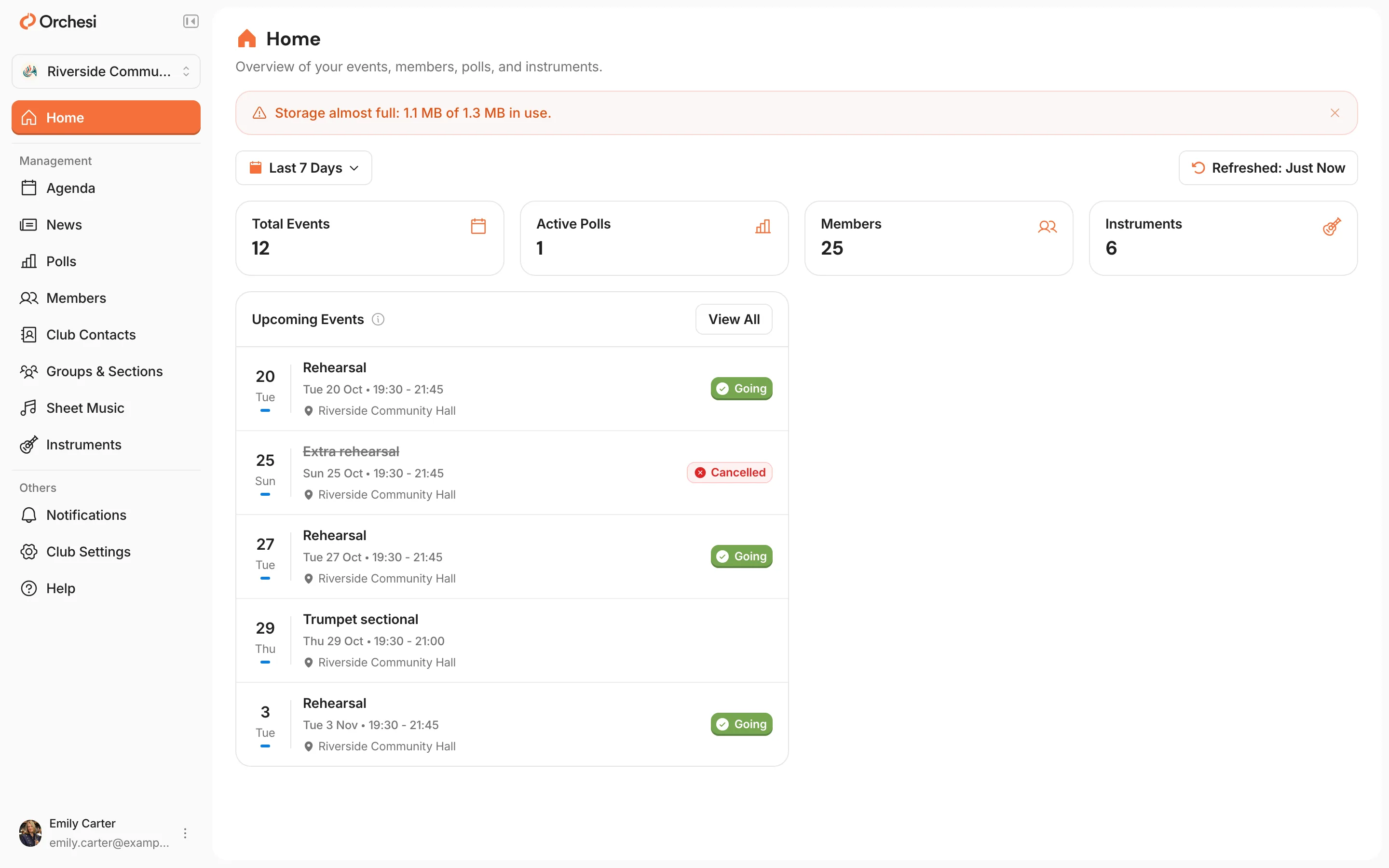
- The cross hides the notice. It comes back when the storage is 90% full, and once more when it’s full.
- When the storage is full, it says Storage full: …, or Storage full, uploads are blocked: … when new files are refused. You can’t hide that notice.
- When use drops below 80% again, the notice goes away by itself. If the storage fills up again later, it comes back.
In the web app, sheet music managers and admins also see how much room is left under Manage Parts, above the upload button, from 80%: for example Almost full: 1.5 GB of 10 GB free. Below 80% nothing shows there.
Emails to admins
Admins automatically get an email when the storage is 90% full, and another when it’s completely full. The email is in the language of your account. The View storage button opens the Storage overview in the web app, under Club Settings, Billing tab.
- Each email comes once. You only get it again after use has first dropped below 80%, for example because you deleted files or your association got more room.
- Financial managers and sheet music managers don’t get these emails. Financial managers see the usage in the Storage overview; sheet music managers see the notice on Home and the line under Manage Parts.
When the storage is full
When the storage is full, Orchesi may refuse new files. You then see a message such as Storage full: 10.1 GB of 10 GB in use. This file is 12 MB. Admins and financial managers also see View storage there, which opens the overview straight away.
Everything that’s already there stays available. Members open and download their sheet music and attachments as always. Orchesi doesn’t delete anything.
Make room
First check the overview under Storage to see which kind of file takes up the most room. Then delete what you no longer need:
- Sheet music: delete pieces you no longer play, or parts you no longer need. Deleting a piece removes all its parts. See Add and share sheet music.
- Attachments: remove large attachments from past events and old news posts. See Tasks and attachments for an event and Share news and run a poll.
- Instruments: delete pictures and documents of the association’s instruments that you no longer need. See Manage your association’s instruments.
Note: deleting can’t be undone. Not sure? Save a copy on your own computer first.
Need more room?
Can’t spare anything, or does your association simply need more room? Email support@orchesi.com, or send a message through Help & Support in the app. See Get help, report a bug or share an idea. Buying extra storage yourself isn’t possible yet.
Last updated:
Did this article help?
Great, thanks for letting us know!
Thanks! We’ll use this to improve the article.
Still stuck?